Set Up Mews PMS Integration
Most hotels enter the Access Token. AVA supplies advanced values when needed. This takes about 10 minutes.
This guide helps you connect AVA to Mews so reservations and guest details sync correctly. It also explains how AVA handles rate-included products, such as breakfast bundled into an OTA rate.
Where to Find It
Settings → Essentials → Property Management System (PMS) IntegrationQuick Reference
| Setting | What it controls | When you use it |
|---|---|---|
| Access Token | Connects AVA to Mews | Always |
| Advanced → Client Token | Required integration credential | Usually supplied by AVA deployment |
| Advanced → Client ID | Required Mews client identifier | Usually supplied by AVA deployment |
| Advanced → Demo Mode | Uses sandbox endpoints for testing | Only for test environments |
| Reservation comments | Pulls Mews service order notes into AVA | When AVA reads a reservation or live-billing refresh |
| Room payment waiver | Uses the returned invoice to decide waivers | When the invoice marks room payment as waived |
| Accommodation charge policies | Shows accommodation waive and hide controls in AVA payment settings | Only when your Mews connection exposes payment-policy support |
| Mews payment method mappings | Records selected captured methods under enabled Mews payment categories | When your property needs PromptPay, wallets, card brands, or custom sources classified differently |
| Guest identity documents | Supplies travel-document details when Mews has an identity document | During compliance reporting or document review |
| Guest document updates | Saves passport and identity-card details to Mews | After staff update guest information in AVA |
Before You Start
You'll need:
- Access to the Mews admin area
- The Access Token / Token ID for the AVA integration
- Admin permission to update PMS settings in AVA
If you don't have the Access Token, contact your Mews admin or AVA support.
Mews requires the Client Token and Client ID. AVA normally supplies them through deployment configuration. Do not invent values; ask support if the fields are empty.
How to Get Your Mews Access Token
Follow these steps in Mews:
-
Log in to Mews PMS
-
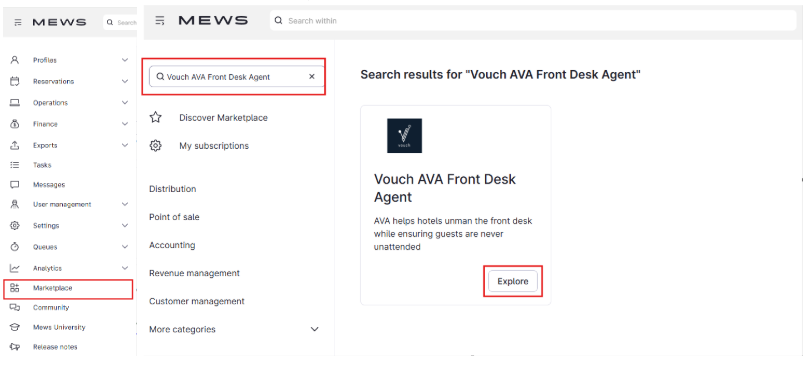
Click Marketplace in the sidebar
-
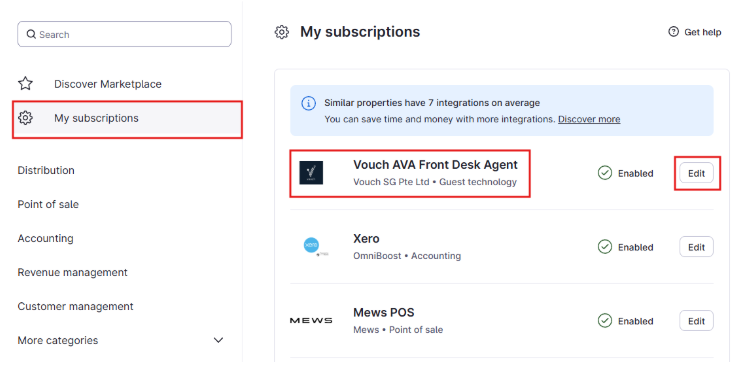
Click My Subscriptions
-
Find Vouch AVA Front Desk Agent
-
Click Edit
-
Open the Access Token section
-
Copy the Token ID
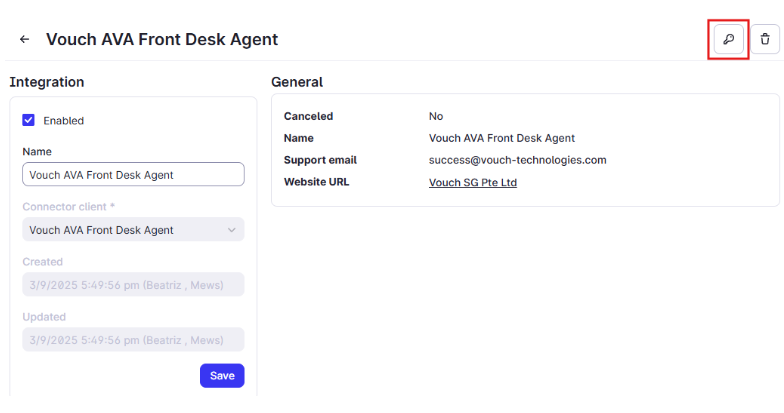
Paste the token into AVA right away so you don't lose it.
Configuration Steps
Step 1: Select Mews
- Go to Settings → Essentials → PMS Integration
- Click the Mews card
- The Mews configuration form appears
Step 2: Enter Access Token
- Paste the Token ID from Mews into the Access Token field
- The token is hidden after save for security
If you return later and see masked characters, leave them as-is and click Save. AVA keeps the saved Access Token, Client Token, and Client ID.
If you need Advanced Mews settings (support only)
- Click Advanced
- Enter the values support provided:
- Client Token
- Client ID
- Optional: Turn on Demo Mode if you are testing with sandbox endpoints
Do not change Advanced values unless support tells you to. Wrong values can stop syncing.
Step 3: Save
- Click Save at the bottom of the page
- Look for the success message
- The Access Token field shows a placeholder to protect the secret
What Happens After Connection
- ✅ AVA starts using Mews data for reservations and guest details
- ✅ The Access Token field shows masked characters
- ✅ Use Edit Token if you need to update the token later
- ℹ️ AVA keeps the current Demo Mode value when you save other Mews fields.
- ℹ️ Production does not force Demo Mode to OFF.
- ✅ Mews company names now fill reservation source labels when AVA can resolve them.
- ✅ Mews reservations are treated as hotel collect in AVA.
- ✅ Do Not Move room-lock status stays in sync with Mews.
- ✅ AVA skips blocked Mews rooms during automatic assignment and retries another clean room when possible.
- ✅ AVA pulls Mews service order notes into reservation comments.
- ✅ Matching notes can waive room payment when the invoice returns a waiver flag.
- ✅ AVA loads full invoice details before checking the waiver on single-reservation reads.
- ✅ AVA keeps unassigned Mews rooms visible in multi-room bookings.
- ✅ Availability checks read fresh Mews inventory across all result pages.
- ✅ Cancelled and waitlist reservations do not block a room when Mews reports them with excluded statuses.
- ✅ Guest profile updates can trigger automatic pre-arrival resend catch-up.
- ✅ Guest passport and identity-card updates save through Mews identity documents when permitted.
- ✅ If Mews refuses that permission, AVA uses a compatibility field automatically.
- ℹ️ Mews may take a few seconds before a newly saved document appears in every view.
- ✅ Mews document and photo uploads keep the original refusal status, so definitive rejections can be retried safely.
- ⚠️ A timeout or server error can have an unknown upload result. Check Mews before trying that upload again.
- ✅ Entitlement lookups use confirmation numbers and reservation IDs in the correct Mews search fields.
- ✅ If Mews changes a reservation during check-in, AVA verifies the exact reservation before reporting failure.
- ✅ When Mews already shows Started with an assigned room, AVA continues with that room without repeating check-in.
- ✅ Mews live billing rechecks configured payment-policy notes before it replaces a stored balance.
- ✅ Payment settings can map selected captured methods to enabled, property-specific Mews external categories.
- ✅ Unconfigured payment methods keep their default posting behavior.
- ✅ Full-invoice waivers can zero the payable balance while keeping deposit and payment records for audit.
- ✅ Shared Mews bills attribute payments to each reservation in the group.
- ✅ Charges routed to a bill owned by an unrelated account stay off the guest folio.
- ✅ Unlinked product-order charges are settled before AVA shares the remaining payment.
- ✅ Verified rate-included products, such as bundled breakfast, can follow a room-package waiver.
- ✅ Mews rate-group rules apply only to products included by the booked rate group.
- ⚠️ Products assigned to another rate group remain payable.
- ✅ Mews benefit postings normally use the occupied stay night, so a 27 August posting can appear for 28 August breakfast.
- ✅ Explicit same-day benefit schedules use their supplied redemption date, even when the product catalogue is unavailable.
- ✅ Room-relative service charges can follow a room-package waiver, even when Mews reports Once but posts them nightly.
- ✅ A positive balance up to THB 0.01 is suppressed when it is only an accommodation rounding residual after a waiver.
- ⚠️ Positive unclassified charges and genuine extras remain payable, including genuine THB 0.01 extras.
- ⚠️ AVA fails closed when it cannot prove a product's classification.
- ✅ Compare the complete Mews invoice before collecting an unexpected balance.
Guest & Staff Impact
- Guest forms adapt to Mews rules. Required fields and hidden fields change based on Mews configuration, so guests only see what is needed.
- Reservation lookup uses Mews. If Mews is not configured, the guest lookup step will fail.
- Eligible Mews lookups can continue faster. AVA uses the lookup result when it already identifies the main confirmation.
- Unique suffix matches can show a booking preview. The preview can appear while AVA finishes the live Mews reservation read.
- Live Mews data remains authoritative. AVA confirms the reservation from the live read before check-in continues.
- Room capacity follows the Mews room category. AVA counts the category's standard capacity and configured extra beds during reservation lookup and room sync.
- Extra beds count toward the Mews guest limit. AVA uses the combined capacity for room types, reservation rooms, and check-in occupancy checks.
- Unknown capacity stays unknown. If Mews returns an unknown category or zero capacity, AVA does not invent a guest limit.
- Mews accepts an extra guest above reported room capacity. AVA updates its local occupancy, while Mews keeps its guest count unchanged.
- Full rooms fail before guest creation. AVA checks available Mews companion slots before creating a new guest profile.
- Capacity refusals stay specific. When Mews still refuses a companion after recovery, AVA reports
GUEST_LIMIT_REACHEDinstead of a generic sync error. - A multi-room booker counts in one room only. AVA counts the booker where they register, check in, or submit their own document.
- A listed but unregistered booker does not fill every sibling room. Another room can attach the booker's passport to the existing Mews profile when matching is safe.
- Staying guests are protected during recovery. If Mews has a placeholder guest, AVA frees that placeholder before considering the booking owner.
- Departure dates use your hotel's timezone. AVA matches Mews departures to the local hotel date, including daylight-saving changes.
- Verified included products can follow waivers. AVA treats rate-included products as accommodation when Mews proves their inclusion.
- Rate-group rules stay scoped. AVA resolves the booked rate group before applying matching Mews product rules.
- Other rate groups remain payable. A product assigned to another rate group does not follow the waiver.
- Room-relative service charges stay included. AVA recognizes charges linked to the room-night product, even when Mews reports Once but posts them nightly.
- Staff lookup remains available. Staff can use Staff Access to compare the live PMS bill.
- Unclear waiver classification fails closed. When room payment collection is enabled, AVA routes the guest to the front desk during lookup. AVA withholds the unverified amount for staff review.
- Booking source labels can show Mews company names. If AVA can resolve a company name, it uses that name instead of a raw company ID.
- Mews source collect now defaults to hotel collect. That keeps source labels aligned with the reservation contract AVA receives.
- Locked rooms stay locked in AVA. If Mews marks a reservation as locked, Streamliner shows the lock icon in room-change views.
- Service order notes become reservation comments. Staff can review note text during reservation lookup.
- Waived room payments stay explainable. When Mews marks the invoice as waived, AVA shows the note text as the waiver reason.
- Live billing follows the same waiver rules. Room List rechecks the configured notes before it replaces a stored balance.
- Full waivers still keep audit records. AVA can show a zero balance and still preserve deposit and payment rows.
- Unclear billing needs review. AVA does not present an unverified waiver amount as collectible.
- Unexpected balances need review. Compare the displayed amount with the live Mews bill before collecting.
- Accommodation charge policies are capability-based. If Mews exposes them, AVA shows waive and hide controls in payment settings.
- Guest email changes can trigger resend catch-up. When Mews sends a guest update, AVA can re-send elapsed pre-arrival emails to the latest address.
- Check-in state changes are reconciled safely. If Mews changes the reservation during check-in, AVA checks the exact reservation once.
- Completed Mews check-ins are not replayed. When the reservation is Started with an assigned room, AVA uses that room and continues.
- Room moves use the current assignment. If staff move a room in Mews during check-in, AVA refreshes the operational reservation and room data before continuing.
- Old room data is not reused for check-in. AVA uses the current room for room details and avoids updating housekeeping for the previous room.
- Fresh operational reads can take slightly longer. AVA may request current reservation and room data from Mews instead of using a short-lived cached result.
- Availability checks prefer complete current data. AVA does not use an incomplete Mews page as a successful availability result.
Guest Document Numbers Come From Identity Documents
AVA does not treat a Mews tax ID as a passport or travel-document number. Reservation and check-in reads leave the document number blank unless Mews has an identity document.
Compliance reports request Mews identity documents separately. They use the available passport, identity card, or driver's licence number.
If a document number is missing:
-
Confirm the guest has a travel document in Mews.
-
Upload or scan the document in AVA when the guest arrives.
-
Refresh the reservation before reviewing the document details.
✓ Tax IDs do not appear as passport numbers in AVA.
Guest Document Updates Sync Safely
When you update guest information in AVA, document details use Mews identity documents. If Mews refuses identity-document writes, AVA uses its older customer document field automatically.
- Passport documents save as Mews Passport documents.
- Other supported identity documents save as Mews IdentityCard documents.
- AVA updates the matching document instead of creating a duplicate.
- AVA skips the write when the document is already current.
- Missing document fields do not clear values already stored in Mews.
- The compatibility fallback keeps matching stored fields before writing.
You do not need to change AVA settings when this fallback runs. Mews permission errors can temporarily route document updates through the compatibility field. Passport images use a separate upload and are not affected.
Mews can take about 2–3 seconds to show a document in every view. Refresh the reservation before checking the saved number or expiry date.
Multi-Room Bookings Stay Complete
AVA keeps every booked Mews room visible, even before Mews assigns a physical room. The main room stays first in the list. This helps staff see the full booking during lookup and check-in.
For Mews v2, each room also carries its room-category capacity when Mews provides a positive value. That capacity includes configured extra beds. AVA uses the combined value when it checks extra-guest registration.
When a booker registers in a different room, AVA can attach the booker to that room as a companion. AVA only does this when the room has a free companion slot. It does not remove another guest to make space.
The booker counts against only the room where they register. If they do not register in a listed sibling room, AVA leaves that room's capacity available. If they submit a passport there, AVA can attach it to their existing profile instead of creating a duplicate. This requires a safe name match and matching birth date, when available.
Shared Booking References Stay Separate
If multiple Mews reservations share an external booking ID or family ID, AVA keeps each reservation separate. Guest, room, dates, status, and totals stay on the reservation you opened.
Requested Stays Keep Their Own Identity
AVA keeps the requested Mews stay's confirmation, dates, guests, room, status, and financials together. This prevents a past or future repeat visit from supplying details for the current stay.
AVA includes same-group, same-service siblings only when their scheduled UTC stay windows overlap. Overlapping rooms remain available, with the requested room shown first. Sequential stays, adjacent time windows, invalid windows, and separate same-day slots remain separate.
The main confirmation number is a display convention for the scoped results. It does not replace the operational identity of the reservation you selected.
Shared Booking Emails Create Separate Guests
If two guests share the same booking email, AVA creates a separate Mews customer. AVA only reuses a customer when the document number matches an existing record. If AVA already has a direct Mews guest reference, it keeps updating that guest.
Guest Updates Stay Current
When Mews sends a guest profile update, AVA refreshes the guest record it uses for resend checks. If the guest email changed, AVA can re-send elapsed pre-arrival emails after sync.
AVA matches configured accommodation policy values exactly. Review the complete Mews invoice when a value does not match.
Live Billing Waivers
Use this when Room List or a reservation refresh should apply Mews payment policies again.
AVA checks fresh Mews service-order notes before replacing a stored balance. It only does that when at least one payment-policy list is configured.
Staff lookups remain available so staff can compare the reservation with the live Mews bill. When Mews proves a rate-included product belongs to the booked rate, the waiver covers that product. Room-relative service charges follow the same waiver, even when Mews reports Once but posts them nightly. A Once label alone does not create an extra charge or billing-review block. If AVA cannot prove the classification, it withholds the unverified payable amount for staff review. When room payment collection is enabled, AVA blocks reservation lookup and routes the guest to the front desk.
Small accommodation rounding residuals
After an accommodation waiver, Mews can leave a positive THB 0.01 residual from nightly service-charge rounding. AVA suppresses that residual before it reaches the payment flow when every positive charge section is accommodation. AVA still keeps unclassified charges and genuine extras payable, including genuine THB 0.01 extras.
AVA verifies a rounding product before treating it as accommodation:
- The product comes from a service order linked to the room reservation.
- Mews reports zero-priced Absolute pricing with Once frequency.
- The product uses the room's accounting category.
Only the verified product line follows the accommodation waiver. Unrelated or unverified product lines remain payable.
Check the complete Mews invoice when you see any positive balance. Collect the balance when it includes an extra or an unclassified charge.
When Mews returns a full-invoice waiver, AVA shows a zero payable balance. It still keeps deposit and payment records for audit. That lets staff review what was charged, even when the total becomes zero. When the live evaluation is verified, it can also replace a stale waived snapshot.
Refresh the reservation after Mews finishes syncing. That gives AVA the newest notes and invoice state.
Shared bills and group payments
When several Mews reservations share one bill, AVA attributes the bill's payment to each reservation. This keeps a fully paid group stay from appearing unpaid during checkout.
AVA also handles unlinked product-order charges before sharing the remaining payment. Charges consume available payment first, while credits increase the payment available to the group.
AVA still sends the bill for review when an order belongs outside the group or billing data is unclear. This protects guests from paying a charge that AVA cannot verify.
Settled receipts and closed invoices
Mews can close a Receipt after a rebate from another reservation settles its charges. AVA reads the current bill state before calculating the checkout balance.
| Mews bill state | AVA checkout result |
|---|---|
| Closed + Receipt | Treats the bill as fully paid with zero balance |
| Closed + Invoice | Checks for an unpaid balance |
AVA does not import another reservation's rebate into this reservation's invoice. This keeps reservation ownership correct while preventing a false checkout balance.
If Mews cannot return the bill, AVA keeps its computed balance for review. Check the complete bill in Mews before collecting an unexpected amount.
Charges routed to another account
Mews can move charges to a separate bill for an OTA, company, or other billing account. AVA leaves those charges and their payments off the guest's folio. The guest's own bill, companion bills, and group-member bills remain included.
AVA checks the bill owner when a line points outside the reservation's party. The bill owner's account takes priority over a stale line account. If AVA cannot read the bill or resolve the reservation party, it keeps the bill included. This fail-closed behavior prevents an unreadable bill from hiding a balance.
An OTA billing bill can remain open while the guest's payable balance is zero. Check the OTA or company bill in Mews when you need to review that settlement.
Troubleshooting
"Access Token is required" Error
What you see: "Access Token is required"
Fix:
- Paste the Token ID from Mews
- Click Save again
- ✓ The error disappears once saved
Token Saved But No Data Syncing
What you see: You saved the token, but reservations do not appear
Fix:
- Wait 10-15 minutes for the first sync
- Refresh the page and confirm Mews is still selected
- Ask your Mews admin to confirm the AVA subscription is active
- Contact AVA support if the issue continues
Masked fields return after reload
What you see: The Access Token or advanced fields show masked characters after you reload the page.
Fix:
- Leave the masked values in place.
- Click Save again.
- ✓ AVA keeps the saved Mews credentials.
You cannot find Client Token, Client ID, or Demo Mode
What you see: You do not see Client Token, Client ID, or Demo Mode fields
Fix:
- Click Advanced
- ✓ The advanced fields appear inside the Advanced section
Demo Mode is on, but syncing looks wrong
What you see: Missing reservations or unexpected test data
Fix:
- Turn off Demo Mode
- Click Save
- Refresh the page and check your connection status
- Contact support if the issue continues
Demo Mode does not match after saving
What you see: The Demo Mode checkbox changes after refresh, or does not match the saved Mews setting.
Fix:
- Open Advanced.
- Check the Demo Mode value.
- Save only the change you want.
- Refresh the page.
- Contact support if the checkbox still disagrees with the saved Mews config.
A room does not appear in room changes
What you see: The room is missing from Allow move room.
Fix:
- Check the reservation in Mews.
- Remove the room lock if the room should be movable.
- Refresh the reservation in AVA.
- Try the room change again.
Mews blocked room assignment
What you see: Check-in or room change shows "space is blocked" or "room unavailable".
Fix:
- Wait for AVA to try another clean room.
- Assign a different room in Mews if no clean room is available.
- Refresh AVA and try again.
Room List still shows a balance after a waiver
What you see: Room List still shows payment after Mews should waive it.
Why this happens: The balance may be a genuine extra, an unclassified charge, or more than THB 0.01.
Fix:
- Check the reservation's complete invoice in Mews.
- Confirm the reservation matches Accommodation Charge Policies.
- Make sure the policy values are still configured in AVA.
- Refresh the reservation after Mews sync finishes.
- Do not collect an unverified amount.
- Ask front-desk staff to review the invoice.
AVA suppresses a positive THB 0.01 balance only when it is an accommodation rounding residual after a waiver. Genuine or unclassified THB 0.01 charges remain payable.
Room payment is still payable
What you see: A Mews reservation still asks for room payment.
Why this happens: The waiver did not match, or AVA needs to verify the billing classification.
Fix:
- Open the reservation in Mews.
- Check the complete invoice.
- Confirm the reservation matches Accommodation Charge Policies.
- Refresh the reservation in AVA.
- Do not collect an unverified amount.
- Contact support if the payment still appears.
Bundled product needs review
What you see: An included Mews product, such as breakfast, needs billing review.
Why this happens: AVA could not prove whether the product belongs to the booked rate.
This can happen when the Mews rule uses a rate group that AVA cannot resolve. Products from another rate group remain payable.
A service charge linked to the room-night product should not need review only because Mews reports Once. If review remains, check for another unclassified product or an invoice mismatch.
Fix:
- Check the rate's included products and complete invoice in Mews.
- Confirm the reservation matches a value in Accommodation Charge Policies.
- Refresh the reservation in AVA.
- Do not collect an unverified amount.
- Ask front-desk staff to review the complete Mews invoice.
Guest is sent to the front desk during lookup
What you see: The guest sees a front-desk review message after reservation lookup. The guest cannot continue to the rooms or payment steps.
Why this happens: A configured accommodation policy matched, but Mews could not classify a charge.
Fix:
- Review the Mews rate, included products, and complete invoice.
- Confirm the matching value in Settings → Payment → Accommodation Charge Policies.
- Refresh the reservation after Mews finishes syncing.
- Confirm the payable amount with the complete Mews invoice.
- Ask front-desk staff to complete the check-in when review remains necessary.
AVA does not use a stored balance or collect an unverified amount.
Mews billing needs review
What you see: The displayed Mews balance differs from the complete invoice.
Why this happens: AVA could not prove the waiver's product classification.
Fix:
- Open the reservation through Staff Access.
- Review the reservation rate, included products, and complete invoice in Mews.
- Confirm the configured policy matches the room package.
- Refresh AVA after Mews data is complete.
- Collect only an amount that AVA and Mews both confirm as payable.
- Contact AVA support if the amounts still differ.
Mews billing refresh takes too long
What you see: Self check-in or a billing refresh shows 504 Mews view-billing deadline exceeded.
Why this happens: Mews did not return fresh billing details before AVA's 40-second billing limit. AVA can use the stored billing snapshot while the live read is unavailable.
Fix:
-
Compare the displayed balance with the complete invoice in Mews.
-
Refresh the reservation in AVA once.
-
Do not collect an amount that Mews does not confirm.
-
Ask front-desk staff to complete the check-in if the balance remains unclear.
-
Contact AVA support if the timeout keeps returning.
✓ The guest should see a clear result instead of waiting indefinitely.
Paid group stay shows a balance
What you see: A group stay appears to owe money, but the shared Mews bill is already paid.
Why this happens: Mews may place several reservations and payments on one shared bill.
Fix:
- Open the complete shared bill in Mews.
- Confirm the bill is closed and the payment covers the group total.
- Refresh the reservation in AVA after Mews finishes syncing.
- Try checkout again.
- Contact support if the balance still does not match the paid bill.
Routed charges still appear on the guest bill
What you see: The guest bill includes charges moved to an OTA, company, or other account.
Why this happens: Mews may still be syncing the bill owner or the bill is unreadable.
Fix:
- Open the reservation's bills in Mews.
- Confirm the routed bill owner is outside the guest's party.
- Confirm the charge lines are on that routed bill.
- Refresh the reservation in AVA after Mews finishes syncing.
- Do not collect the routed amount from the guest.
- Contact AVA support if the amount remains after refresh.
Waiver reason looks wrong
What you see: AVA waives the room payment, but the reason text is unexpected.
Fix:
- Check the Mews service order note that matched.
- Confirm the note text is the one you expect.
- Remember that AVA matches whole words only.
- Contact support if the waiver reason still looks wrong.
Lookup shows details from another Mews stay
What you see: A repeat visit appears with another stay's room, guests, dates, or balance.
Fix:
- Confirm the requested confirmation number in Mews.
- Check the stay's scheduled start and end times.
- Confirm the room belongs to the requested stay.
- Refresh the reservation in AVA.
- Ask support to review the lookup if details still belong to another stay.
AVA may show overlapping rooms from the same Mews service. Sequential or adjacent stays remain separate, even when they share a group or booking reference.
Mews check-in shows the previous room
What you see: Staff moved the reservation in Mews, but AVA still shows the previous room.
Why this happens: The room changed while the check-in screen was open.
Fix:
-
Confirm the current room assignment in Mews.
-
Refresh the reservation in AVA.
-
Confirm the new room appears before continuing.
-
Continue check-in once the room details match Mews.
-
Contact AVA support if the previous room still appears.
✓ AVA should use the current Mews room for check-in. ✓ The room's guest limit should follow its new Mews room category.
Do not retry repeatedly when the room still looks wrong. Include the reservation confirmation, both room numbers, and the time of the move when contacting support.
Guest document is not visible in Mews yet
What you see: AVA saved a guest document, but Mews does not show it immediately.
Why this happens: Mews can delay identity-document reads for about 2–3 seconds after a write.
Fix:
-
Wait a few seconds.
-
Refresh the reservation in AVA.
-
Check the guest's identity documents in Mews again.
-
Retry only if the document is still missing.
✓ The document should appear after Mews finishes processing the update.
Mews rejects a changed guest document
What you see: AVA shows an error while saving a changed guest document.
Why this happens: Mews rejected the update for a reason other than the known permission refusal, or found a conflicting document.
Fix:
-
Confirm the guest and document number in Mews.
-
Wait a few seconds if another update just finished.
-
Refresh AVA.
-
Retry the guest update once.
-
Contact support if the same document remains rejected.
✓ A single retry is safe and does not create a duplicate document.
Mews rejects a document or photo upload
What you see: AVA shows a specific Mews error after a document or photo upload.
Why this happens: Mews rejected the upload before accepting the file. AVA keeps the original HTTP status so you can act on the real refusal.
Fix:
-
Read the full error shown in AVA.
-
Check the guest and reservation in Mews.
-
Correct the document, file type, or Mews permission when the message identifies one.
-
Retry the upload once.
-
Contact support if the same refusal continues.
✓ A definitive rejection releases the retry protection for that upload.
Do not repeat an upload after a timeout or server error until you check Mews. The file may already exist even when AVA did not receive the final response.
Mews reaches the guest limit
What you see: AVA shows GUEST_LIMIT_REACHED while adding a companion or uploading a new guest document.
Why this happens: The Mews reservation has no available companion slot. AVA checks this before creating a new Mews guest profile.
Fix:
-
Refresh the reservation in AVA.
-
Check the guest count and room capacity in Mews.
-
Confirm the companion was not already added.
-
Assign the document to an existing guest when the room is full.
-
Retry once so AVA can free an eligible placeholder before considering the booking owner.
-
Contact support if Mews shows capacity but AVA still rejects the guest.
✓ AVA refuses the new guest before creating an orphan Mews profile.
Verification Checklist
- Mews is selected in Select PMS Provider
- Access Token is entered and saved without errors
- The Access Token field shows masked characters after refresh
- Reservations begin syncing from Mews
Still Stuck?
Contact success@vouch-technologies.com if:
- ❌ Syncing does not start after 15 minutes
- ❌ You see a save error you cannot resolve
- ❌ You need Advanced settings and do not have values
- ❌ The live balance still does not match Mews after refresh
- ❌ A full waiver does not clear the accommodation balance
- ❌ The displayed balance differs from the complete Mews invoice
Helpful to include:
- Screenshot of the PMS Integration section
- Your PMS provider (Mews)
- The exact error text, if any
- Reservation confirmation number
- Screenshot of the Mews note and AVA balance
- Time the invoice last synced