Keycard Encoder Troubleshooting
Check network and power first, then re-try encoding a single card. This takes about 2 minutes.
This guide helps you resolve common keycard encoder issues.
Quick reference
| What you see | Why it happens | Do this |
|---|---|---|
| Encoder not responding | Power or network issue | Check connectivity |
| "We could not determine the room for this reservation." | The PMS room lookup returned no usable room | Retry room resolution |
| Room occupancy shows Unknown or keycard encoding is blocked | AVA could not verify occupancy for the exact assigned room | Refresh the assigned-room status |
| Linked reservation still cannot encode | The selected confirmation is missing, ambiguous, or failed PMS validation | Verify the selected reservation |
| Cards not encoding | Card type or device issue | Verify card and device |
| Some cards succeed and others fail | Manual encoding returns per-card results | Review each card result |
| Plain-language keycard failure | AVA normalized a vendor, room, or session error | Read the message |
| Adem says the card is not blank | The card already contains data | Use a blank Adem card |
| Keycard timeout guidance | The vendor server or software did not respond in time | Check the vendor service |
| "Invalid Saflok configuration" or "UserCredentialsNotProvided.NotApplicable" | Saflok credentials are missing, incomplete, or disabled | Fix Saflok configuration |
| Saflok/Ambiance encoding fails or times out | Windows Agent, Ambiance encoder service, or device is offline | Restart Saflok/Ambiance encoder |
| "Please create a new keycard first, then use Duplicate for any extra cards." | Saflok cannot find an existing active registration for the reservation | Fix the missing first keycard |
| Front desk checked in the main guest before ACI, then ACI requests a DUPLICATE card | The main guest is already in the room | Keep the main guest's card active |
| A late sharer receives a DUPLICATE first card | Another guest is already in the room | Keep the existing guest's card active |
| Multi-room Saflok/Ambiance card needs a room-level ID | The selected room does not have its own sub-reservation yet | Check the selected room |
| "The keycard encoder is temporarily offline. Please approach the Front Desk for assistance." | The encoder has no active session | Check the encoder session |
| Encoding stops after a PMS room move | The room changed while the keycard session was open | Refresh and restart encoding |
Raw DoorLock generate fail or internal error text appears | A technical room-access payload leaked through the modal | Use the generic retry path |
| "Request timezone does not match the hotel timezone" or "Hotel timezone configuration is invalid" | The hotel timezone is missing, invalid, or conflicts with request metadata | Check the hotel timezone |
| Encoder type change does not stick | Previous save left mixed encoder states | Re-save encoder type |
| "Test Connection" fails (Be-Tech) or agent stays offline | Base URL, adapter, or service issue | Fix Be-Tech connection |
| Be-Tech client or service stops after restart or manual stop | The agent is recovering the local vendor client | Wait for Be-Tech recovery |
| "Make sure the Be-Tech client program is running on the encoder computer." | The Windows Agent returned a 502 vendor-unavailable response | Check the Be-Tech client program |
| "Test Connection" fails (GreatLocks) | Saved GreatLocks server details are missing or stale | Fix GreatLocks connection |
| GreatLocks asks you to select an encoder | Multiple GreatLocks servers or agents are available | Select the GreatLocks encoder |
| GreatLocks inventory does not load | Agent tunnel, server record, or inventory source issue | Check GreatLocks inventory sync |
| PMS encoder discovery returns no results | Wrong PMS vendor, or the PMS exposes no terminals | Check PMS discovery |
| Opera route is ambiguous or incomplete | Opera returned duplicate or missing Door Lock routing details | Fix Opera route details |
| "OPERAWS-FOF01920" appears during a card read | An old or invalid interface value was sent to Opera | Refresh the Opera route |
| "OPERAWS-FOF00199" appears during a card read | Opera cannot reach the configured Door Lock System | Check Door Lock connectivity |
| PMS card reading is unavailable | Reading setting, PMS capability, or active encoder issue | Check PMS card reading |
| No card is detected | The reader found no card | Reinsert the card |
| Card type is unsupported | A card is present, but the encoder does not recognize its type | Use a supported card |
| Card cannot be read | A card is present, but the encoder cannot read its data | Try another card |
| Opera card read shows a generic failure | Opera returned an empty or invalid card response | Check the Opera card response |
| PMS kiosk cannot resolve its encoder | Device Model and legacy kiosk mappings use different labels | Check PMS kiosk mapping |
| Kiosk or encoder verification requested | Saved kiosk context, staff verification, or target settings changed | Verify the kiosk target |
| Adem settings do not save | A vendor-defined setting or encoder-entry rule is missing | Validate Adem setup |
| "Test Connection" fails (Adem) | The saved configuration, Windows Agent, SQL Server, or reader is unavailable | Fix Adem connection |
| Adem read diagnostic returns an unexpected result | The selected port, SQL settings, reader state, or SDK returned a diagnostic outcome | Interpret the Adem diagnostic |
| Adem shared agent rejects encoders | Shared encoders use USB 0 or duplicate COM ports | Fix Adem port assignments |
| "Service URL is required" (LockSDK) | Direct mode needs a Service URL per encoder | Add LockSDK service URL |
| LockSDK agent shows Not registered | No per-encoder agent device exists yet | Register LockSDK agent |
| Heartbeat Monitor turns off after save | Save did not persist in your current hotel session | Re-save Heartbeat Monitor |
| Heartbeat shows unreachable | Agent offline or tunnel issue | Check agent status |
| Heartbeat shows unknown | AVA could not verify the encoder state | Check unknown status |
| Heartbeat reports a status or tunnel error | The diagnostic check or agent tunnel failed | Check the reported error |
| Google Chat reports an encoder problem | The encoder briefly failed, recovered, or is still down | Follow the alert |
| Encoder stays unavailable | Dynamic lists still see the agent as disconnected | Check live encoder status |
| Windows Agent shows Not connected | Agent not running or install incomplete | Reconnect agent |
| "This Windows Agent is too old to read keycards" | The installed agent does not include Read Keycard | Update the Windows Agent |
| Pending encoder setup sync | Saved assignments differ from the agent's applied setup | Sync the agent setup |
| "The encoder tunnel is offline" | The Universal Encoder Agent tunnel is unavailable | Reconnect the encoder tunnel |
| Windows asks for permission | Tray service control needs elevation | Approve the UAC prompt |
Reservation room cannot be resolved
What you see: After selecting an encoder, AVA says "We could not determine the room for this reservation."
Why this happens: The authenticated PMS lookup returned no usable room identity.
Fix:
- Refresh the reservation or Operations View.
- Confirm the reservation has an assigned room in your PMS.
- Start the reservation, check-in, or key management flow again.
- Select an online encoder when AVA asks.
- Contact support if the message returns after the PMS room is assigned.
AVA accepts valid PMS room identities, including long AVA PMS identifiers. Do not shorten or edit the PMS room identity manually.
Assigned-room occupancy is unknown
What you see: Room occupancy shows Unknown, or AVA blocks keycard encoding.
Why this happens: AVA could not verify occupancy for the exact assigned room. It does not use another room's occupied status as a substitute.
Fix:
-
Confirm the reservation has the correct assigned room in your PMS.
-
Confirm the room belongs to the selected reservation, not a linked sibling.
-
Refresh the reservation or Operations View in AVA.
-
Start the keycard flow again after the PMS update appears.
-
Contact support if occupancy remains unknown after one refresh.
✓ AVA should encode only after the assigned room's occupancy is verified.
Linked reservation room cannot be verified
What you see: A secondary room in a linked booking still cannot encode.
Why this happens: The selected room's confirmation is missing or does not match its PMS room. An upstream PMS read can also fail, or return more than one possible room.
Fix:
- Confirm the selected room and its confirmation number in your PMS.
- Refresh the reservation or Operations View in AVA.
- Open the selected room again and retry keycard encoding.
- Do not use an old room number to choose a sibling reservation.
- Contact support if the PMS response remains ambiguous or unavailable.
AVA checks the selected reservation before encoding. It blocks moved, checked-out, or wrong-sibling rooms rather than issuing an unsafe card.
Room move still shows the old keycard state
What you see: The room changes during encoding, or AVA shows the old keycard state.
Why this happens: The PMS assignment changed after the keycard session opened. AVA blocks the stale request before calling the physical encoder.
Fix:
-
Confirm the new room assignment in your PMS.
-
Let AVA refresh the reservation after the conflict appears.
-
Reopen the keycard action after the old encoding session closes.
-
Confirm the refreshed room number before encoding.
-
Choose NEW for the first card in the new room.
-
Choose DUPLICATE for additional cards in that room.
✓ The stale attempt makes no encoder call. ✓ The refreshed room requires a new guest action.
Do not keep clicking Try Again in the closed session. If the refresh fails, AVA closes the session and shows an error. Refresh the reservation manually, then reopen the keycard action.
AVA keeps guest verification and earlier keycard history. It does not reuse the old room's completion for the new assignment. If the PMS temporarily shows no room, wait for reassignment, refresh, and retry.
Late sharer receives a duplicate card
What you see: A sharer arrives later through ACI on the same reservation. AVA requests a DUPLICATE card, even when that sharer has no earlier card.
Why this happens: Another guest from the reservation is already in the room. AVA protects the in-house guest's card from being cancelled by a new card.
Fix:
- Confirm the sharer has the same room as the guest already in-house.
- Let AVA continue with DUPLICATE.
- Do not change the request to NEW while another guest remains in the room.
- If the encoder rejects the duplicate, follow the displayed error instructions.
- Refresh the reservation and retry once if the error is temporary.
- Contact support if the encoder continues rejecting the card.
Guests checked in by the current arrival decision still use the normal first-card behavior. Earlier arrivals on the same reservation count as guests already in the room.
Front desk checked in main guest before ACI
What you see: The front desk checked in the main guest in the PMS. Later, staff check in a sharer through ACI. AVA requests a DUPLICATE card for the main booking or shared room.
Why this happens: AVA recognizes the main guest as already in the room. A NEW card could cancel the main guest's working card.
Fix:
-
Confirm the main guest's PMS status is Checked in or In house.
-
Confirm the sharer uses the same room.
-
Continue with DUPLICATE when AVA selects it.
-
Do not change the request to NEW.
-
Contact support if the existing main-guest card stops working.
✓ The main guest's card remains active. ✓ The sharer receives access without replacing the existing card.
If ACI checked in the main guest during the same arrival decision, AVA can still use NEW for the first card. This guide applies when the front desk completed the PMS check-in before ACI started.
Encoder not responding
What you see: Encoder shows offline or no response in AVA.
Fix:
- Check power and cabling for the encoder.
- Verify network connectivity between kiosk and encoder (Direct Connection only).
- Confirm the server IP and port are correct.
- Restart the encoder software.
Cards not encoding
What you see: Keycard write fails or produces a blank card.
Fix:
- Confirm the card type matches your encoder.
- Reinsert the card and try again.
- Test with a new blank card.
- If Enable guest selection is off, verify the kiosk is routed to the correct encoder.
- If Enable guest selection is on, confirm the guest selects an online encoder at the kiosk.
Normalized encode failures
What you see: The reservation modal shows a short, plain-language message instead of a raw vendor string.
Why this happens: AVA now preserves normalized Saflok, Be-Tech, Adem, Opera, and internal session failures before showing them.
It prefers the structured message first, then falls back to older vendor-string parsing when needed.
HTTP 504 room-access timeouts stay on this same path with KEYCARD_VENDOR_TIMEOUT.
Staff alerts and the related log details use the same normalized failure category.
For example, a card-present error is not reported as No card detected.
When AVA resolves a device before the failure, the check-in log can also show the routed encoder name or Encoder ID.
Kiosk requests can identify the encoder selected by the kiosk mapping.
Failures before routing do not include encoder details.
Fix:
- Read the short message first.
- Open the failed event in Detailed Event Log and select Show Details.
- Note the routed encoder name or Encoder ID, when shown.
- Look for
userMessage,errorCode,retriable, vendor name, and safeupstreamdetails. - Use those details when you contact support.
- Match the message to the most likely fix below:
- Occupied room: Refresh the reservation, then try again.
- Encoder offline: Check power, network, or agent status.
- No card detected: Reinsert the card and check its placement.
- Unsupported card type: Use a card type supported by this encoder.
- Card could not be read: Try another card and check for damage.
- No active session: Reconnect the encoder session.
- Missing mapping: Confirm the room mapping is correct.
- Invalid room or date: Verify the stay dates and room assignment.
- Vendor auth, gateway, or timeout: Check vendor access or retry later.
- HTTP 504 timeout: Retry after a short wait.
- Adem card is not blank: Use a blank spare card, or ask authorized staff to erase the reusable card in Adem first.
- Invalid request: Reopen the correct reservation and try again.
- If
retriableistrue, retry after a refresh. - If
retriableisfalse, fix the mapping or vendor issue first.
Some cards succeed and others fail
What you see: A manual batch reports both successful and failed cards.
Why this happens: AVA processes each card separately and keeps the result for each one. The batch can return HTTP 200 while individual cards fail.
Fix:
- Check Success count and Failure count.
- Give guests the cards marked successful.
- Read the guidance on each failed card.
- Fix the immediate issue before retrying a failed card.
- Retry only cards marked retriable or showing retry guidance.
- Use the error code, vendor, and safe details when contacting support.
Do not retry the whole batch automatically. Already successful cards remain valid unless you start a replacement workflow.
Keycard timeout guidance
What you see: AVA says to check that the keycard vendor's server or software is running and working before retrying.
Why this happens: The vendor did not respond before AVA's keycard request timed out. For Be-Tech, AVA now waits up to 30 seconds for each vendor request. This applies to keycard issue, status, disable, and connection-test requests. Connection-refused and client-not-running errors return sooner.
Fix:
- Check that the vendor server is powered on and reachable.
- Check that the vendor's keycard software or local service is running.
- Confirm the encoder computer has network access to the vendor service.
- Wait briefly after restarting the service, if needed.
- If you use Be-Tech, check whether the card was written before retrying.
- Retry the keycard action once only when you know no card was issued.
- Open Command Center → Status → View Details if the retry fails again.
- Include the displayed error code when you contact support.
Be-Tech can finish writing a card after AVA stops waiting. An immediate retry can issue a second card. Check the card and encoding status before retrying.
The timeout guidance appears in your selected AVA language. It applies to keycard vendors only. Smart-lock timeouts keep the general room-access guidance.
Older responses can still show legacy vendor strings. AVA keeps that parsing path so historical logs and older integrations still read correctly.
Adem card is not blank
What you see: Adem reports that the card is not blank.
You may also see the code 0xFFFF0007 in support details.
Why this happens: The card already contains data, and Adem's default overwrite setting is disabled. AVA does not erase or overwrite the card automatically.
Fix:
-
Remove the rejected card from the encoder.
-
Use a new blank spare card.
-
Retry Create Keycard.
-
If you must reuse the card, ask authorized hotel staff to erase it in the Adem lock software first.
-
Retry only after the erase is complete.
✓ The staff-facing message tells you to use a blank card. ✓ The reservation and room mapping stay unchanged.
Do not keep retrying the same rejected card. Contact support with the numeric code and original vendor message if a blank card also fails.
Hotel timezone prevents keycard encoding
What you see: The keycard flow stops before PMS returns a room key. You may see "Request timezone does not match the hotel timezone" or "Hotel timezone configuration is invalid."
Why this happens: AVA formats keycard validity as the property's local wall clock, not UTC. It fails closed when the hotel timezone is missing or invalid. It also fails when request timezone data conflicts. Manual and reservation-based keycard flows use the same saved property timezone.
Fix:
- Go to Settings → Essentials → Hotel Basic Details.
- Confirm Timezone is valid and matches the property's local clock.
- Save the change if you update it.
- Refresh the reservation or reopen the keycard flow.
- Try the keycard request again.
AVA uses the newest saved timezone after you save the setting. It does not fall back to UTC or another default timezone.
Saflok/Ambiance encoding not working
What you see: Keycard encoding fails, times out, or the kiosk reports no response from the Saflok/Ambiance encoder.
Fix: Work through these three checks in order. Each one rules out a common cause before you move to the next.
If Saflok PMSI starts slowly or restarts later, AVA rechecks readiness every 10 seconds. Wait briefly, then refresh before reinstalling the agent.
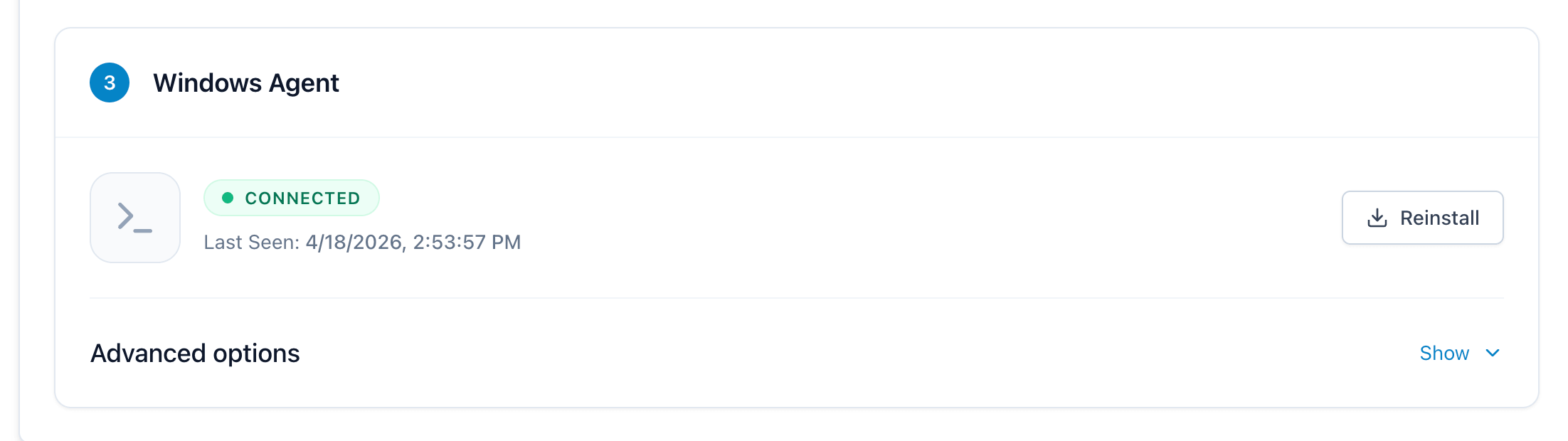
1. Check the Windows Agent is connected in AVA
-
Go to Settings → Room Access → Keycard Encoding.
-
Find the Windows Agent card for this encoder.
-
Confirm the status shows Connected and the Last Seen time is recent.
-
If the agent is Not connected, follow Windows Agent not connected before continuing. If Saflok PMSI was still starting, wait 10 seconds and refresh once before reinstalling anything.
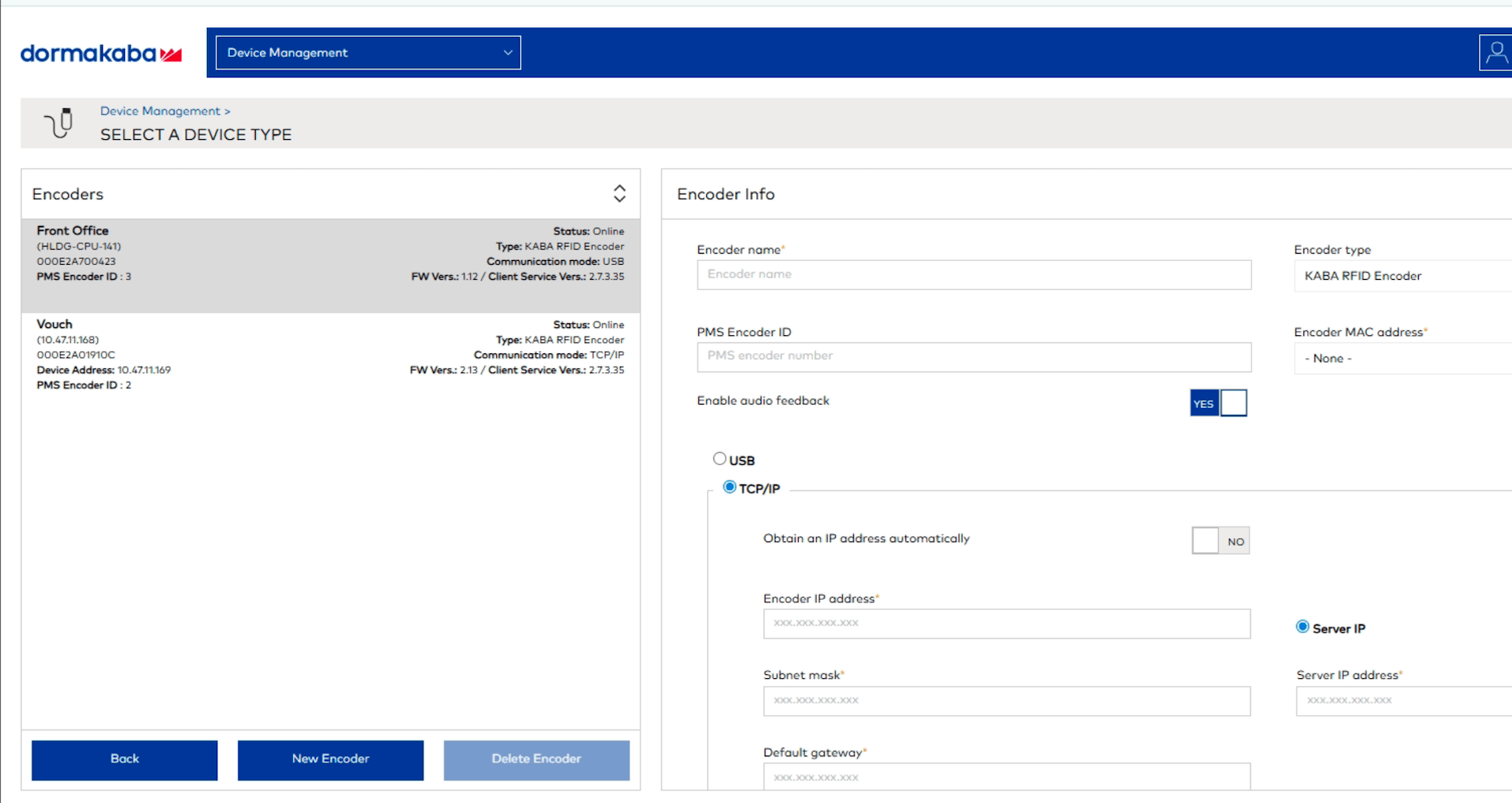
2. Check the encoder is online in Ambiance
If the agent is connected but encoding still fails, log in to the Ambiance server and verify the encoder device.
-
Open Ambiance and go to Device Management → Encoders.
-
Find the encoder for this kiosk (for example, the Vouch encoder).
-
Confirm the Status shows Online.
-
If the encoder shows Offline, continue to step 3 to restart the encoder service.
3. Restart the Ambiance Encoder Service
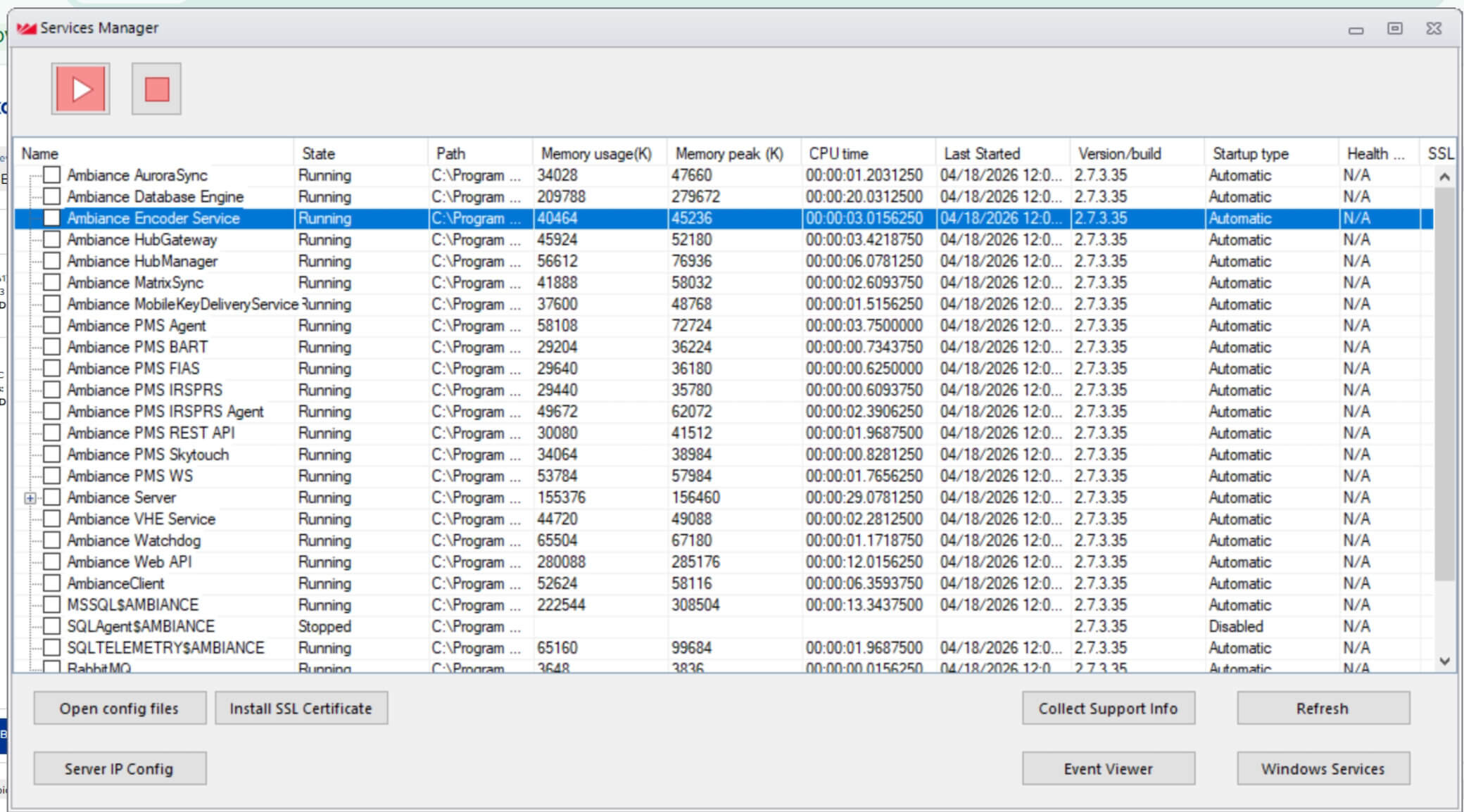
If the encoder is offline in Ambiance, restart the encoder service on the computer where the Ambiance server is installed.
-
On the computer running the Ambiance server, press the Windows key or click the Start menu.
-
Type
services managerand open Ambiance Services Manager from the results. -
In the services list, select Ambiance Encoder Service.
-
Click the Stop (red square) button.
-
Wait a few seconds for the service state to change to Stopped.
-
Click the Start (red play) button.
-
Confirm the State returns to Running.
-
Go back to Ambiance Device Management → Encoders and confirm the encoder is Online.
-
Try encoding a test card from the kiosk.
The encoder service can lose its connection to the physical encoder after network blips or long idle periods. Stopping and starting the service forces it to re-establish the link.
Saflok duplicate keycard needs a first keycard
What you see: AVA shows "Please create a new keycard first, then use Duplicate for any extra cards."
Why this happens: Saflok could not find an active registration or keycard record for that reservation. This error applies when Saflok rejects the requested duplicate card.
For a late sharer, AVA may intentionally request DUPLICATE to protect another guest already in the room. Do not switch to NEW without confirming that no guest remains in the room.
Fix:
- Confirm whether another guest is already in the room.
- If yes, refresh the reservation and retry the DUPLICATE request once.
- If no, create the first keycard for the reservation.
- Wait for the first encoding to complete successfully.
- Select Duplicate only after the first keycard exists.
- If the error returns, confirm the reservation still has an active registration in Ambiance.
- Contact support if the encoder still rejects the correct card type.
You should not see raw ReservationNotFound or SOAP fault details in the message.
Saflok/Ambiance multi-room keycards need a room-level reservation ID
What you see: You try to encode a card for one room in a multi-room stay, and AVA stops the flow.
Why this happens: Saflok/Ambiance duplicate cards use the selected room's sub-reservation ID. If that room does not have its own ID yet, you see a fail-fast error.
Fix:
- Open the reservation and choose the exact room row you want.
- Wait for PMS sync if the room was just split or moved.
- Confirm the room exists as its own sub-reservation in your PMS.
- Try Encode Keycard again.
Encoder has no active session
What you see: AVA shows "The keycard encoder is temporarily offline. Please approach the Front Desk for assistance."
Why this happens: The encoder does not have an active session right now. AVA treats this as an offline readiness issue.
Fix:
- Confirm the encoder is powered on and connected.
- Refresh Settings → Room Access → Keycard Encoding.
- Check whether the encoder shows Online or Connected.
- Try encoding again after the session reconnects.
- If it still fails, use a different encoder or contact support.
Raw room-access payload shows in the modal
What you see: The modal shows raw text such as DoorLock generate fail! or internal error.
Why this happens: AVA caught a technical room-access blob. It now falls back to the generic retry message instead of showing the raw payload.
Fix:
- Close the modal.
- Wait a few seconds.
- Try encoding the keycard again.
- If the same message returns, confirm the encoder is online.
- If it still fails, switch to another encoder or contact support.
Saflok credentials not provided
What you see: AVA shows "Invalid Saflok configuration" during keycard encoding. You may also see "Saflok credentials not configured", "Saflok configuration incomplete", or "Saflok encoder is disabled". Older agent responses may show "UserCredentialsNotProvided.NotApplicable".
Why this happens: Saflok cannot start with the saved configuration. AVA marks this error as CREDENTIAL_CONFIG_INVALID and not retriable. Fix the settings before trying the same card again.
Fix:
- Go to Settings → Room Access → Keycard Encoding.
- Set Encoder Type to Saflok.
- Confirm the Saflok encoder is enabled.
- Enter Username and Password in Encoder Credentials.
- If direct communication is on, enter PMSI Server URL.
- If you use the Windows Agent, confirm its connection method and agent status.
- Click Save.
- Click Test Connection, then encode one test card.
Direct communication needs a PMSI Server URL, Username, and Password. Windows Agent mode still needs Username and Password. The agent supplies the PMSI connection.
Encoder type change does not stick
What you see: You select one encoder type, but another encoder remains active.
Fix:
- Go to Settings → Room Access → Keycard Encoding.
- In Keycard Encoder Settings, select the encoder type you want.
- Click Save once and wait for the success message.
- Refresh the page and confirm only that encoder type is active.
- If the issue repeats, switch types, save, then switch back and save again.
PMS encoder discovery returns no results
What you see: You click Load Encoders, but AVA shows no PMS terminals.
Why this happens: The PMS vendor setting does not match your property, or your PMS is not exposing encoder terminals.
Fix:
- Go to Settings → Room Access → Keycard Encoding.
- Confirm the PMS vendor matches your property.
- Click Save again.
- Return to Physical Encoder Devices and click Load Encoders.
- If the list is still empty, confirm your PMS integration is active.
- If your PMS still exposes no terminals, contact support with your vendor name and property name.
PMS card reading is unavailable
What you see: Entitlements does not show Start scanning, or it says physical keycard reading is unavailable.
Why this happens: Reading is disabled, the PMS adapter does not support it, or capability lookup is temporarily unavailable. PMS card reading also requires an active PMS encoder.
Fix:
- Go to Settings → Room Access → Keycard Encoding.
- Select PMS Integration.
- Confirm Enable PMS Encoder Integration is on.
- Confirm the PMS vendor matches your property.
- Confirm a discovered encoder is Active.
- Turn on Enable physical keycard reading, then click Save.
- Reload Entitlements and check for Start scanning.
- Use Look up by room or Look up by confirmation number while reading is unavailable.
PMS card reads use the PMS transport directly. They do not require a Universal Encoder Agent session. If the warning remains, your PMS adapter may not advertise reading support yet.
Opera route is ambiguous or incomplete
What you see: Opera card reading stays unavailable after you load an encoder.
Why this happens: Opera returned duplicate or incomplete workstation, encoder, interface, or outbound-code details. AVA fails closed instead of sending a card read to the wrong Door Lock route.
Fix:
- Go to Settings → Room Access → Keycard Encoding.
- Confirm the PMS vendor is Opera.
- Confirm the intended encoder is Active.
- Click Load Encoders, then Add Selected when the correct terminal appears.
- Ask your Opera administrator to correct duplicate or missing Door Lock interface details.
- Reload Entitlements after the encoder catalog is corrected.
- Use Look up by room or Look up by confirmation number meanwhile.
Contact support if the route remains unavailable after Opera confirms one exact route.
Opera interface validation error
What you see: A card read shows OPERAWS-FOF01920 or an interface-number validation error.
Why this happens: Opera rejected the request's interface value. This can happen when an older route remains cached after encoder details change.
Fix:
- Go to Settings → Room Access → Keycard Encoding.
- Confirm the Opera encoder's workstation and encoder ID match the physical device.
- Click Load Encoders, then Add Selected for the current terminal.
- Confirm the encoder is Active.
- Reload Entitlements, then try Start scanning again.
- Use Look up by room or Look up by confirmation number if scanning still fails.
AVA uses values such as SL01 to select a Door Lock route.
It uses the route's numeric outbound code for the physical read.
Do not convert or edit the interface value yourself.
Contact support if OPERAWS-FOF01920 returns after you reload the current encoder.
Opera Door Lock System timeout
What you see: A card read shows OPERAWS-FOF00199 or a Door Lock System timeout.
Why this happens: Opera accepted the request but could not reach the configured Door Lock System. This is an operational connectivity issue, not a missing-card result.
Fix:
- Confirm the Saflok interface and encoder are powered on.
- Check the property network connection to the Door Lock System.
- Confirm the Opera Door Lock interface is online.
- Reinsert the card and try Start scanning once.
- Use Look up by room or Look up by confirmation number while the interface is offline.
- Ask your Opera administrator to check Door Lock System and encoder connectivity.
Do not treat this error as No card detected. Contact support if the interface remains online but reads continue to time out.
Card type is unsupported
What you see: AVA says the card type is unsupported or unrecognized.
Why this happens: A card is present, but this encoder does not recognize its type. This is different from a missing card.
Fix:
- Remove the card from the encoder.
- Confirm you are using the card type approved for this encoder.
- Place a supported blank card on the encoder.
- Try encoding the keycard again.
- If the message returns, ask your manager to confirm the encoder and card setup.
Do not keep repositioning the card when AVA identifies an unsupported card type.
Card cannot be read
What you see: AVA says the card could not be read or the card read failed.
Why this happens: A card is present, but the encoder cannot read its data. The card may be damaged, incompatible, or incorrectly placed.
Fix:
- Remove the card from the encoder.
- Check the card for visible damage.
- Reinsert the card with the correct side facing up.
- Try a different supported card if the error returns.
- Contact support if several known cards cannot be read.
No card is detected
What you see: AVA reports that no card was detected after you start a PMS card scan.
Why this happens: The reader found no card on the encoder. This is different from an unsupported card type or an unreadable card.
Fix:
- Remove the card from the reader.
- Reinsert the card with the correct side facing up.
- Wait for the reader to finish, then try the scan again.
- Use Look up by room or Look up by confirmation number if the card still does not read.
- Contact support if several known cards return no card.
Opera card read shows a generic failure
What you see: AVA shows a generic PMS keycard read failure after Opera returns HTTP 200.
Why this happens: Opera may return departure date and time ranges instead of older validity fields. AVA accepts non-empty ranges and uses their end as the card checkout time. Empty or malformed ranges remain invalid.
Fix:
-
Confirm the card was encoded by Opera and belongs to the expected reservation.
-
Reinsert the card and select Start scanning again.
-
If AVA reads the card without a room, use Look up by room or Look up by confirmation number.
-
If the generic failure continues, use manual lookup and ask your Opera administrator to check the card data.
-
Contact support with the scan time, property, and encoder name.
✓ A valid Opera card should appear as read data, even when Opera does not include a room.
PMS kiosk encoder mapping is not resolved
What you see: A PMS kiosk cannot encode a card, although the encoder appears in Physical Encoder Devices.
Why this happens: The kiosk's Device Model mapping and legacy kiosk mapping can use different labels. AVA uses the Device Model mapping first, then falls back to the legacy mapping.
Fix:
-
Go to Settings → Kiosk → Device Routing.
-
Find the affected kiosk and check its target encoder mapping.
-
Go to Settings → Room Access → Keycard Encoding.
-
Confirm the matching PMS encoder is Active under Physical Encoder Devices.
-
If the target changed, save the mapping with the encoder's current PMS name.
-
Retry encoding one test card from the kiosk.
✓ AVA should resolve the kiosk to the active PMS encoder and send the request.
If the encoder is missing from Physical Encoder Devices, follow PMS encoder discovery returns no results.
Kiosk device or encoder cannot be verified
What you see: AVA stops before encoding and asks you to verify the kiosk or encoder.
Why this happens: AVA could not safely restore the saved kiosk target, staff verification, or encoder settings.
Fix:
-
Close the encoding modal.
-
Go to Settings → Kiosk.
-
Confirm the physical kiosk uses the intended device row.
-
Select Re-verify staff device if the row requests verification.
-
Open Device Routing and confirm the kiosk target.
-
Go to Settings → Room Access → Keycard Encoding.
-
Confirm the target encoder is Active and available.
-
Return to the kiosk and retry one card.
✓ AVA should restore the current kiosk context before sending the request.
Do not rely on the number of configured encoders to identify the target. Use an explicit route or encoder selection when more than one target is available.
Be-Tech test connection fails
What you see: "Test Connection" shows a failure or the button stays disabled.
Use this when you intentionally configured a direct Base URL or see a generic Be-Tech request failure. If you see the client program message, use Be-Tech client program unavailable.
AVA treats a 405 response as reachable because some Be-Tech deployments do not support the check method.
It treats 401, 404, and 5xx responses as unavailable.
Fix:
- Confirm the Base URL starts with
http://orhttps://. - Verify the Be-Tech service is running on the encoder workstation.
- Check the workstation and kiosk are on the same network.
- If you use the Windows Agent, confirm the agent card is Connected.
- Re-enter Hotel Name, Chain No, Workstation, and Reader No.
- Click Test Connection again.
Be-Tech client or service stops after restart or manual stop
What you see: The Be-Tech client or service is stopped after Windows restarts or manual stops. AVA may briefly show the encoder as unavailable.
Why this happens: The Be-Tech client can start separately from the Windows Agent. The tray now detects the installed client and recovers its service automatically.
Fix:
- Leave the Windows Agent service running on the encoder computer.
- Wait briefly for the tray to show a Be-Tech recovery notification.
- Wait for the notification that says the Be-Tech client service is running again.
- Refresh Settings → Room Access → Keycard Encoding.
- Confirm the agent and encoder show Connected or Online.
- Retry the keycard operation.
If recovery fails, the tray retries automatically. Use the tray Restart action only if recovery continues failing.
If the hotel has multiple Be-Tech installations, ask your deployment admin about BETECH_CLIENT_PATH.
The path must point to the trusted Program Files installation.
Be-Tech client program unavailable
What you see: AVA shows "Make sure the Be-Tech client program is running on the encoder computer."
Why this happens: The Windows Agent cannot reach the local Be-Tech client service. The tray may already be recovering the client or service.
Fix:
- Go to the encoder computer.
- Check for a Be-Tech recovery notification in the Windows tray.
- Wait briefly, then refresh Settings → Room Access → Keycard Encoding.
- If the agent remains offline, use the tray Restart action.
- Click Test Connection again.
If you see Be-Tech request failed, follow Be-Tech test connection fails.
The direct client-program message only applies to the 502 vendor-unavailable response.
GreatLocks test connection fails
What you see: Test Connection fails after you edit GreatLocks server details.
Fix:
- Go to Settings → Room Access → Keycard Encoding.
- Confirm the first active GreatLocks row has an XHLSI Server IP Address and TCP Port.
- Click Save again.
- If you updated an older setup, keep the existing server record.
- Click Test Connection again.
GreatLocks encoder selection required
What you see: A GreatLocks status or configuration action asks you to select an encoder.
Why this happens: Each Universal Encoder Agent serves one GreatLocks encoder. AVA cannot safely choose a target when multiple servers or agents are available.
Fix:
- Go to Settings → Room Access → Keycard Encoding.
- Open Physical Encoder Devices.
- Confirm each GreatLocks row has exactly one Encoder ID. Use a different ID for every physical encoder.
- Select the encoder connected to the Windows PC you need.
- Confirm its agent is Online.
- Save, then repeat the status, configuration, or test action.
Each GreatLocks encoder keeps its own live status. One online agent does not make another encoder online.
GreatLocks inventory does not load
What you see: Building, floor, or room inventory stays empty for GreatLocks.
Why this happens: The GreatLocks tunnel is offline, or the inventory source is not reachable.
Fix:
- Go to Settings → Room Access → Keycard Encoding.
- Confirm the GreatLocks server record is saved.
- If several GreatLocks encoders exist, select the encoder linked to this inventory.
- Check that its agent tunnel shows a healthy connection.
- Click Test Connection again.
- Refresh the page after the connection returns.
LockSDK service URL is required
What you see: Save is blocked or encoder form shows "Service URL is required."
Fix:
- Go to Settings → Room Access → Keycard Encoding.
- Select LockSDK.
- Open Physical Encoder Devices and edit the encoder.
- Enter a valid Service URL like
http://127.0.0.1:8092. - Click Save, then run Test Connection.
LockSDK agent not registered
What you see: A LockSDK encoder card shows Not registered in Windows Agent.
Fix:
- Confirm the LockSDK encoder exists in Physical Encoder Devices.
- Go to Windows Agent and find the encoder card.
- Click Download Windows Agent if the card is new, or Reinstall if it already exists.
- Extract the package and run the
.batfile on the connected Windows PC. - Refresh status and confirm the card changes from Not registered to Connected or Not connected.
- Use Advanced options only for View Logs, Rotate Secret, or Delete. Rotate Secret opens a confirmation dialog before AVA disconnects the current agent.
Heartbeat Monitor turns off after save
What you see: You enable Heartbeat Monitor, click Save, and it turns off again.
Fix:
- Go to Settings → Room Access → Keycard Encoding.
- Open Encoding Options → Advanced options.
- Turn on Heartbeat Monitor.
- Click Save once and wait for the success message.
- Refresh the page and confirm Heartbeat Monitor is still on.
- If it still turns off, follow Settings Not Saving After Switching Hotels.
Heartbeat failures
What you see: Heartbeat Monitor shows unreachable.
Fix:
- Confirm the agent is running on the kiosk/PC.
- Check Registered Agents for online status and tunnel reachability.
- Review agent logs for errors.
- Reinstall the agent if needed.
Online means AVA verified the encoder and tunnel. Offline means AVA verified that the encoder is unavailable. Unknown means AVA could not verify the encoder state. Unknown does not automatically mean the encoder is offline.
Encoder status shows unknown
What you see: Heartbeat Monitor shows unknown, but the agent session and tunnel are healthy.
Why this happens: Optional vendor diagnostics may be unavailable. Missing optional Saflok Ambiance credentials can produce an unverified status.
Fix:
- Check Registered Agents and confirm the agent is connected.
- Confirm Last Seen is recent and the tunnel is reachable.
- Do not restart or reinstall the agent based on unknown alone.
- Test one keycard if you need to confirm the encoder still works.
- Contact support if a status error continues or encoding fails.
Heartbeat status or tunnel error
What you see: Heartbeat reports a status error or a tunnel failure.
Fix:
- Read the full message and note whether it names the encoder status or tunnel.
- For a status error, check the vendor diagnostics and capture the exact message.
- For a tunnel failure, confirm the agent is running and Last Seen is recent.
- Refresh Settings → Room Access and check the status again.
- Contact support if the error remains or keycard encoding fails.
Google Chat encoder alerts
What you see: Google Chat sends an encoder alert with a clear headline and staff actions.
What it means: The alert explains whether keycards work now, or whether the encoder remains unavailable. It uses the encoder display name when one is configured. Times use your hotel's local timezone.
Fix:
- For a brief problem, make keycards normally unless one fails.
- If one fails, check the encoder power and its cable to the computer.
- Restart the Encoder Agent app on the encoder computer.
- Restart the computer if the app does not recover.
- If the encoder stays down, issue cards at the front desk when possible.
- Contact Vouch support right away if no other card method exists.
Keycard encoder had brief problems means the encoder recovered and works now. Keycard encoder not working means guests may not receive kiosk cards. Keycards working again means the encoder recovered and needs no action.
The alert keeps technical details in an italic For Vouch support footer. Include that footer when you contact support.
Live encoder status does not match
What you see: The encoder looks configured, but AVA still marks it unavailable in the reservation modal.
Why this happens: AVA shows Online only after verifying the agent and tunnel. An Unknown result means the encoder state is unverified, not confirmed offline. That same status now drives dynamic encoder selection. For GreatLocks, the status belongs only to the encoder associated with that agent.
Fix:
- Check Registered Agents for the encoder card.
- Confirm the device is connected and the tunnel is reachable.
- Fix any agent or network issue first.
- Refresh Settings → Room Access.
- Try encoding again.
- Recheck the Status: line on the settings page.
Windows Agent too old to read keycards
What you see: Read Keycard fails with "This Windows Agent is too old to read keycards. Update the Universal Encoder Agent, then try again."
Why this happens: Older Universal Encoder Agent builds do not expose the Saflok read API. AVA then hits the hotel PC's default web page instead of the agent.
Fix:
- Go to Settings → Room Access → Keycard Encoding.
- If the Windows Agent shows outdated, click Update before Reinstall.
- Wait for the agent to reconnect.
- Try Read Keycard again.
Encoder tunnel is offline
What you see: Read Keycard shows "The encoder tunnel is offline. Start the Universal Encoder Agent, then try again."
Why this happens: The encoder computer cannot reach AVA through its Universal Encoder Agent tunnel. This differs from an outdated agent, which needs an update.
Fix:
- Go to Settings → Room Access → Keycard Encoding.
- Find the Saflok Windows Agent card.
- Start the Universal Encoder Agent on the encoder computer.
- Wait until the agent shows Connected and its Last Seen time is recent.
- Try Read Keycard again.
- If the agent stays offline, follow Windows Agent not connected.
Windows Agent not connected
What you see: Status shows Not connected or "Never online."
Fix:
- Open the downloaded zip and run
download-installer.bat. - Let it download the installer
.exe, then run that file. - Confirm the Windows PC has internet access.
- Click Reinstall on the agent card in Windows Agent if needed.
- If this is a Be-Tech setup, also confirm the local adapter service is running. Be-Tech status can take up to 5 minutes to refresh after a restart.
- Refresh Registered Agents status.
- Return to Settings → Room Access and confirm Status: changes to online.
When the agent is connected and the tunnel is reachable, dynamic encoder lists should show Online. If a nested encoder card still looks offline, refresh the page and check the agent first.
Windows Agent service action needs permission
What you see: Windows asks for administrator permission when you click Start, Stop, or Restart.
Why this happens: The tray button needs elevated access to control the Windows service.
Fix:
- Click Yes on the UAC prompt.
- If you are not an admin, ask someone with admin rights to approve it.
- Try the action again if you canceled the prompt.
Pending encoder setup sync
What you see: An agent is connected, but AVA shows Pending encoder setup sync.
Why this happens: Saved encoder or kiosk assignments differ from the agent's applied setup. An online connection does not automatically apply assignment changes.
Fix:
-
Open the agent card in AVA.
-
Click Sync Encoder Setup.
-
If needed, use Advanced options → Registered Agents.
-
Confirm the agent is online and supports remote setup sync.
-
Refresh the agent status after syncing.
✓ The pending status clears after the agent reports the saved assignments.
Changed Adem assignments attempt sync after Save. Other supported vendors require manual sync. If saving succeeds but sync fails, the assignment remains saved. Sync failures are not queued automatically.
If Sync Encoder Setup is missing, update UEA or use Reinstall. Do not reinstall only because assignments changed on a compatible agent.
Kiosk routing rules not showing
What you see: You can’t find routing rules under Room Access or the old Kiosk to Encoder Routing section.
Fix:
- Go to Settings → Kiosk.
- Open Device Routing.
- Turn off Enable guest selection to show manual routing rules.
- Add at least one device in Physical Encoder Devices.
Adem settings do not save
What you see: AVA rejects the Adem configuration when you click Save.
Fix:
-
Select Adem under Settings → Room Access → Keycard Encoding.
-
Complete every required field shown in the Adem configuration.
-
Add at least one encoder with a unique Encoder ID.
-
Complete every required encoder-entry field shown by AVA.
-
Use the actual Windows COM number for each serial reader.
-
In direct mode, enter the service URL when AVA marks it required.
-
Click Save before you run Test Connection.
✓ AVA uses the saved configuration for the test. ✓ Changing the vendor configuration clears the previous test result.
Adem connection test fails
What you see: Test Connection fails, or the Adem agent stays offline.
Fix:
- Confirm the Windows Agent is installed on the encoder PC.
- Confirm the Adem SQL Server name and Log User are correct.
- Check that the Adem reader driver and physical encoder are connected.
- Confirm the agent package includes the supplied Adem DLL files.
- Check the agent status under Settings → Room Access → Windows Agent.
- Save any changed Adem settings before testing again.
- Refresh the page and run Test Connection again.
The agent health check confirms that the DLL can load. Test Connection also checks the Adem session and SQL configuration.
Interpret the Adem read diagnostic
What you see: The read-only helper returns no_card, port_open_error, or another result.
Fix:
- Run the helper in 32-bit Windows PowerShell.
- Use only confirmed ports and the hotel's actual Adem SQL settings.
- Confirm the selected reader is idle before running
-Read. - Run the probe with
-EncoderIdleand review the JSON result. - Restore UEA if you paused it, then confirm its tunnel is healthy.
| Result | What you should do |
|---|---|
card_read | Treat the selected reader as able to read that card. Continue with controlled card and door acceptance. |
no_card | Place no card during the probe. Treat this as reader response, not successful card readback. |
port_open_error | Check the COM number, reader connection, and competing applications. Do not declare the encoder defective. |
communication_error | Check reader power, drivers, cable, and selected port. Repeat only after the reader is idle. |
| SQL or session failure | Check the SQL server, software, version, and SQL.ini location. Physical connectivity remains unconfirmed. |
CleanupError is present | Restore the reader and UEA state. Contact support before repeating the probe. |
The helper reads selected ports sequentially and performs no automatic retries. It does not encode, erase, scan all ports, or share UEA's operation lock. Running processes do not prove active reader ownership.
Do not run AVA encoding, vendor-reader operations, or another probe concurrently. Use a dedicated console because a native SDK call can block.
Adem SQL settings are missing
What you see: The diagnostic cannot start a session, but the Adem app works.
Fix:
- Ask the lock-system administrator for the current SQL server.
- Check the vendor app's
SQL.inibesideLock.exe. - If it is missing, check the signed-in user's Windows VirtualStore path.
- Use the same software, version, and server values in the helper.
- Do not copy SQL credentials into reports or source control.
Legacy Adem installations may store SQL.ini under %LOCALAPPDATA%\VirtualStore.
Different Windows users can therefore see different SQL settings.
Adem shared agent port error
What you see: AVA says shared Adem encoders need distinct COM ports, or the agent cannot register the selected encoders.
Fix:
- Identify each encoder's actual Windows COM number.
- Give each serial encoder a different Port greater than
0. - Do not configure multiple native USB readers on the same shared agent.
- If entries share one static agent URL, confirm their ports are also distinct.
- Confirm the selected agent and kiosk assignments match the routing shown in AVA.
- Save the encoder records again.
- Test one kiosk or encoder at a time.
Use one agent per native USB reader. USB-to-serial readers must use their assigned COM number. Separate encoder PCs can reuse the same COM number.
Still Stuck?
Contact success@vouch-technologies.com if:
- ❌ Encoders remain offline after power and network checks
- ❌ The Be-Tech client program keeps stopping
- ❌ Card encoding fails on multiple kiosks
- ❌ Heartbeat remains unhealthy for more than 30 minutes
Helpful to include:
- Encoder type and model
- The exact Be-Tech error message
- Whether you use Windows Agent or a direct Base URL
- Screenshot of Registered Agents and Heartbeat Monitor
- Time the issue started