Find and Manage Guest Profiles
Most guests are found in under a minute using name, email, phone, or document number. Sensitive document fields stay masked unless you have privacy access.
This guide helps you find, review, update, delete, and export guest profiles created during check-in.
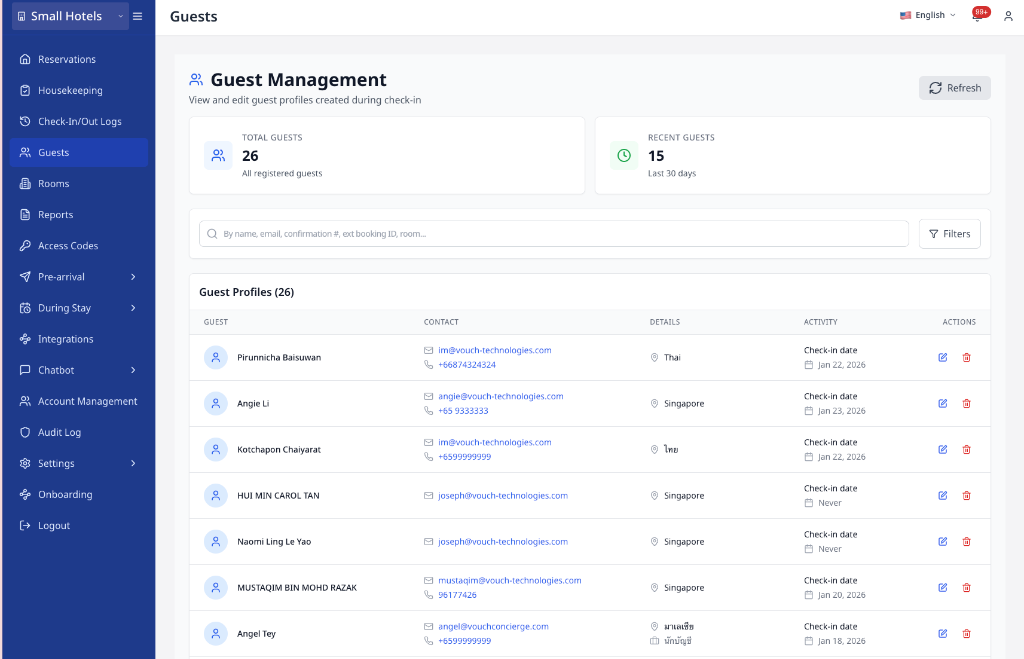
Go to: Main Menu → Guests
Quick Reference
| Task | Where to click | Result |
|---|---|---|
| Find a guest | Search bar | Matching profiles appear in the list |
| Filter recent guests | Filters → Activity → Recent (30 days) → Apply Filters | List shows recent guests only |
| Edit a profile | Edit (pencil icon) | Edit panel opens |
| Review full profile | Edit with privacy access | Full document values, including top-level document numbers, load in the edit panel |
| Review consent snapshots | Edit → Consent | Stored consent history appears as one card per consent, with legacy values merged |
| View consent count | Guest row consent indicator | Shows how many consent snapshots exist |
| Delete a profile | Delete (trash icon) | Confirmation modal opens |
| Mark a guest as VIP | Edit → VIP Guest | VIP status is saved |
| Export filtered guests | Export filtered | Exports the current search and filter results |
| Export selected guests | Export selected (N) | Exports only the checked guests across pages |
| Save changes | Save Changes | Profile updates; you may see a sync message |
If You Use Opera
Opera can support guest name search without supporting every profile action. AVA checks each capability independently, then chooses the correct source for each Guest Management action.
Opera name searches can use the Opera guest directory. Listing, editing, and deleting can use AVA's fallback path when Opera does not provide those actions. You can still use Find, Edit, and Delete normally. You do not need to change or reconnect your Opera settings.
Why Some Guest Details Look Hidden
Guest profiles mask sensitive document fields by default.
You may see:
- Document numbers shown as
***678 - Dates shown as
***REDACTED*** - Nested document data masked the same way
If you have guest privacy access, opening Edit reloads the full profile. The edit panel also keeps top-level document numbers when the PMS sends them. That access is logged in the audit trail.
Review Consent Snapshots
-
Find the guest row and click Edit.
-
Expand Consent near the top of the panel.
-
Review the stored consent snapshots and the latest status.
-
Close the panel when you are done.
✓ The consent history is display-only. ✓ Saving the guest profile does not change consent data.
The snapshot comes from the signed guest profile. It combines canonical and legacy consent fields into one display item per consent. You may see Promotional Mailing List, Allow Contact Phone, Allow Contact Email, and Marketing emails. The Marketing emails item only appears when no granular consent exists. It includes the saved terms, privacy, marketing, and Opera consent fields. Only the guest who signed shows this snapshot.
If the Consent accordion does not appear, the guest may not have signed consent yet. Check the latest reservation or ask the guest to complete check-in again.
Find a Guest Profile
-
Go to Main Menu → Guests.
-
Use the Search bar to enter a name, email, phone, or document number.
-
If needed, click Filters and set Nationality, Activity, or Sort by.
-
Click Apply Filters.
✓ The list updates with matching profiles.
Start with a phone number or email when names are similar.
Filter and Sort Guests
-
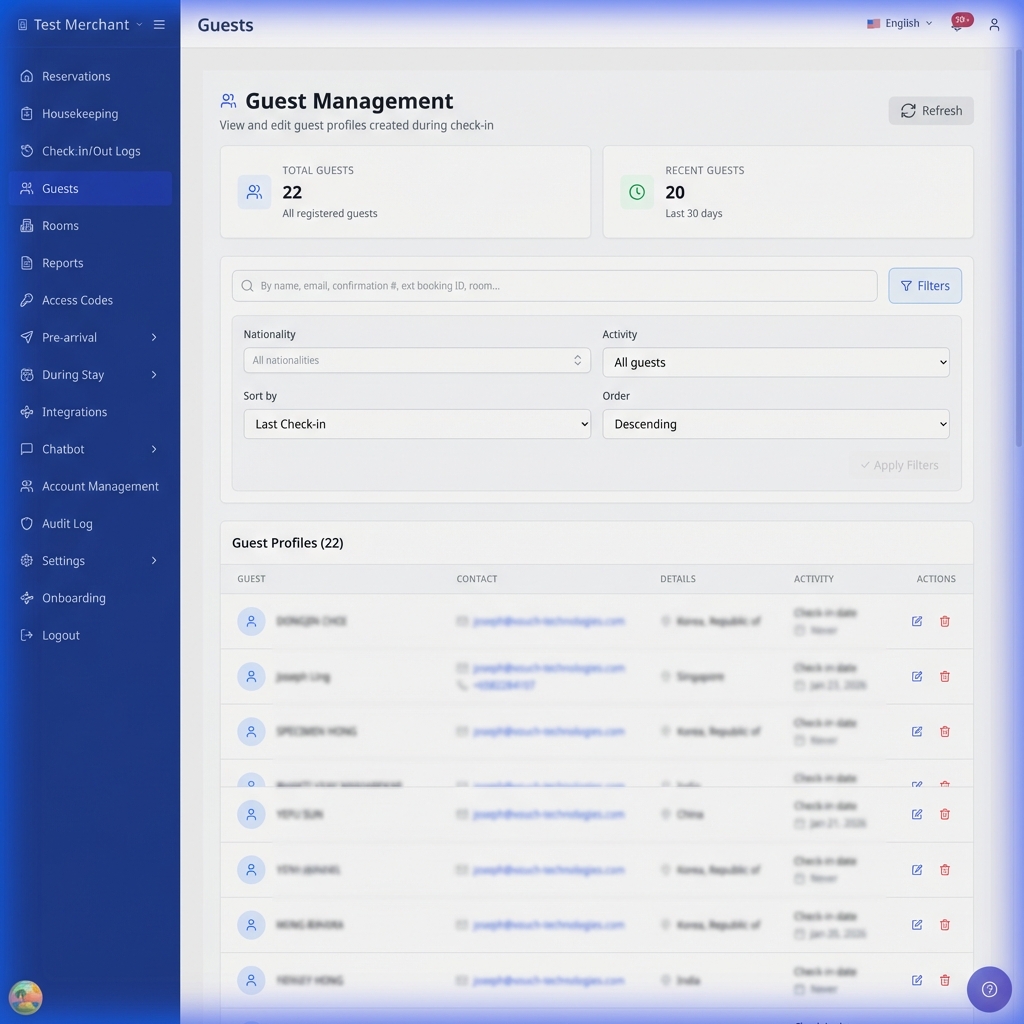
Click Filters.
-
Choose one or more options:
- Nationality (start typing to search, then select a result)
- Activity → Recent (30 days)
- Sort by: Last Check-in, Name, or Created Date
- Order: Ascending or Descending
-
Click Apply Filters.
✓ The table refreshes with the new order.
To reset everything, click Clear all filters.
Edit a Guest Profile
-
Find the guest row and click Edit.
✓ The Edit Guest Information panel opens.
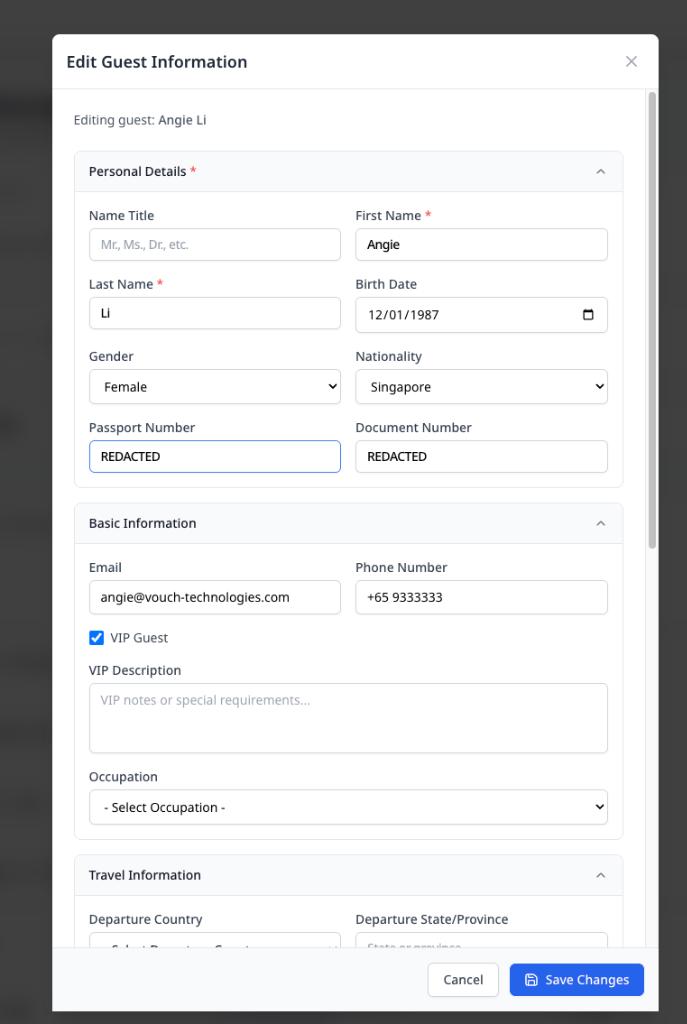
If you have guest privacy access, the panel loads the full document values. If you do not, sensitive fields stay masked. Top-level document numbers stay visible when they are part of the profile data. If consent snapshots exist, the Consent accordion appears near the top. Open it to review the stored history. You cannot edit consent from this panel. The snapshot is read-only because it syncs from the signed check-in record.
-
Update the fields you need.
-
Click Save Changes.
✓ You see a success message.
If the latest reservation is updated too, you will see: "Guest profile updated and synced to last reservation".
What You Can Update
| Section | What you can update | Notes |
|---|---|---|
| Personal Details | Name, birth date, gender, nationality, passport/document numbers | First Name and Last Name are required |
| Basic Information | Email, phone, Company, VIP status, VIP description, occupation | Email must be valid |
| Travel Information | Departure/next destination, departure time | Use Same as current address checkboxes |
| Address Information | Address line, city, state, country, postal code | Optional fields |
| Administrative | Guest type, residency status, verification | Includes Permanent resident or work permit holder and Guest verified |
If your property is in Thailand
- Occupation uses the Thailand occupation list.
- Nationality uses Thailand’s official nationality list.
Export Guest Profiles
Most exports finish in a few minutes. Stay-date exports run in the background, and AVA polls for completion.
Use this when you need a CSV export for current filters, checked guests, a stay-date range, or a privacy request.
| Export type | What it does | Where you start |
|---|---|---|
| Export filtered | Exports every guest in the current result set | Main Menu → Guests |
| Export selected | Exports only the checked guests | Main Menu → Guests |
| Export stay date range | Exports unique guests whose stays overlap the selected dates | Filters → Stayed from / Stayed until |
-
Go to Main Menu → Guests.
-
Search or filter the guest list.
-
Choose one export action:
- Click Export filtered to export every matching guest.
- Select guest checkboxes across pages, then click Export selected (N).
- Set Stayed from and Stayed until, then click Export filtered.
-
Review the export message or error.
-
Wait for the CSV to download, or open the completed file when it appears.
✓ Filtered exports include every match in the current result set. ✓ Selected exports include only the checked guests. ✓ Stay-date exports include unique guests whose reservations overlap the selected range. ✓ Stay-date exports exclude cancelled and no-show reservations. ✓ Stay-date CSV files include each stay's start and end dates. ✓ Selection stays on while you page through the same results. ✓ Changing the search or filters clears the selection.
Filtered and selected exports stop at 10,000 guests. Stay-date exports also stop at 10,000 guests. Narrow the search or remove some selected guests if you hit the limit.
Stay-date exports require both dates. The range can cover up to 366 days.
Only share guest exports with approved recipients.
Export Guests by Stay Dates
-
Go to Main Menu → Guests.
-
Click Filters.
-
Set Stayed from and Stayed until.
-
Click Apply Filters.
✓ The list does not change. ✓ AVA saves the dates for export only.
-
Click Export filtered.
-
Wait for the job to finish.
✓ AVA exports unique guests whose reservations overlap the selected range. ✓ AVA downloads the CSV when the job completes.
AVA includes guests whose reservation overlaps the selected dates. It ignores cancelled and no-show reservations.
Delete a Guest Profile
-
Find the guest row and click Delete (trash icon).
-
Review the confirmation message.
-
Click Delete to confirm.
✓ The guest profile is removed and the list refreshes.
You cannot undo this action. The Delete button only appears for users with delete permission.
You cannot delete a guest who is currently checked in. End the stay first, then retry.
Mark a Guest as VIP
-
Find the guest and click Edit.
-
In Basic Information, enable VIP Guest.
-
Enter a short VIP Description.
-
Click Save Changes.
✓ You see a success message.
Only apply VIP when approved by management.
If your property uses Opera, AVA preserves existing VIP Guest and VIP Description values during later guest-profile syncs. You do not need to re-enter these values after each sync.
Review Recent Guest Activity
-
Go to Main Menu → Guests.
-
Review the Recent Guests card at the top.
-
In the table, check the Activity column for check-in dates.
-
Click Filters → Activity → Recent (30 days).
-
Click Apply Filters.
✓ The list shows guests with recent activity.
Use Command Center for complete reservation records.
Troubleshooting
Guest Management shows a PMS support error
What you see: "Query guest profiles is not supported by this PMS vendor."
Fix:
-
Refresh the Guests page.
-
Sign out, then sign in again if the page still fails.
-
Check Settings → Essentials → PMS Integration.
-
Confirm Opera shows as connected. Do not reconnect it for this error alone.
-
Contact support if Guest Management still does not load.
✓ Guest Management should load after the refresh.
No guests found
What you see: "No guests found" or "No guests match your current filters."
Fix:
- Click Clear all filters.
- Remove any search text.
- Try again after a guest completes check-in.
Update failed with "cannot update these fields"
What you see: A red error message with "cannot update these fields".
Fix:
- Update those fields in your PMS.
- Wait for the next sync.
- Try saving again.
Validation errors
What you see: Red text under Email, Phone Number, or name fields.
Fix:
- Use a valid email format.
- Use an international phone format.
- Fill in First Name and Last Name.
Check-in date shows "Never"
What you see: The Activity column shows "Never".
Fix:
- Confirm the guest has completed check-in.
- Refresh the page.
- Check Command Center for the reservation.
Recent guests count is zero
What you see: The Recent Guests card shows 0.
Fix:
- Confirm there were check-ins in the last 30 days.
- Clear filters and refresh.
- Try again later if check-ins are still processing.
Stay history loads slowly
What you see: Guest stay history takes a long time to open, or it times out for a large property.
Fix:
-
Ask your AVA administrator to create the guest stays index in every environment.
-
Refresh the guest profile.
-
Open Edit again.
✓ Stay history should load faster after the index is in place.
Delete button missing
What you see: No Delete (trash icon) in the Actions column.
Fix:
- Confirm your role includes guest delete permission.
- Refresh the page after permission updates.
Delete blocked by active stay
What you see: "Guest is currently checked in." or a delete error message.
Fix:
- Check the guest's current stay in Command Center.
- Complete the check-out.
- Retry the deletion.
Sensitive fields stay masked
What you see: Document numbers still show ***678 after you open Edit.
Fix:
- Confirm you have guest privacy access.
- Ask a manager to review your role.
- Reopen the profile after the permission change.
Export request is unavailable
What you see: You cannot start a guest data export for a privacy request.
Fix:
- Ask an authorized admin to handle the DSAR export.
- Confirm the guest record you need is correct.
- Use your hotel's secure delivery process for the finished file.
Export exceeds the limit
What you see: The export fails with a localized message about too many guests or too many selected rows.
Fix:
- Remove some filters or narrow the search.
- Deselect guests until the count is below 10,000.
- Run the export again.
Stay dates are required
What you see: AVA asks you to select both stay dates before exporting.
Fix:
- Open Filters.
- Set both Stayed from and Stayed until.
- Click Apply Filters.
- Try the export again.
Export stays queued or processing
What you see: The export button shows Exporting... or the file has not downloaded yet.
Fix:
- Wait for the current job to finish.
- Keep the Guests page open.
- Refresh once if the status looks stale.
- Try again after the job completes.
Export is too large
What you see: AVA rejects the stay-date export because the range is too large.
Fix:
- Shorten the stay-date range.
- Narrow the guest search if needed.
- Try the export again.
Delete failed with "Guest ID is missing"
What you see: "Guest ID is missing. Please refresh and try again."
Fix:
- Refresh the page.
- Retry the delete action.
- Contact support if the issue persists.
Consent accordion is missing
What you see: The Consent accordion does not appear in Edit.
Fix:
- Confirm the guest signed consent during check-in.
- Open the latest reservation in Command Center.
- Refresh the guest profile and reopen Edit.
Still Stuck?
Contact success@vouch-technologies.com if:
- ❌ Guests will not load
- ❌ Updates fail after trying the fixes above
- ❌ The sync message appears but data does not update
Helpful to include:
- Guest name and document number (if available)
- Time of the update attempt
- Screenshot of the error message