Thailand Immigration Reports
Most hotels finish setup in about 10 minutes. Set Schedule Time, Email Recipients, and Guest Source Mode first.
This guide helps you configure TM30 and RR4 reports and handle check-ins around midnight.
AVA uses your hotel's Country setting to identify Thailand reporting workflows. Existing lowercase country records remain compatible with TM30 schedule refreshes.
Go to: Government Compliance → Thailand
Old Reports → Thailand Immigration Reports links redirect here.
Plan Access
- Thailand immigration reports require a paid plan.
- Free-tier accounts see an upgrade prompt instead of the report page.
To upgrade, go to Settings → Billing & Subscription.
Quick Reference
| Setting | What it controls | Recommended default |
|---|---|---|
| Enable Automatic Daily Reports | Sends each enabled report every day | On |
| Schedule Time | When daily reports are generated (hotel local time) | 05:00 |
| Use separate email recipients | Whether TM30 and RR4 go to different inboxes | Off (enable if teams differ) |
| TM30 Guest Source Mode | Which guests TM30 includes | Include guests who did not check in through AVA |
| RR4 Guest Source Mode | Which guests RR4 includes | Include guests who did not check in through AVA |
| RR4 Thai Hotel Name | Thai name printed on RR4 | Fill in Thai text |
| Include Stayover Guests (RR4) | Include overnight guests, not only new check-ins | Off (enable only if required) |
| RR4 Stayover Remark | Optional note written on RR4 stayover rows | Leave blank unless your filing workflow needs one |
| Required Guest Information | RR4 compliance status for mandatory fields | All set |
| Manual report actions | Shows an action for each enabled report | Enable the report before generating it |
TM30/RR4 reports use background processing before AVA emails them. This applies to automatic schedules and manual report requests. If a manual request cannot enter the queue, AVA shows an error instead.
Supported PMS systems
TM30 and RR4 reports support AVA PMS, Cloudbeds, Opera Cloud, Mews, and eZee. AVA checks the connected PMS capability before it starts a report. Furama PMS is not currently supported for these reports.
AVA reads each PMS using its own reservation and guest-data rules. The report uses hotel-local dates and includes eligible arrivals or stayovers.
Opera report data
Opera reports can include nationality, birth date, gender, address, and identity-document details. Ask your Opera administrator to grant AVA Sensitive Data Access.
Without this permission, Opera masks some identity values. AVA omits masked passport numbers and placeholder birth dates from the report. CCI records can supply fallback values when available.
Mews passport data
Mews reports read identity documents instead of customer tax IDs. AVA prefers passports, then identity cards, then driver's licences.
Set Up Automatic Reports
- Go to Government Compliance → Thailand.
- Turn on Enable Automatic Daily Reports.
- Set Schedule Time (hotel local time).
- Add Email Recipients or enable Use separate email recipients.
- Click Save Configuration.
✓ You should see a success message after saving. ✓ AVA enables or updates the daily report schedule.
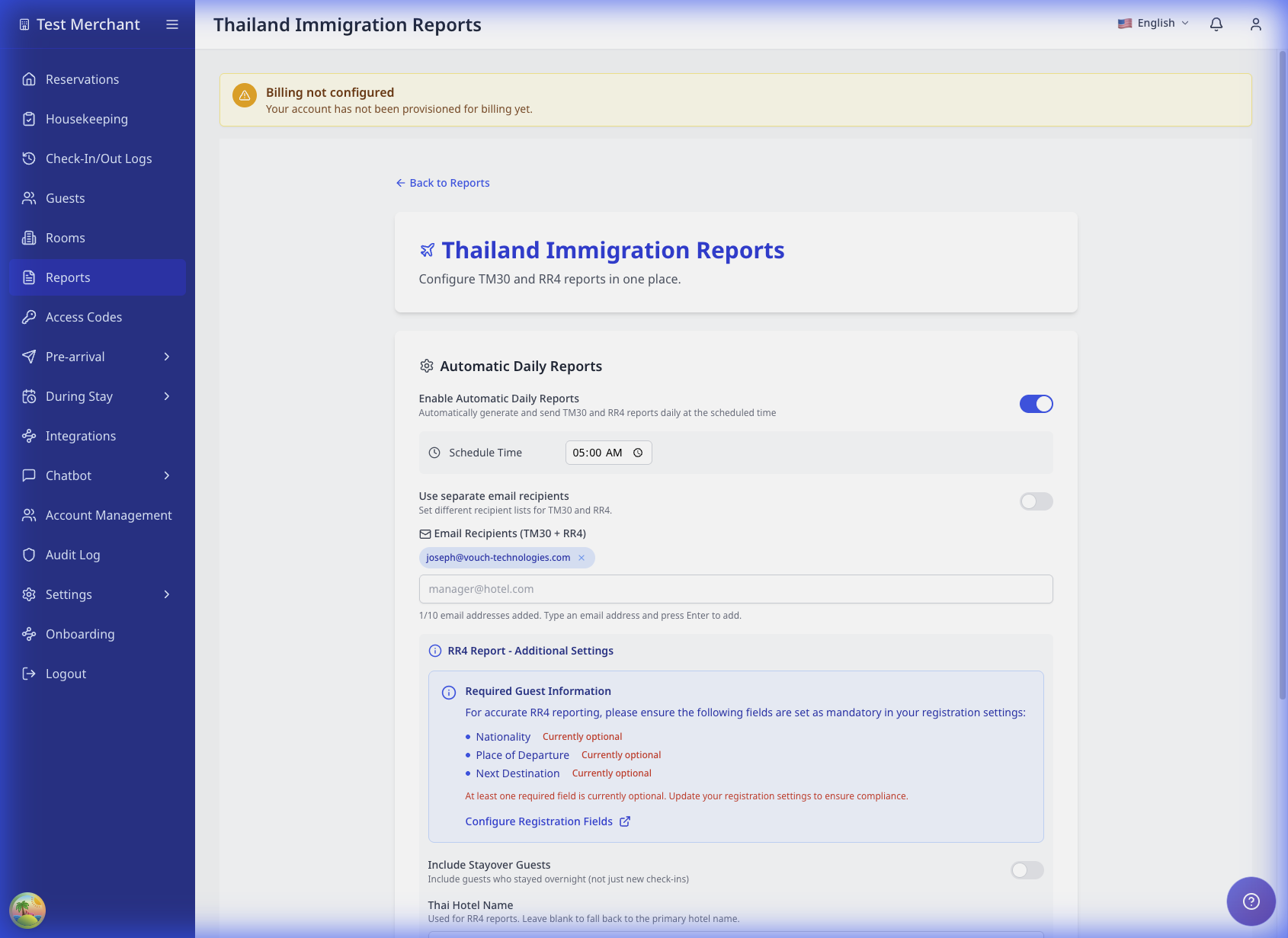 TODO: Replace with the updated layout that shows the Automatic Daily Reports card.
Use Combined or Separate Email Lists
| Option | Use when |
|---|---|
| Combined recipients | TM30 and RR4 go to the same team |
| Separate recipients | TM30 and RR4 go to different teams |
To use separate lists:
- Turn on Use separate email recipients.
- Add TM30 Email Recipients.
- Add RR4 Email Recipients.
Choose the Guest Source Mode (TM30 and RR4)
Choose how AVA includes guests for each report.
TM30 Guest Source Mode
| Option | What AVA does | Best for |
|---|---|---|
| Include guests who didn't check in through AVA | If AVA check-in time exists, AVA uses it. If it is missing, AVA includes the guest only when PMS already shows the reservation as checked in. | Hotels that sometimes check in guests outside AVA |
| Don't include guests who didn't check in through AVA | AVA includes only guests with a valid AVA check-in time. | Hotels that want AVA-only check-in evidence |
RR4 Guest Source Mode
Use the same options as TM30. This setting is separate, so confirm it matches your RR4 workflow.
How Hybrid Guest Lists Are Combined
In Include guests who didn't check in through AVA mode, AVA combines eligible CCI and PMS guests. This prevents Cloudbeds guests from disappearing when another guest checked in through AVA.
| Reservation data | What appears in the report |
|---|---|
| One lead guest exists in CCI and PMS, plus one PMS guest | Two guest rows |
| One CCI-only lead, plus two different PMS guests | Three guest rows |
| A CCI guest matches a PMS guest | One row using CCI identity details and the actual CCI check-in time |
AVA keeps separate rows when identity evidence is ambiguous. The report generator does not create or update CCI or PMS guest records.
Cloudbeds Multi-Room Bookings
For Cloudbeds TM30 reports, AVA checks every room in the booking. This includes guests assigned to rooms and guests still awaiting room assignment.
| Booking situation | TM30 result |
|---|---|
| One Cloudbeds booking has guests across several rooms | Each eligible guest appears with their own identity details |
| Several guests share one room | Each eligible guest remains a separate row |
| Rooms have different arrival dates | Each guest uses their room's arrival date |
| A child room is cancelled or has not arrived | Its guests stay excluded |
| A guest has checked out | The guest remains eligible when valid arrival evidence exists |
This applies to TM30 report discovery only. It does not change ordinary reservation views or RR4 guest sourcing.
Checked-Out Guests in TM30 Reports
TM30 can retain an eligible guest after checkout when you regenerate the report. This helps when the PMS still provides the guest's arrival record after checkout.
| Situation | TM30 result |
|---|---|
| Eligible guest checked out after arrival | Guest remains in the matching TM30 report |
| Guest has no valid arrival date or required identity data | Guest remains excluded |
| Departure-only PMS reservation has no arrival evidence | Guest remains excluded |
TM30 still uses the report date based on your hotel's timezone. This change does not add a historical-date selector. RR4 and other reports keep their existing guest-status rules.
- If AVA check-in time exists, AVA uses that timestamp to decide the report date.
- If AVA check-in time is missing, Include mode falls back only when PMS already marks the reservation as checked in.
- If AVA check-in time is unreadable, AVA excludes that entry.
- In Don't include mode, only guests with valid AVA check-in timestamps are included.
Midnight Example (Include Mode)
Reservation: Feb 9-13. Report generation time: 00:10 on Feb 10.
| Situation at report time | Result |
|---|---|
| AVA check-in time is 00:01 on Feb 10 | Guest is excluded from the Feb 9 report and appears in the Feb 10 report |
| AVA check-in time is not available yet, and PMS status is already checked in | Guest is included in the Feb 9 report using PMS fallback |
| AVA check-in time is not available yet, and PMS status is not checked in | Guest is not included yet |
RR4 Report Settings
RR4 Guest Source Mode
In the RR4 Settings card, RR4 Guest Source Mode appears at the top. Set it first before Thai Hotel Name and Include Stayover Guests.
Use the same options as TM30:
- Include guests who didn't check in through AVA
- Don't include guests who didn't check in through AVA
Required Guest Information
For accurate RR4 reports, set these as mandatory registration fields:
- Nationality
- Place of Departure
- Next Destination
If any are optional, you will see Action required in the Required Guest Information card. Click Configure Registration Fields, or go to Settings → Check-In.
Thai Hotel Name
Enter your hotel name in Thai characters, for example โรงแรมว้าว รีสอร์ต.
RR4 uses this value in the report header. Leave blank to use your primary hotel name.
Include Stayover Guests
Turn this on to include guests who stayed overnight, not only new check-ins.
Example:
- Off: Guest checks in Oct 20, checks out Oct 25. They appear only on the Oct 20 report.
- On: The same guest appears on Oct 20, 21, 22, 23, and 24 reports.
Set RR4 Stayover Remark
Use RR4 Stayover Remark to add a short note for stayover rows.
Example: ไม่มีการเปลี่ยนแปลง
Leave the field blank if you do not need a stayover remark.
This field is only active when Include Stayover Guests is turned on. If stayover reporting is off, AVA disables the remark field.
TM30 and RR4 can show different timestamps for the same guest. This is expected because each report applies its own timing rules.
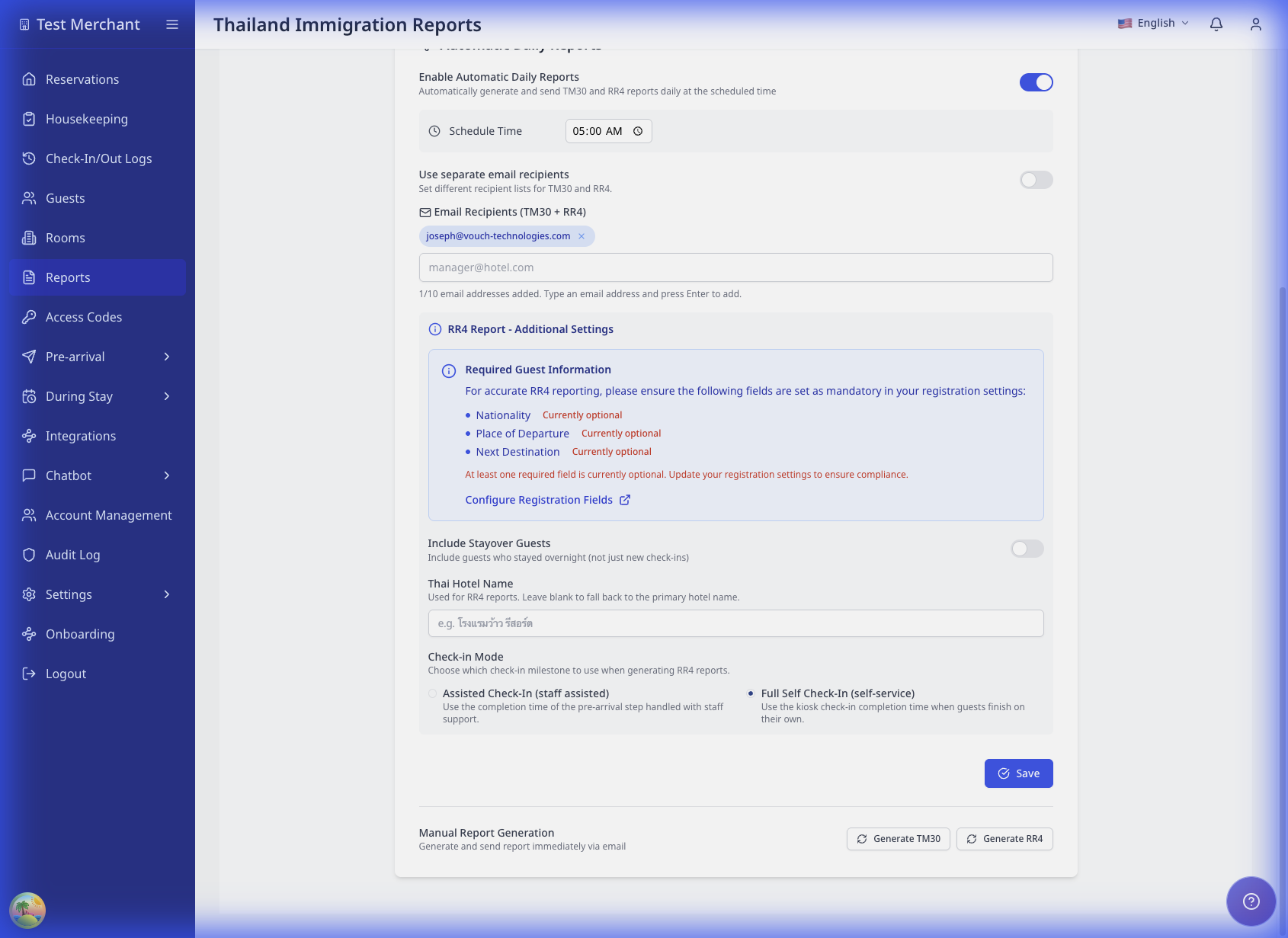 TODO: Replace with the updated RR4 Settings card showing Guest Source Mode above Thai Hotel Name.
Registration Card Archive
AVA now labels this export as the Registration Card Archive. Older screens may still show RR3 in compatibility areas.
The archive is not a scheduled report. For the full sync, async, and resume flow, see Download a Registration Card Archive. AVA prepares these exports in temporary storage. When the file is ready, staff see a note that it stays available for 7 days. Download it before it expires, or create a new archive later.
When Registration Cards Are Included
- Self check-in: right after kiosk signature submission.
- Assisted check-in: when staff submit guest signature.
What Staff Should Verify
- Required fields marked RR3 Required are completed.
- Guest identity and reservation details are correct before signature.
Generate Reports Manually
Manual TM30 and RR4 reports use the timezone saved for your property. If no property timezone is saved, AVA may use the timezone from your request. Set the property timezone to avoid device or browser timezone differences.
Set the correct timezone in Hotel Basic Details. This keeps the report date aligned with your property's local calendar.
- Confirm your Thailand report configuration is saved.
- Scroll to Manual Report Generation.
- Click Generate TM30 or Generate RR4 for the enabled report you need.
- Wait for confirmation.
AVA shows each manual action only when its matching report is enabled. For example, Generate RR4 can appear while Generate TM30 remains hidden.
Understand the success message
AVA shows one of these localized success messages:
| Message | Meaning | What you should do |
|---|---|---|
| Report queued successfully | AVA accepted the request for background processing | Wait for the report email. Do not generate it again immediately. |
| "TM30 report could not be queued. Please try again later." or "RR4 report could not be queued. Please try again later." | AVA could not accept the request | Wait, then try again once. Contact support if it repeats. |
Manual report generation always uses background processing. The queued message confirms acceptance, not immediate email delivery. If AVA cannot queue the request, it stops and shows an error. It does not generate the report immediately.
Troubleshooting
Guest is missing from the previous day report
What you see: A guest checked in around midnight but is not in yesterday's report.
Fix:
- Open the guest check-in record.
- Check the AVA check-in timestamp.
- If timestamp is after midnight, use today's report for that guest.
Guest appears in yesterday's report after a midnight arrival
What you see: Guest arrived after midnight but still appears in yesterday's report.
Fix:
- Check your Guest Source Mode.
- In Include mode, missing AVA timestamps use PMS fallback only when PMS already marks the reservation as checked in.
- If you want strict AVA timestamps only, switch to Don't include guests who didn't check in through AVA.
Guest missing in Include mode when check-in happened outside AVA
What you see: Guest checked in manually but is not included yet.
Fix:
- Check reservation status in PMS.
- Confirm PMS already marks the reservation as checked in.
- Re-run the report after status is updated.
PMS guest appears as an additional report row
What you see: A Cloudbeds guest appears beside a CCI guest for the same reservation.
Fix:
- Confirm Guest Source Mode includes guests who did not check in through AVA.
- Compare the guest names and identity details in CCI and Cloudbeds.
- Keep the additional row when it represents a separate guest.
- Correct duplicate or conflicting PMS identity details before generating the next report.
AVA keeps unmatched eligible PMS guests in hybrid reports. It may retain separate rows when identity evidence cannot safely confirm a match.
Guest is missing after checkout
What you see: A guest appeared before checkout but disappears when you regenerate TM30.
Fix:
- Confirm you are generating TM30, not RR4.
- Confirm the guest has a valid arrival date and required identity details.
- Check that the report targets the hotel's previous local day.
- Regenerate TM30 after the PMS record finishes updating.
Eligible completed stays remain in TM30 after checkout. Departure-only reservations and guests without valid arrival evidence remain excluded.
Cloudbeds Multi-Room Guest Is Missing
What you see: A Cloudbeds TM30 report has fewer guests than the booking.
Fix:
- Confirm the report uses TM30 Guest Source Mode with PMS guests included.
- Check the guest's arrival date and identity details in Cloudbeds.
- Confirm the guest's room belongs to the same booking or sub-reservation.
- Exclude cancelled or not-yet-arrived rooms from your expected count.
- Generate TM30 again after Cloudbeds finishes updating the reservation.
AVA keeps eligible guests from assigned and unassigned rooms. It excludes guests without valid arrival evidence or required identity details.
Manual report uses the wrong date
What you see: A manual report covers the date before or after your property's local date.
Fix:
- Open Settings → Essentials → Hotel Basic Details.
- Confirm Timezone matches your property's local timezone.
- Click Save if you changed the setting.
- Generate the report again from Government Compliance → Thailand.
Manual reports use the saved property timezone, even when staff start them from another timezone.
TM30 and RR4 show different times
What you see: Same guest has different timestamps across TM30 and RR4.
Fix:
- Confirm this does not block your filing workflow.
- Verify guest data and check-in completion details.
- If mismatch affects compliance filing, contact support.
Stayover remark is missing
What you see: The RR4 stayover row does not show your configured remark.
Fix:
- Confirm Include Stayover Guests is turned on.
- Check that RR4 Stayover Remark is not blank.
- Save the configuration again.
- Regenerate RR4 for the affected date.
TM30 schedule missing after a PMS change
What you see: A Thai hotel's TM30 schedule is missing after its PMS changes.
Fix:
- Open Settings → Essentials → Hotel Basic Details.
- Confirm Country is set to Thailand.
- Open Government Compliance → Thailand.
- Confirm Enable Automatic Daily Reports and TM30 settings are enabled.
- Contact support if the schedule remains missing.
Existing lowercase country records should refresh correctly after a PMS change.
Government configuration save times out
What you see: Saving Thailand settings shows Service timeout: TM30ProxyService - PUT exceeded 7000ms.
Why this happens: The save may complete before AVA finishes updating the report schedules. The timeout can hide a successful save.
Fix:
-
Do not click Save Configuration repeatedly.
-
Refresh Government Compliance → Thailand.
-
Confirm your email, schedule, and report settings are still present.
-
If the values are present, no further action is needed.
-
If the values are missing, save once more.
-
Contact support if the timeout returns.
✓ A successful save should now return without the 7-second timeout.
Report email not received
What you see: No report email at scheduled time.
Fix:
- Confirm reports are enabled.
- Confirm recipient emails are correct.
- Check spam or junk folders.
- If you saw Report queued successfully, wait for background processing.
- Do not submit another manual request until the first request finishes.
Report stops because configuration is missing
What you see: A scheduled TM30 or RR4 report does not arrive. Support or report logs say configuration must be fixed before it can continue.
Why this happens: AVA stops retrying failures that cannot succeed without configuration changes. Common causes include:
| Cause | Fix |
|---|---|
| Cloudbeds app is disconnected | Reconnect the Vouch app in Cloudbeds. |
| PMS configuration is missing | Ask your PMS administrator to restore the property configuration. |
| PMS credentials are missing | Restore the required credentials, then run the report again. |
| The PMS is Furama | Contact support about an alternative compliance-report workflow. |
| The PMS is not listed above | Confirm the PMS connection, then contact support. |
Fix:
- Open Settings → Essentials → PMS Integration.
- Confirm your PMS connection and credentials are current.
- For Cloudbeds, reconnect the Vouch app if it is disconnected.
- Return to Government Compliance → Thailand.
- Generate the report manually after the configuration is fixed.
- Disable Enable Automatic Daily Reports if the schedule is no longer needed.
AVA does not keep retrying a report when the PMS configuration cannot make it succeed. Transient service failures continue through the normal retry process.
Report says the PMS vendor is unsupported
What you see: A TM30 or RR4 report stops with a message that the PMS vendor is unsupported.
Fix:
- Open Settings → Essentials → PMS Integration.
- Confirm the correct PMS is connected to this hotel.
- If you use AVA PMS, confirm the hotel's AVA PMS setup is complete.
- Return to Government Compliance → Thailand.
- Generate the report again after the PMS connection is restored.
If the PMS is listed in Supported PMS systems, contact support. Include the report type, hotel name, and time of the failed attempt.
Report email contains no guests
What you see: You receive a TM30 or RR4 email, but the report contains no guests.
Fix:
- Confirm the report date matches your hotel's local date.
- Check that expected guests have valid arrival or stayover data in the PMS.
- Confirm required guest identity fields are complete.
- Generate the report again once the PMS finishes updating.
Do not file an empty report when guests should be included. Contact support if the report is empty again with eligible guests present. Include the report type, report date, PMS, and expected guest count.
Opera report values are missing
What you see: Passport numbers or birth dates are missing from an Opera report.
Fix:
- Ask your Opera administrator to enable Module Level Access Control.
- Ask them to grant the AVA OHIP client Sensitive Data Access.
- Confirm the permission applies to the correct Opera hotel.
- Generate the report again after Opera permissions update.
Masked passport values and 1800-01-01 birth dates are excluded intentionally.
Report remains queued
What you see: The report confirmation says Report queued successfully, but no email arrives.
Fix:
- Confirm the configured recipient addresses.
- Check spam or junk folders.
- Wait for the queue to finish before retrying.
- Contact support if the report remains missing after the normal processing window.
Manual report cannot be queued
What you see: "TM30 report could not be queued. Please try again later." or the RR4 version.
Fix:
- Wait a few minutes before trying again.
- Submit the report once.
- Contact support if the request fails again.
Include the report type and time of your attempt.
Report service is unavailable
What you see: "Report generation is temporarily unavailable because the report service rejected its credential. Please contact support."
Fix:
- Do not sign out or reset your password.
- This error concerns report processing, not your AVA session.
- Contact success@vouch-technologies.com with the report type and attempt time.
Warning says TM30 and RR4 settings are not aligned
What you see: A yellow banner warns that TM30 and RR4 settings are different.
Fix:
- Review Schedule Time and recipient settings.
- If you want separate lists, turn on Use separate email recipients.
- Click Save Configuration to sync settings.
Separate recipients notice appears
What you see: A blue banner says separate recipient mode is enabled.
Fix:
- Review TM30 Email Recipients and RR4 Email Recipients.
- Turn off Use separate email recipients if you want a single list.
- Click Save Configuration.
Required Guest Information shows "Action required"
What you see: The Required Guest Information card shows Action required.
Fix:
- Click Configure Registration Fields.
- Set Nationality, Place of Departure, and Next Destination as required.
- Return to the report page and refresh.
Manual report buttons are missing
What you see: One or both manual report buttons are not visible.
Fix:
- Check which report button is missing.
- Enable that report in the Thailand report settings.
- Save the configuration.
- Refresh the page.
AVA hides each button when its matching report is disabled.
Registration Card Archive button is missing
What you see: You cannot see Download Registration Card Archive.
Fix:
- Ask an admin to grant report:export permission.
- Refresh the page after access is updated.
No registration cards were found
What you see: AVA says no registration cards were found for the selected date range.
Fix:
- Widen the date range.
- Confirm registration card signatures were submitted for that period.
- Try the export again.
Still Stuck?
Contact success@vouch-technologies.com if:
- ❌ Guests are repeatedly missing from expected report dates
- ❌ Report timestamps block your compliance submission
- ❌ Automatic reports fail for more than one cycle
- ❌ A configuration error remains after you reconnect or restore your PMS settings
Helpful to include:
- Property name
- Guest name and reservation number
- Expected report date and actual result
- Screenshot of report settings and guest check-in details