Create a Reservation
Most single-room reservations take 2-3 minutes. Multi-room bookings take a little longer.
Create new reservations directly in AVA when you need to add walk-ins, phone bookings, or one booking with multiple rooms.
Go to: Operations View
Quick Reference
| Field | Required | Notes |
|---|---|---|
| First Name | ✓ Yes | Guest's first name |
| Last Name | ✓ Yes | Guest's last name |
| Check-in Date | ✓ Yes | Format: YYYY-MM-DD |
| Check-out Date | ✓ Yes | Format: YYYY-MM-DD |
| Room Type | ✓ Yes | Select one type per room |
| Rate | Depends | Select a PMS rate, or use Custom rate for supported AVA PMS v2 bookings |
| Rooms | No | Click Add another room for multi-room bookings |
| Nationality/Country | ✓ Yes | Searchable list, defaults to hotel country when available |
| Adults | No | Defaults to 1 |
| Children | No | Defaults to 0 |
| Infants | No | Defaults to 0 |
| Depends | Required for Cloudbeds and eZee | |
| Phone Number | No | Guest phone number |
| Existing guest profile | When supported by your PMS | Reuse a matching profile and its guest history |
Create a Reservation
-
Go to Operations View.
-
Click Create Reservation.
-
Enter the stay details for Room 1:
- Check-in date
- Check-out date
- Room type
- Rate for eZee reservations
- Adults, Children, and Infants
- Click Add another room for each extra room
- OTA Number (optional)
-
Enter the guest details:
- First Name (required)
- Last Name (required)
- Email (required for Cloudbeds and eZee, recommended for all PMSs)
- Phone Number (optional but recommended for communications)
- Nationality/Country (required for government compliance)
- Start typing to search, then select a result (or press
Enterto pick the top match).
- Start typing to search, then select a result (or press
-
Click Create Reservation
✓ The reservation appears in your reservation list.
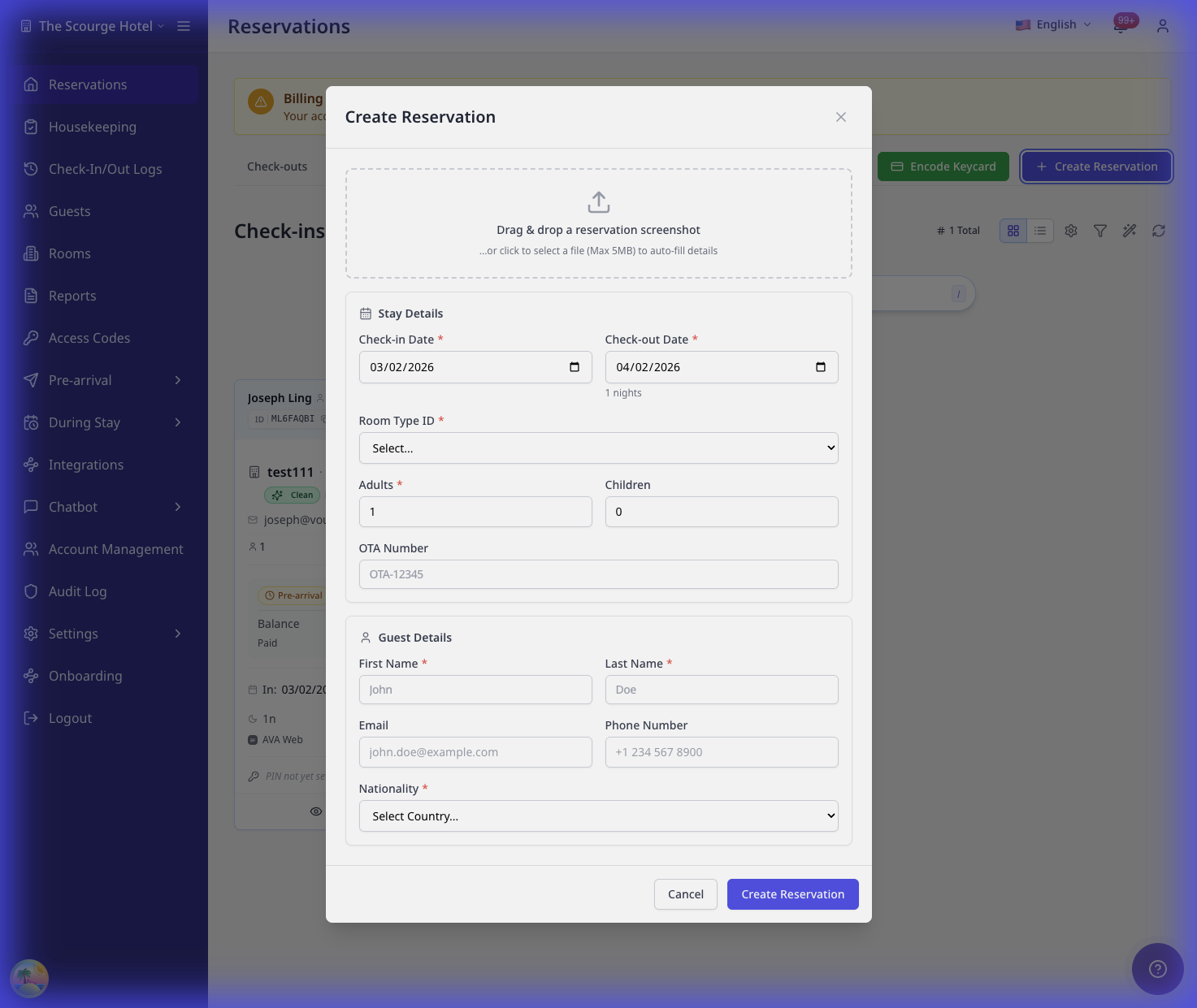
One room keeps the flat layout you already know. Add a second room to switch to numbered room cards and summary pills.
Use OTA Number to store an external booking reference (for example, from Booking.com or Expedia). Leave it blank for direct bookings.
You can search and select an existing guest profile while you type. When your PMS supports this feature, AVA links the reservation to that profile. Otherwise, AVA creates the reservation from the details you enter.
Start typing in Nationality/Country to filter the list. If your hotel country is set, it pre-fills the field.
If you use eZee, select a Rate for every room and enter a guest Email before saving. AVA sends each selected rate to eZee with the reservation.
For a single-room overnight reservation, AVA preserves the selected PMS rate plan when creating the booking. The PMS can then apply the plan's room charges and included benefits. This does not reprice reservations created before the rate plan was preserved.
Use a Custom Rate in AVA PMS v2
Use Custom rate when no available rate plan matches the agreed stay price. AVA shows this option only for properties using AVA PMS v2 with custom amounts enabled.
-
Select the room type and stay dates.
-
Choose Custom rate when it appears.
-
Choose Per night or Stay total.
-
Enter the agreed price for the selected mode.
-
Review the calculated stay total and currency.
-
Enter the guest details, then click Create Reservation.
✓ AVA creates the stay without attaching a rate plan.
For multiple rooms, choose a rate separately for each room. You can combine PMS rate plans and custom rates in one booking. If no rates load or the quote fails, AVA can show only Custom rate. Your custom selection stays after a room-type change or rate refresh.
If you upload a booking screenshot, AVA reads the named rate and price when possible. It selects a matching rate plan at that plan's own price. If no plan matches, it prefills Custom rate when the currency is compatible. Check taxes, fees, currency, and the amount before saving.
AVA matches whole words in rate-plan names. It uses a nightly screenshot price only when it matches the screenshot stay total. If currencies differ, AVA leaves the custom amount blank for you to enter.
AVA accepts zero or positive numeric amounts only. It rejects negative, blank, or non-numeric values before creating the reservation.
If you use Furama, select a room type and rate from the available stay quote. The quote must cover every requested night and match the stay dates and guest counts. For multi-room stays, Add another room copies Room 1 automatically. Rooms 2 and later are read-only and show that they match Room 1. Edit Room 1 to update the room type, guest counts, or quoted rate for every room. AVA sends the selected quote details to Furama with the reservation.
After Creating a Reservation
Once you successfully create a reservation, you'll see a confirmation prompt with the option to immediately assign a room.
AVA also starts a background refresh so the new reservation appears in the latest list.
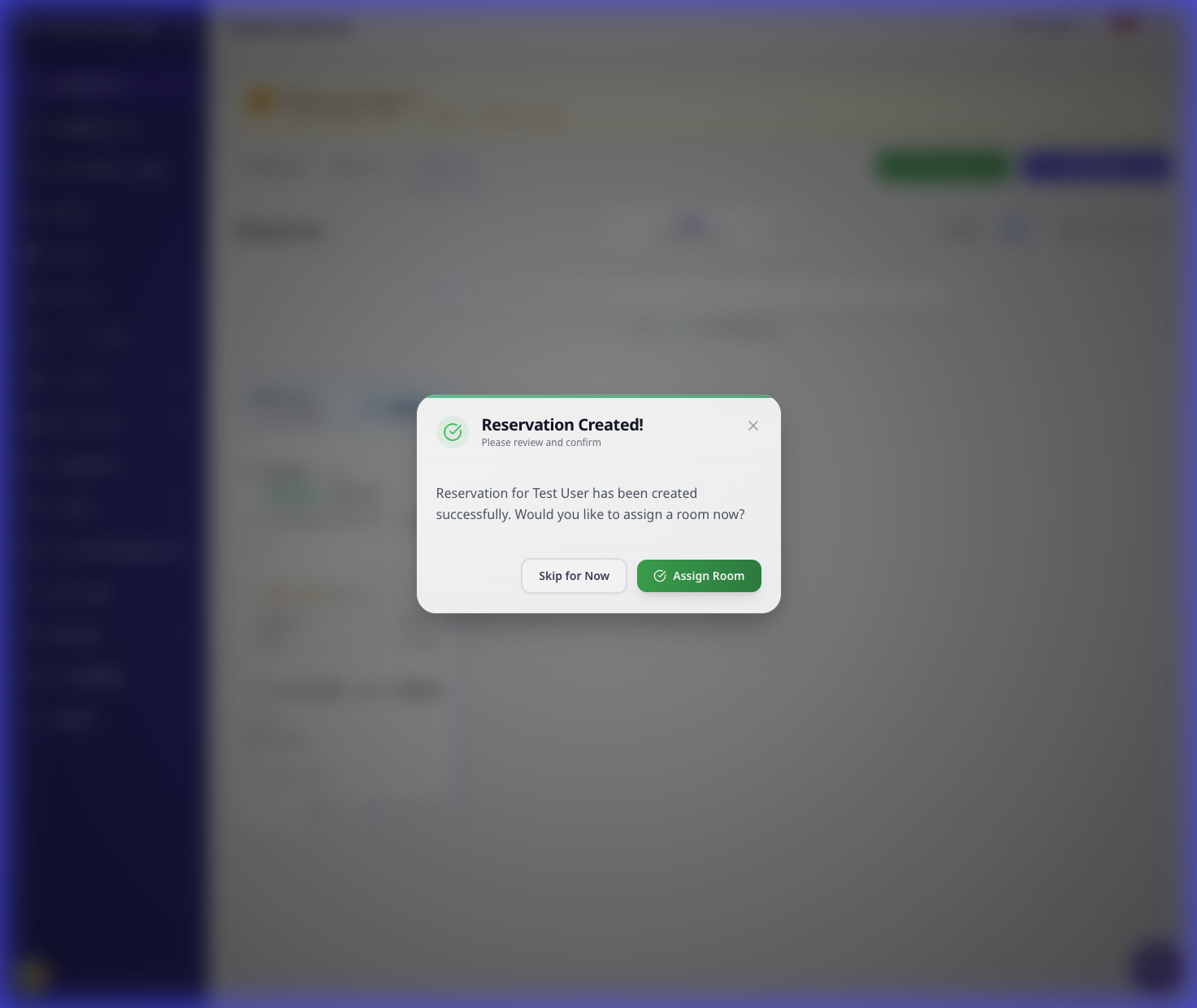
You can:
- Click Assign Room for one-room reservations
- Click Assign Rooms for multi-room reservations
- Click Skip for Now to assign a room later
When you click Assign Room, AVA refreshes the reservation before the room list opens. If refresh is delayed, AVA uses the latest available reservation details.
Assigning a Room Immediately
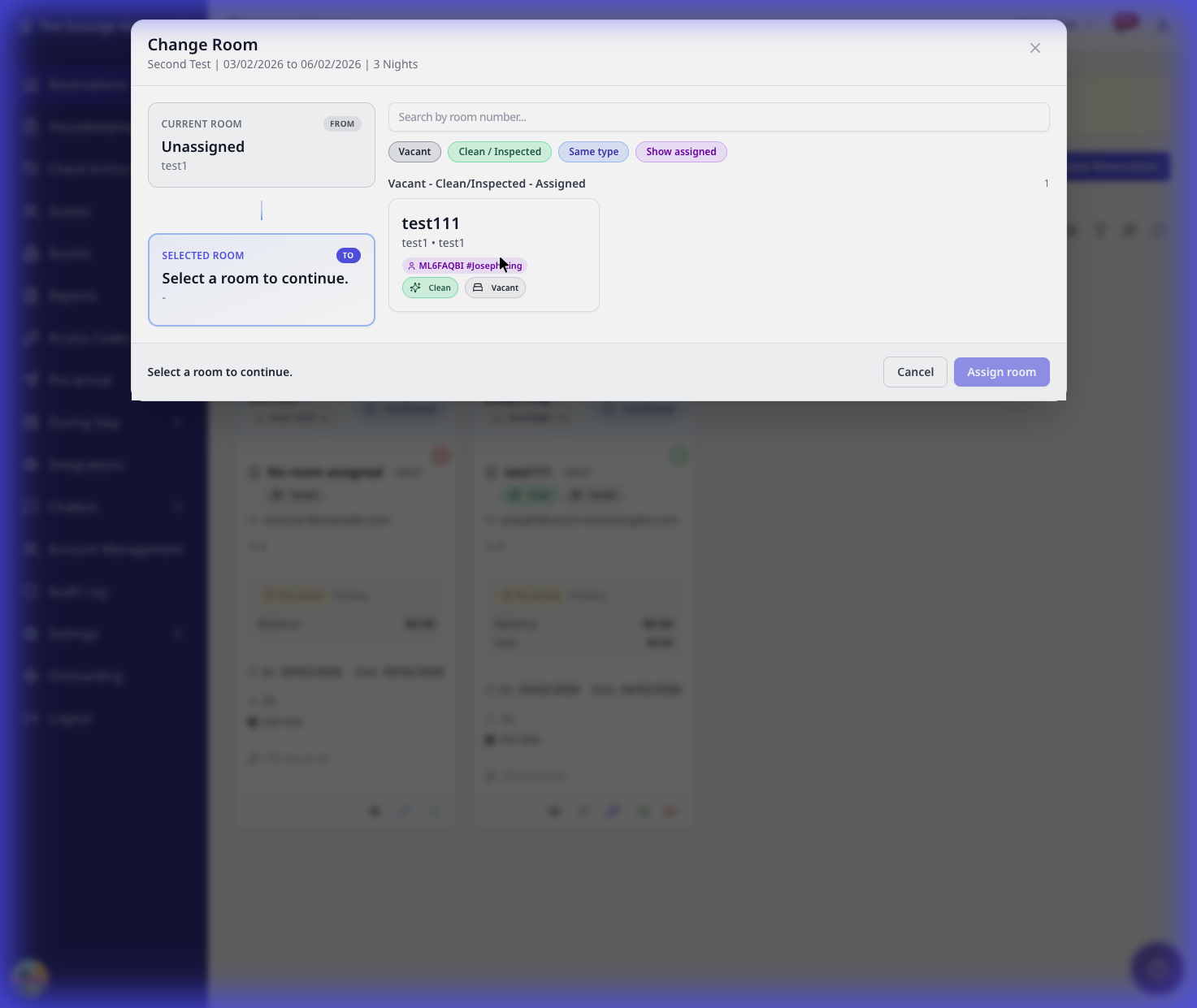
When you click Assign Room, the Room Assignment Modal opens showing:
- Available rooms filtered by the reservation's room type
- Room status badges (Clean, Vacant, etc.)
- Option to search by room number
- A refreshed reservation snapshot from your PMS
Rooms blocked for the selected stay still appear in the picker. They are disabled, and AVA shows the PMS reason when available.
For eZee, same-type rooms stay visible in the picker. Dirty vacant rooms stay hidden for eZee, so you need at least one clean room of that type.
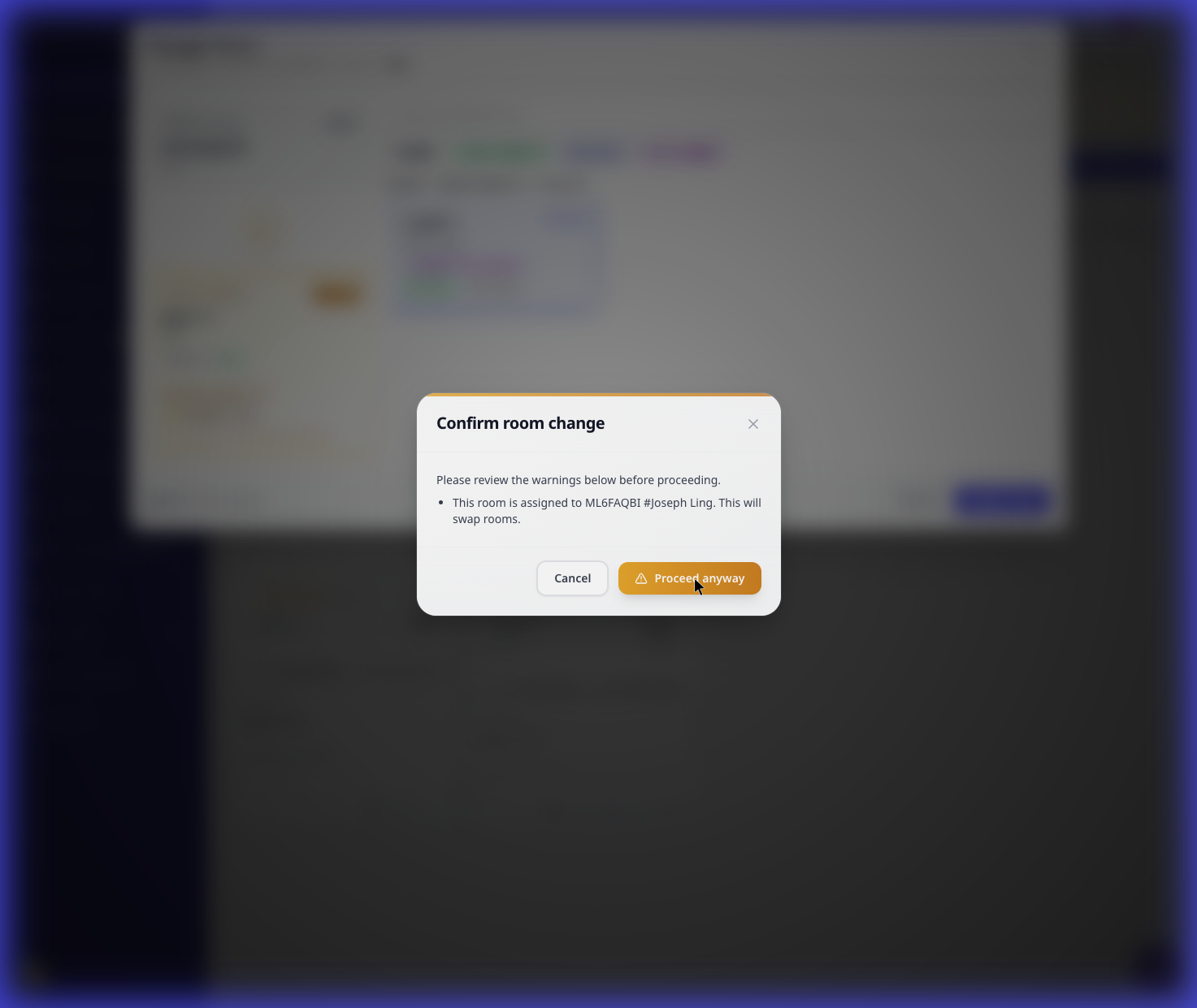
If you select an occupied room, AVA prompts you to confirm the move or swap. The PMS must explicitly support assigned-reservation swaps before AVA can swap two occupied rooms. Furama supports moves to vacant rooms, but not swaps between two assigned reservations.
Day-Use Reservations
If check-in and check-out are on the same day, AVA treats the booking as day-use. Your PMS must support day-use stays, and you must select a matching day-use rate plan. AVA uses that plan to keep check-in gating and room access aligned. If the plan does not provide its own times, AVA uses the fallback window from Set Up Day-Use Rate Plans.
Use day-use reservations when a guest arrives and leaves on the same date. Pick the day-use rate plan before you save the booking.
| PMS | What you need | What AVA does |
|---|---|---|
| AVA PMS | Any supported day-use stay | Accepts the day-use booking natively |
| Opera | Day-use booking and a matching day-use rate plan | Revalidates the rate plan before creation |
| Mews | Day-use booking and a matching day-use rate plan | Resolves the service window from the selected plan and refreshes stale windows |
| Cloudbeds | Overnight stay only | Rejects same-day day-use booking requests |
Do not use a day-use rate plan for an overnight stay. Do not force a day-use booking without the matching PMS rate plan.
Opera same-day bookings need day-use intent
What you see: Opera rejects a same-day booking.
Fix:
- Turn on the day-use option.
- Select a day-use rate plan.
- Keep the arrival and departure dates on the same day.
- Click Create Reservation again.
Mews day-use bookings need a rate plan
What you see: Mews says the day-use booking does not have a valid rate plan.
Fix:
- Select the day-use rate plan for the room type.
- Do not override the day-use check-in or check-out times.
- If the quote expired, pick the rate plan again.
- Click Create Reservation again.
Use an Existing Guest Profile (AVA PMS v2 Only)
If your property uses AVA PMS v2, you can search for and select an existing guest profile. AVA reuses the selected profile when it creates the reservation.
Search for an Existing Guest
-
Start typing in the First Name, Last Name, or Email field
-
Type at least two characters to trigger the search
-
Wait for the suggestion dropdown to appear
-
Select a guest from the list
✓ Guest details (name, email, phone, nationality) auto-fill from the profile.
-
Verify the details and adjust if needed. The reservation keeps the selected guest profile link.
-
Complete the stay details and click Create Reservation
Selecting an existing guest profile:
- Saves time on data entry
- Ensures consistent guest information
- Links the reservation to the guest's existing history
When Suggestions Don't Appear
If the dropdown doesn't show:
- Type at least two characters
- Wait 2-3 seconds for results to load
- Check your internet connection
If the guest isn't found, continue entering details manually. A new guest profile will be created.
Field Details
Stay Details
| Field | Description | Validation |
|---|---|---|
| Check-in Date | Guest arrival date | Must be YYYY-MM-DD format |
| Check-out Date | Guest departure date | Must be after check-in date |
| Room Type | Type of room to book | Must select from dropdown |
| Adults | Number of adult guests | Minimum 1, defaults to 1 |
| Children | Number of child guests | Minimum 0, defaults to 0 |
| Infants | Number of infant guests | Minimum 0, defaults to 0 |
Guest Details
| Field | Description | Validation |
|---|---|---|
| First Name | Guest's given name | Required, minimum 1 character |
| Last Name | Guest's family name | Required, minimum 1 character |
| Contact email | Valid email format | |
| Phone Number | Contact phone | Any format accepted |
| Nationality/Country | Guest's nationality | Searchable list, defaults to hotel country when available |
| Gender | Guest gender | Optional: Male, Female, Other |
Optional Fields
| Field | Description | When to Use |
|---|---|---|
| Payment Method | How guest will pay | For tracking payment types |
| OTA Number | External booking reference | When reservation originated from an OTA |
| Source | Booking source | For tracking where bookings come from |
PMS-Specific Behavior
Cloudbeds
- Reservations include your property's source ID
- Email is required to create a reservation
- Email confirmation is sent automatically to the guest
- Payment method is recorded if provided
- Cloudbeds groups same-type room cards into one create request, so matching multi-room bookings create all rooms correctly.
- If same-type rooms use different occupancy counts, Cloudbeds uses the highest adult and child count for the group.
- Different room types still create as separate rooms.
- Cloudbeds v3 does not support day-use reservations.
- Same-day Cloudbeds bookings return
PMS_OPERATION_NOT_SUPPORTEDbefore AVA sends the request.
Opera
- Opera reservations can be created from Operations View
- Same-day Opera reservations need a day-use booking and a matching rate plan.
- Enter a valid Rate Plan Code, Market Code, and Source Code before saving
- Opera reservations support one room per booking
- Some advanced fields may not sync
Mews
- Full integration with Mews reservations
- Same-day Mews reservations need a day-use booking and a matching rate plan.
- AVA resolves the Mews service window from that rate plan.
- Guest profiles sync automatically
eZee
- Select a Rate for every room before you save the reservation
- Enter a guest Email before you save the reservation
- AVA sends each selected eZee rate upstream with the reservation
- The room picker keeps same-type rooms visible during assignment
For eZee, you can create one group reservation with multiple rooms.
Create a multi-room eZee reservation
-
Add a room card for each room in the booking.
-
Use the same Check-in Date and Check-out Date on every room card.
-
Select a Room Type and Rate for every room.
-
Review each room's Adults, Children, and Infants counts.
-
Enter the main guest's Email.
-
Click Create Reservation.
✓ AVA creates one eZee group reservation containing all selected rooms.
eZee stores dates at the reservation level. You cannot use different stay dates for rooms in one booking.
Each room needs its own Rate. AVA does not copy Room 1's rate to extra rooms. Different room types can use different rates.
The group uses one parent confirmation number. Use that number when you search for the complete booking. For a booking before arrival, AVA cancels each room when you cancel the eZee group reservation. For checked-in stays, check out or void the booking in eZee.
Furama
- Furama iPMS v2 supports single-room and uniform multi-room reservations.
- Select the room type and quoted Rate returned for the requested dates and guest counts.
- AVA excludes offers missing any requested night.
- Every room in one multi-room stay must use the same room type, dates, guest counts, and rate.
- Add another room copies Room 1, then mirrors later room cards automatically.
- Rooms 2 and later are read-only because Furama books the stay as one order with a room count.
- AVA creates one stay, then separates it into one room entry per room.
- Assign, check in, and check out each room separately.
Create a multi-room Furama reservation
-
Add a room card for each room in the booking.
-
Use the same Check-in Date and Check-out Date on every room card.
-
Select the same Room Type and quoted Rate for every room.
-
Keep Adults and Children counts the same on every room card.
-
Enter the main guest's details, then click Create Reservation.
✓ AVA creates and verifies one Furama stay with one room entry per room.
Process each room separately after creation. Open the room's own row before assigning it or starting check-in.
Update a uniform multi-room booking
When the form shows a Furama uniform-room message, edit Room 1 only. AVA mirrors its room type, guest counts, and quoted rate onto the other rooms. The other room cards remain disabled and show Matches Room 1.
Create separate reservations when rooms need different types, guest counts, rates, or stay dates. Furama cannot express those differences in one room-count order.
Furama cannot create one multi-room stay with different room types, dates, guest counts, or rates. Create separate reservations when rooms need different booking details.
Furama quote selection
-
Enter the stay dates and guest counts.
-
Select a Furama room type.
-
Choose a quoted Rate for that room type.
-
Confirm the quote covers every requested night.
-
Use the same room type and rate on each room card.
✓ AVA creates the reservation from the selected Furama quote.
Do not enter a free-text rate-plan instruction for Furama. Refresh availability and select a new quote when the current quote is unavailable.
AVA
- Existing guest profile search and selection available in AVA PMS v2
- Links new reservations to selected guest profiles
- Supports Custom rate bookings without a rate plan when the option appears
- Uses the entered full-stay amount for a custom-rate booking
- Full guest history maintained
- The empty-list hint appears only when your PMS supports room-type creation
When your PMS supports room-type creation, AVA links you to Rooms. Opera shows this link when no room types are returned. Cloudbeds, Mews, and eZee do not show it because AVA cannot create their room types. If PMS capabilities are unavailable, AVA hides the hint until they return.
Troubleshooting
No room types are available
What you see: The Room Type list is empty in Create Reservation.
Fix:
- If AVA shows a Rooms link, open it and create a room type.
- If no link appears, create the room type in your PMS.
- Refresh Create Reservation after the room type syncs.
AVA hides the setup hint when it cannot confirm PMS capabilities. Wait for the connection to recover, then refresh the reservation form.
Custom rate is not available
What you see: No Custom rate option appears for an AVA reservation.
Fix:
- Confirm your property uses AVA PMS v2.
- Confirm the stay is overnight, not day-use.
- Confirm the room type and stay dates are selected.
- Refresh the Create Reservation form.
- Use a published rate plan if no custom option appears.
Contact support if Custom rate was previously available and remains missing.
Custom amount is rejected
What you see: AVA will not save the reservation after you enter a custom amount.
Fix:
- Confirm you selected Per night or Stay total correctly.
- Use numbers only, with zero or a positive value.
- Confirm the amount uses your property's displayed currency.
- Check every room has a selected plan or custom amount.
- Click Create Reservation again.
Use Custom rate for one booking. Create or update a rate plan when you need the price available for future bookings.
"First name and last name are required"
What you see: Form validation error when saving.
Fix:
- Enter both First Name and Last Name
- Remove leading/trailing spaces
- Click Create Reservation again
"Please fill all required fields" (Cloudbeds email missing)
What you see: You filled name, dates, room type, and nationality, but the form still will not save.
Fix:
- Enter a guest Email
- Click Create Reservation again
"Please fill all required fields" after adding another room
What you see: You added a second room, but the form still will not save.
Fix:
- Check each room card.
- Select a Room Type for every room.
- Click Create Reservation again.
Cloudbeds day-use bookings are not supported
What you see: A same-day Cloudbeds reservation fails with PMS_OPERATION_NOT_SUPPORTED.
Why this happens: Cloudbeds v3 does not support day-use reservation creation.
Fix:
- Change the stay to an overnight booking.
- Or create the reservation in a PMS that supports day-use stays.
- Try Create Reservation again.
"Check-in and check-out dates are required"
What you see: Form validation error about missing dates.
Fix:
- Select both Check-in Date and Check-out Date
- Ensure check-out is after check-in
- Use the date picker or enter in YYYY-MM-DD format
"Nationality/Country is required"
What you see: The form will not save without nationality.
Fix:
- Open the Nationality/Country dropdown
- Start typing to filter the list
- Select the guest's country
- Click Create Reservation again
Many countries require guest nationality for government reporting (e.g., Thailand TM30). This field cannot be skipped.
"eZee rates are missing"
What you see: The Rate field is empty, or you cannot save an eZee reservation.
Fix:
- Confirm the reservation uses the correct room type
- Wait a few seconds for rates to load
- Verify the rate is published in eZee
- Try again after reopening the reservation form
eZee multi-room reservation will not save
What you see: The multi-room form will not save, or one room shows a missing rate.
Fix:
- Check every room card for a selected Room Type.
- Select a separate Rate for every room.
- Confirm all rooms use the same Check-in Date and Check-out Date.
- Enter the guest's Email.
- Click Create Reservation again.
eZee rejects rooms with different stay windows because one reservation has one date range.
Overnight reservation has no room charge
What you see: A newly created overnight reservation shows no room charge or included benefit in the PMS folio.
Fix:
- Confirm the reservation uses overnight dates, not the same date for arrival and departure.
- Confirm the intended PMS rate plan is selected before creating the reservation.
- Check the reservation's folio in the PMS.
- Contact support before recreating the reservation or changing its charges.
This fix applies to new reservation requests. AVA does not automatically reprice an existing zero-charge reservation.
Furama quote is unavailable
What you see: No Furama Rate appears, or AVA rejects the selected quote.
Why this happens: The quote may not cover every requested night. It may also be stale or differ from the selected dates or guest counts.
Fix:
-
Confirm the Check-in Date, Check-out Date, Adults, and Children counts.
-
Select the Furama Room Type again.
-
Choose a quoted Rate that covers every requested night.
-
Use the same room type and rate on every room card.
-
Click Create Reservation again.
✓ AVA creates the reservation from a complete Furama quote.
Furama reservations use the quoted room type and rate choices shown by AVA. Contact your Furama administrator if no complete quote appears after refreshing.
A Furama extra room cannot be edited
What you see: Room 2 or a later room card is disabled and shows Matches Room 1.
Why this happens: Furama books uniform multi-room stays as one order with a room count.
Fix:
- Edit Room 1's Room Type, guest counts, or quoted Rate.
- Confirm the other room cards update automatically.
- Create separate reservations if the rooms need different details.
"No countries found"
What you see: "No countries found" in the Nationality/Country list.
Fix:
- Clear the search text
- Type at least 2 letters of the country name
- Select the correct country from the filtered list
No guest suggestions appear (AVA)
What you see: No dropdown appears while typing in name/email fields.
Check:
- Your PMS is AVA PMS v2 (feature is AVA PMS v2-only)
- You typed at least two characters
- You waited a few seconds for results
Fix:
- Type more characters to narrow the search
- Check your internet connection
- Continue manually if the guest is new or the picker stays hidden
AVA hides the picker when your PMS does not support profile reuse. It also hides the picker while AVA cannot confirm that support. AVA creates the reservation from the details you enter.
Contact your AVA administrator if the picker was previously available and remains missing.
Existing guest selection is unavailable
What you see: You can create a reservation, but AVA does not offer existing guest profiles.
Fix:
- Confirm your hotel uses AVA PMS v2.
- Refresh the Create Reservation form.
- Search using at least two characters in First Name, Last Name, or Email.
- Continue manually if the guest profile is not found.
Room type dropdown is empty
What you see: No room types available to select.
Fix:
- Verify your PMS connection in Settings → PMS Integration
- Open Rooms and click Room Types
- Click Add Room Type and create at least one room type
- Return to Create Reservation and reopen the form
- Contact support if room types still do not appear
If your PMS is AVA, you may see: "No room types found. Please create a room type in the Rooms page first." Use the Rooms page link in that notice for a quick fix.
Reservation doesn't appear after saving
What you see: Success message shows but reservation is missing from list.
Fix:
- Wait 5-10 seconds for the automatic refresh to complete
- Check the date filter matches the reservation dates
- Search by guest name or confirmation number
- If still missing, click Refresh once in the toolbar
- Verify the reservation in your PMS directly
"Unable to refresh reservation details"
What you see: Warning message: "Unable to refresh reservation details. Using the latest available data."
Fix:
- Wait up to 30 seconds for the room list to open
- Continue assigning the room if the modal appears
- Click Refresh in the toolbar after assigning the room
"PMS configuration is inactive"
What you see: Error message about PMS configuration.
Fix:
- Go to Settings → PMS Integration
- Verify your PMS is connected and active
- Re-enter credentials if the connection expired
- Contact support if the issue persists
Dates showing in wrong format
What you see: Date fields reject your input.
Fix:
- Use the date picker instead of typing
- If typing, use YYYY-MM-DD format (e.g., 2025-03-15)
- Avoid formats like MM/DD/YYYY or DD-MM-YYYY
Best Practices
For Walk-In Guests
- Collect ID and verify guest information before creating
- Select the correct room type based on availability
- Enter email and phone for sending confirmations
- Add any special requests to reservation notes after creation
For Phone Bookings
- Verify guest name spelling while on the call
- Confirm dates and room type
- Capture email for sending confirmation
- Read back the details before hanging up
For Group Bookings
Use one reservation with multiple rooms when the same guest party needs more than one room.
- Enter the main guest details once.
- Click Add another room for each extra room.
- Choose a room type for every room card.
- Review guest counts before saving.
- Use separate reservations when guests or stay dates differ.
Still Stuck?
Contact success@vouch-technologies.com if:
- ❌ The Create Reservation button is missing
- ❌ Reservations fail to save repeatedly
- ❌ PMS sync errors persist after reconnecting
Helpful to include:
- Guest name and dates
- Error message (screenshot if possible)
- Your PMS type (Cloudbeds, Opera, Mews, eZee, AVA)