Monitor Command Center Activity
Use Status for reservation progress and history, and Analytics for trends. Most lookups take under a minute.
This guide helps you track reservation progress in Command Center, open details, and troubleshoot check-in or check-out issues.
Go to: Main Menu → Command Center
Command Center distinguishes unavailable configuration from incomplete PMS setup. Refresh the page when configuration access is temporarily unavailable. Use Open PMS settings only when AVA confirms that PMS setup is incomplete or rejected.
Quick Reference
| Tab | What it shows | Best for |
|---|---|---|
| Status | Reservation groups with pipelines, PMS attachment statuses, payment summaries, latest activity, guest rows, and action buttons | Finding a reservation and seeing where it stalled |
| Analytics | Completion metrics, funnel drop-offs, recent failures, and not-found reservations | Operational trends and training (paid plans only) |
Demo check-ins still appear in Status. They do not count in Analytics.
Filter reservations by staff activity
Use Handled by on Status to find reservations with recorded ACI activity from a staff member. With Date, the staff activity must fall inside the selected activity window.
-
Open Command Center → Status.
-
Open Handled by in the filter bar.
-
Choose All staff, Me, or search for a staff member.
✓ AVA keeps every room in each matching reservation. ✓ A reservation handled earlier does not appear again because of a later guest checkout. ✓ Changing the selection returns you to the first results page.
The filter matches recorded activity, including registration, check-in, key encoding, and failed attempts. The selected date window applies to those staff actions. It does not assign reservation ownership. Choices come from recorded activity at your hotel, not the staff account roster. Staff with identical names remain separate choices.
Older or unattributed activity appears under All staff. This includes activity from physical kiosks and records without a staff account.
Handled by is hidden on Analytics. It does not change Analytics or report results. Returning to Status restores your selected staff member.
Understand replacement loading
Changing filters, search, or property context starts a new Status request. AVA clears the old rows and shows loading feedback during that replacement.
- New and revisited filters start on page 1.
- Search text and selected filters remain in place.
- A same-query refresh keeps rows visible and shows Updating.
- Desktop and mobile filter bars show the loading state.
If the staff name is not available during a refresh, AVA shows Selected staff. The selection remains active while staff choices reload.
Plan Access & Limits
- Free tier shows only the latest 20 logs by created date.
- A blue banner appears above the list on the free tier.
- It reads "Showing the latest 20 logs by created date. Upgrade to unlock full history and analytics."
- A blue footer card appears below the list on the free tier.
- It reads "Free tier includes the latest 20 check-in/out logs." and Upgrade to access full history.
- View Details is available for those latest logs. Older history requires a paid plan.
- Analytics requires a paid plan.
To upgrade, go to Settings → Billing & Subscription.
Review the Status dashboard
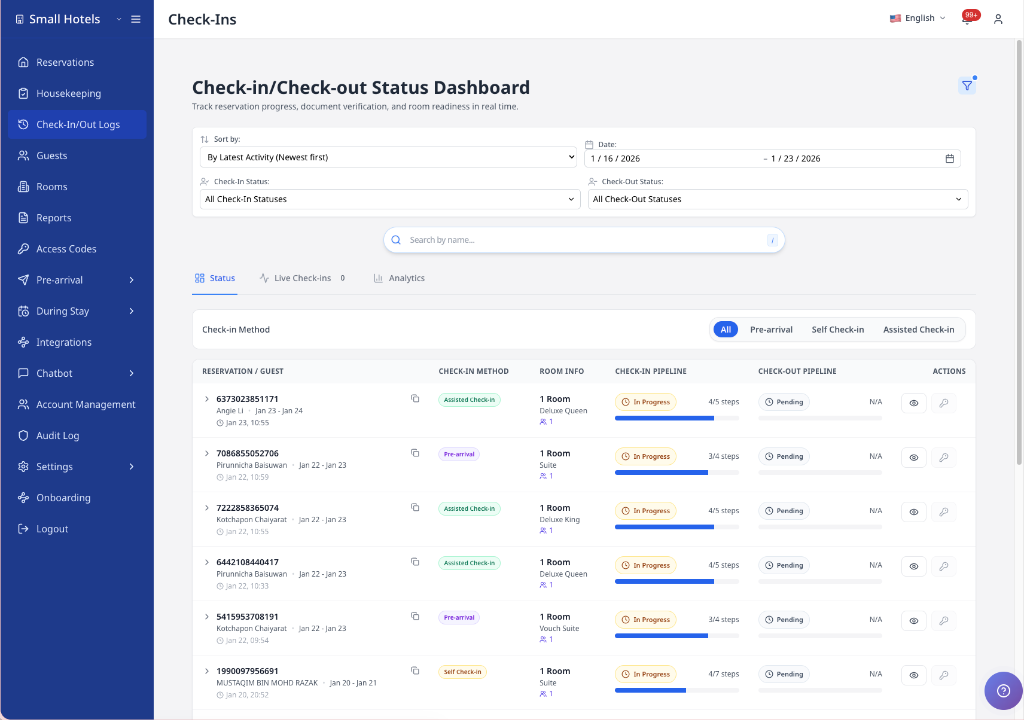
-
Open Command Center.
-
Stay on the Status tab.
-
Use Check-in Method or Check-out Method to focus on one journey.
-
Review the reservation rows (or cards on phones).
✓ Each reservation shows Check-in pipeline, Check-out pipeline, PMS attachment status, journey activity times, and the current status.
✓ On phones, long status labels wrap inside pills and badges.
The Status view chooses its layout from the dashboard's available width. The sidebar and page padding reduce this width on smaller desktop windows. Below the table's readable width, AVA shows reservation cards instead. This keeps columns from overlapping on iPads with the sidebar open. At wider sizes, the table keeps a minimum readable width and scrolls inside the dashboard. Long room information stays clamped to two lines. Long guest names stay inside their column with an ellipsis. Hover a shortened guest name to see the full name. The Check-in Method pill shows Self or Assisted. The Check-out Method pill shows Self or Assisted when checkout activity exists. Each method appears in its own pipeline column on desktop and inside its pipeline section on phones. Hover the pill or room text to see the full label. On narrower table layouts, the separate Room Access status wraps inside the Check-in Pipeline cell. It stays clear of the adjacent Check-out Pipeline status, including N/A.
On phones, Status cards show the stay date range under the reservation code. This helps you confirm arrival and departure dates at a glance. The Check-in Method filter also switches to a 2-column layout, so long labels stay inside the filter area. Collapsed payment summaries on mobile cards now show the same labels as desktop rows. You can see Pre-auth, Captured, and Direct sale without expanding the reservation.
-
Select a reservation row to expand the guest list.
-
On phones, use View guests to expand and Hide guests to collapse.
✓ Guest rows show step rails for check-in and check-out.
Read front-desk check-in notes
When the front desk checks a sharer directly in the PMS, Status shows a green Checked in at front desk note. The note replaces that guest's check-in step rail on desktop and mobile. Hover over or focus the note to read its explanation. The tooltip says the PMS check-in is complete, so the steps are optional. That guest does not count toward reservation check-in progress. The reservation can therefore reach Completed without AVA check-in steps. Other guests and checkout steps remain unchanged.
If housekeeping data is available, you see badges like Clean and Vacant. If a reservation has no room number, AVA hides the room-status badges and placeholders. This keeps mixed pages loading for the reservations that do have valid room numbers. Single-room reservations show badges in the main row. Expand the reservation to see badges per guest for multi-room stays.
Manage out-of-service rooms from Command Center
Use Status to manage room service state without opening Housekeeping.
When housekeeping data is available, room badges include Out of service when the PMS blocks a room. Authorized staff can take rooms out of service or restore them from desktop rows and phone cards. Read-only staff can still see the badge, but cannot change the room state.
Take a room out of service
-
Open Command Center.
-
Choose Status.
-
Find the reservation with the room.
-
On desktop, find the room badge in the reservation row or guest row.
-
On a phone, open the reservation card and find the room badge.
-
Select Take out of service.
-
Choose a Reason and Start date.
-
Add an End date and Notes if needed.
-
Select Take out of service.
✓ The badge changes to Out of service. ✓ The room remains visible, but staff cannot assign it for blocked dates.
Restore a room to service
-
Find the room with the Out of service badge.
-
Select Restore to service beside the badge.
-
Review the confirmation message.
-
Select Restore to service.
✓ The badge changes to In service after the PMS confirms the update. ✓ An overlapping PMS block can keep the room Out of service.
The action appears only when your PMS supports room service status updates and you have HOUSEKEEPING.WRITE permission. Other staff can still view the Out of service badge.
Some reservation groups show one payment summary across all rooms.
AVA adds unique room-level payment evidence and keeps the total additive.
The compact row shows payment labels like Pre-auth, Captured, and Direct sale.
If no persisted AVA payment activity exists, the summary stays blank.
If currencies conflict, AVA hides the amount instead of guessing.
If the backend omits paymentSummary, AVA shows an unavailable marker.
If the backend sends only explicit no-payment evidence, AVA shows that state instead.
Transaction IDs stay out of the compact row.
When your PMS reports authoritative check-in/out status sync, AVA auto-syncs logs for the reservations on the page. It runs again when you change pages, rows per page, filters, or search. You do not need to click a sync button. AVA shares one short sync cooldown for your hotel account. If you change the view during that cooldown, AVA keeps only your latest selection and syncs it when allowed. Returning to Status keeps the cooldown, so switching tabs does not create duplicate requests. If the PMS sends a longer wait time, AVA follows that deadline. If the PMS capability response is missing or outdated, AVA pauses this background sync until the capability is available again.
Each reservation row shows the latest valid activity for the reservation. The guest cell keeps one combined last-activity time. The Check-in pipeline shows the latest check-in activity time. The Check-out pipeline shows the latest check-out activity time. Each pipeline time appears below its method badge.
| Reservation activity | What you see |
|---|---|
| No journey activity | No time in that journey's pipeline |
| Check-in activity exists | The latest check-in time under the check-in method badge |
| Check-out activity exists | The latest check-out time under the check-out method badge |
| Check-in happened outside AVA, then checkout happened in AVA | A check-out time only |
Before checkout activity starts, the check-in time matches the guest cell's last activity. Hover over a time, or focus it with a keyboard, to read Last check-in activity or Last check-out activity. The tooltip opens beside the time, so it does not cover the method badge. The same wording is available to screen readers. Desktop rows and mobile cards use the same journey-specific display. Each guest can still show a combined last activity time under their name. That time comes from the latest valid journey or step activity. It does not change only because the PMS refreshed reservation metadata. If a step failed, a red error card shows the step name and message. Blocked checkout lookups appear as failed FETCH_CHECKOUT activity. Checkout refused by the PMS appears as a failed Checkout stage. The stage includes the PMS reason, such as an unsettled folio window. Open View Details to review the balance and billing reason. After a successful retry, the newest checkout lookup shows the successful result.
Travel documents, guest photos, and registration cards can finish PMS delivery after local saving. Open View Details to review each attachment's status and any available Retry action. See Review PMS attachment delivery.
The Check-in Method label shows Assisted for assisted reservations. For a recognized ACI kiosk lookup, AVA saves the configured flow at reservation lookup. It adds ACI · 1 device or ACI · 2 devices beside that label. If older data has no recorded device flow, it adds ACI · device flow not recorded. For multi-room lookups, every room uses the same saved flow snapshot. You see the badge in desktop table rows and mobile reservation cards. Use it to confirm which assisted flow created the reservation activity. The neutral badge identifies missing historical data. It does not indicate a one-device or two-device flow. Self Check-In reservations do not receive an ACI device badge.
Read check-in and check-out method badges
AVA records the method for each journey separately. An assisted check-out does not change the check-in method, stages, or payment badge.
- Self means the guest used CCI for that journey.
- Assisted means staff used ACI for that journey.
- ACI · 1 device or ACI · 2 devices describes assisted check-in only.
- Kiosk: name identifies the kiosk or verified staff device recorded for that journey.
An assisted check-out can show Assisted and its verified kiosk name. It does not show an ACI device-flow badge because that badge describes check-in. Older reservations may show no check-out method when the method was not recorded.
Identify paid early check-ins
AVA shows an orange Early check-in tag beside the Self or Assisted check-in method. The tag means the room was checked in before your hotel's allowed check-in time. It appears only when CCI records the early check-in outcome. Hotels without paid early check-in enabled do not see this tag.
-
Open Command Center → Status.
-
Find the reservation row or expand its guest list.
-
Look beside the check-in method for Early check-in.
✓ The tag confirms that the guest used an approved early check-in flow.
A guest can check in with ACI and check out with CCI. Read the Check-in and Check-out columns independently. Use both method filters when you need this exact combination.
When available, the reservation also shows the captured kiosk or staff alias. This identifies the kiosk or verified Check-in Connect staff device that started the journey. The alias is an audit snapshot and does not change when the device is renamed later. Legacy journeys and non-kiosk sources may have no alias. Use the alias with the reservation number and timestamp when tracing an Opera action.
If ID Scan is disabled, Document Upload and Identity Verification disappear from the pipeline. AVA only counts the remaining required steps, so finished check-ins can still show Completed.
If the relevant facial setting is disabled but ID Scan stays on, Document Upload still appears. Only Identity Verification disappears for that check-in mode. Completed check-ins do not look stuck in progress.
If Enable Facial Verification for Assisted Check-In is on, ACI reservations can show Facial Verification. If it is off, the step shows as not required for ACI.
When a reservation has room-assignment evidence, ROOM_ASSIGNMENT can appear before CHECKIN. That badge means AVA assigned a room, not that the guest finished check-in. Room Access still appears later, after the guest completes the rest of the flow.
Some completed check-ins show Completed without a payment stage. AVA omits the check-in payment badge when no real payment evidence exists. This applies to completed pre-arrival, self check-in, assisted check-in, and legacy journeys. If AVA recorded a payment attempt, the payment stage stays visible.
Some checkouts finish with no View Bill or payment stage. That happens when billing was not needed or no bill-view/payment evidence exists. AVA can still mark the checkout as Completed in those cases. If AVA recorded a real View Bill or checkout payment attempt, the matching stage stays visible. If the PMS refuses the final checkout, the Checkout stage stays visible as Failed with its reason. The newest successful or failed evidence wins when attempts repeat. Checkout payment evidence is separate from room-payment evidence. Room Payment badges only reflect check-in room-payment or pre-auth evidence. Do not use a checkout payment record to judge the Room Payment badge.
-
If your PMS supports billing review, select View Guest Bill to review charges.
✓ The Guest Bill panel opens with totals and bill items.
View Guest Bill appears when your PMS integration reports billing support. Opera currently reports this capability.
On phones, the action row sits under each card. Buttons may wrap to a second line on small screens. Use View Details or View Guest Bill from there.
Available Actions

Each reservation row provides quick access to common actions:
- View Details (eye icon) - Open full reservation details
- View reservation (bed icon) - Open the exact room's reservation
- Edit (pencil icon) - Modify reservation information when your PMS supports editing
- View Guest Bill (dollar icon) - Review charges when your PMS supports billing
- Failed step badges - Open override modals for Travel Document, Guest Registration, Facial Verification, Deposit, and Room Payment while a support call is connected
- Search/Filter (magnifying glass icon) - Additional options
If your PMS reports these capabilities, you should see Edit and View Guest Bill here. If they are missing, refresh the page and confirm your PMS is connected.
Open the exact room reservation
Use View reservation to open the reservation linked to a Command Center log. Single-room bookings open even when the PMS has not assigned a room yet. For multi-room bookings, select the specific room you need.
-
Open Command Center and stay on Status.
-
Find the reservation group or room row.
-
Select View reservation.
- On a single-room row, AVA opens that room's reservation.
- An unassigned single-room booking can still open its reservation.
- On a room row, the button says View reservation for room [room number].
- On a collapsed multi-room desktop group, select the button to expand the group first.
-
On a phone, select View guests to expand a multi-room card.
-
Select View reservation beside the room you need.
✓ The existing Reservation Details modal opens for the selected room.
AVA resolves a single-room booking directly when no room assignment creates ambiguity. For multi-room bookings, AVA uses the linked check-in record and selected room. It does not guess or open the first reservation in an ambiguous group. You need RESERVATION.READ permission to use this action.
Fast requests open the modal immediately. Slower requests show a loading state on the button before displaying a dialog. Selecting the same button again does not restart the request. Selecting another room cancels the older request and loads the new target.
Override a failed step
This takes about 2 minutes. Use it when a guest needs staff to unblock a failed step.
The Status tab opens override modals for failed or pending steps. AVA records each override with a reason. You can only click these badges while the caller widget shows Connected.
| Badge | Modal title | Final button |
|---|---|---|
| Travel Document | Travel Document Override | Apply Override |
| Guest Registration | Guest Registration Override | Apply Override |
| Facial Verification | Facial Verification Override | Apply Override |
| Deposit | Deposit Payment Override | Mark deposit as paid |
| Room Payment | Room Payment Override | Mark room payment as paid |
Guest Registration needs a completed document upload. Facial Verification needs a completed registration card.
For a failed facial check during ACI, use the active staff check-in device. The ACI device override is separate from Command Center override actions.
Only failed or pending badges can open an override modal. The badge also needs an active connected support call. Deposit and Room Payment overrides apply to the primary guest only.
-
Open Command Center and stay on Status.
-
Find the reservation or guest row with the failed badge.
-
Click the badge on desktop or tap it on mobile.
-
Review the override modal.
-
Enter an Override reason.
-
Select the final action button.
✓ The badge changes to complete after the override saves. ✓ The related event appears in Detailed Event Log.
Override badge is not clickable
What you see: The badge does not open a modal.
Fix:
- Confirm the step is FAILED or PENDING.
- Confirm the caller widget shows Connected.
- For payment overrides, confirm the guest is the primary guest.
- Refresh Status and try again.
A completed step appears pending
What you see: A guest step appears Pending after it previously showed complete.
Fix:
- Refresh Command Center → Status.
- Open the reservation and review the guest row.
- Check whether the guest has a current failed or in-progress attempt.
- If no current attempt exists, refresh the reservation details again.
- Contact support if the step remains pending despite a saved completion.
✓ A saved completion should remain complete after older activity leaves the dashboard history.
Edit reservation details (When Supported)
-
Stay on the Status tab and expand a reservation row.
-
Select Edit.
-
Update First Name, Last Name, or swap the room.
-
Use Room Type to filter the room list.
-
Select All to show every room type.
-
Click Save Changes.
✓ Updates apply to the reservation’s main confirmation number.
By default, the room picker shows Vacant rooms with Clean or Inspected condition. The Room type filter starts with the reservation’s room type. Click Clear to return to those defaults.
If a reservation has more than one confirmation number, edits save to the main one shown in the summary.
Room swaps are blocked when the other reservation has a later Check-out date. A Do Not Move lock also blocks the swap until you clear it. The room shows a ❌ icon with "This reservation can’t be swapped because the departure date doesn’t match the other reservation." Pick another room or update the stay dates in your PMS.
Understand the status indicators
- Completed means all required check-in steps for the current settings finished.
- In Progress means the guest is mid-flow.
- Pending means no required steps completed yet.
- Partial means at least one guest completed a stage, while another guest remains pending.
- Stalled means at least one step failed.
When a guest scans a document already used in the room after selecting Check In Another Guest, AVA keeps that failure separate. The main guest's successful document stage stays successful, so this scan does not create a false Stalled status.
Understand partial reservation progress
Command Center evaluates each check-in stage across the guests in a reservation.
| What you see | What it means |
|---|---|
| A stage shows Partial | At least one guest completed that stage, but another guest still needs it. |
| A stage badge is amber | The stage is partially complete, so continue with the guests still pending. |
The badge tooltip shows 1 of 2 guests completed | One of two guests completed that stage. |
| The overall pipeline shows In Progress | No stage is complete for every guest, but progress has started. |
| A stage shows Stalled | A failure takes priority over pending or partial progress. |
Hover over or focus a stage badge to see its status and completed guest count. The count excludes steps that do not apply to a guest.
Payment and deposit statuses continue using the primary guest's result. Those shared stages do not show guest counts. Checkout status uses the current checkout journey. It does not inherit a completed check-in status or reason. A new checkout attempt starts as In Progress, then reflects its own completion or failure.
AVA keeps a saved completion when its recent event history no longer includes the success event. This applies to document upload, guest registration, registration card, and facial verification steps. If a current attempt is failing or still in progress, that current status takes priority.
Read arrival badges for each guest
Expand a reservation to review arrival progress for each guest. AVA attributes check-in and room-access badges to the guest with matching arrival evidence.
| What you see | What it means |
|---|---|
| An absent guest shows Pending | That guest has no recorded arrival completion. |
| One guest shows Completed after a partial check-in | The successful guest keeps their completed status. |
| A later arrival has its own key badge | The key event belongs to that later guest. |
| A sharer arrives before the main guest | The sharer's arrival and keycard badges update first. |
| A shared-room guest changes to Completed | AVA reconciled the confirmed arrival across the same room share. |
| An unrelated accompanying guest remains pending | The other guest is not part of the same room share, or has no confirmed arrival. |
Legacy records without individual arrival evidence keep their existing badge attribution. New activity uses the guest identity, arrival decision, or arrival timestamp available to AVA. For Opera room shares, AVA propagates only confirmed individual arrivals. It never propagates the room-wide legacy check-in flag by itself.
Arrival badge looks incorrect
What you see: A guest badge does not match the guest who arrived.
Fix:
- Refresh Command Center → Status.
- Expand the reservation and review each guest row.
- Open View Details and check the Detailed Event Log timestamps.
- Confirm the arrival decision or check-in event belongs to the expected guest.
- Contact support if a new event remains attached to the wrong guest.
Room Access stays pending after successful key delivery
What you see: Key encoding or retrieval succeeded, but Room Access remains Pending.
Fix:
-
Refresh Command Center → Status.
-
Open View Details for the reservation.
-
Confirm a successful CHECKIN event appears before the key event.
-
Refresh the reservation details again.
✓ AVA should use the observed check-in completion time and show successful Room Access.
Do not change the stored registration-card time to correct this status. Contact support if the status remains pending after the successful events appear.
Read Room Access separately
When AVA-managed delivery is configured, Room Access is a required check-in step. This includes smart locks, lockers, and configured non-manual keycard delivery. AVA can show Pending before anyone attempts encoding.
| Room Access status | What it means | What you should do |
|---|---|---|
| Pending | No successful delivery is recorded yet | Complete room access before completing check-in |
| Failed | The latest access attempt failed | Open View Details, then retry before completing check-in |
| Success | AVA recorded successful room access | Give the access details or key to the guest |
The check-in row shows incomplete progress while required Room Access is Pending or Failed. When delivery is manual or unavailable, the check-in can show Completed with separate Room Access evidence. If configuration cannot be retrieved, recorded Room Access evidence is display-only.
When an early check-in is approved, AVA uses the successful check-in completion time. This timing keeps later key encoding or retrieval events attached to the completed arrival. AVA does not rewrite the stored registration-card time.
If AVA cannot retrieve the room-access configuration, existing Room Access evidence stays visible. Treat it as display-only until the configuration becomes available again.
Room Assignment is successful only when AVA records an assignment outcome. A room number already supplied by your PMS does not prove AVA assigned the room. CCI and ACI rows can therefore show Room Assignment: Pending with a PMS room number.
Some checkouts now show Completed without a payment stage. That means checkout payment was not applicable or no payment was recorded. This is expected for zero-balance or no-payment checkouts.
A completed room or combined pre-authorization can show SUCCESS even when direct-sale collection is disabled. AVA uses the stored completion state, not the current merchant setting, so the badge reflects the finished payment outcome.
Some steps are hidden when they are not required. Examples include disabled ACI facial verification or Room Access before arrival.
Open reservation details
-
Open Command Center and stay on Status.
-
Select View Details on the reservation you want to review.
- On the free tier, choose a reservation from the latest 20 logs.
-
If the reservation has multiple rooms, choose a room tab.
✓ The Reservation Details panel opens with Reservation Summary, Guest Information, and a Detailed Event Log.
Free-tier accounts can open details only for the latest 20 logs. Open a recent reservation or add a card in Settings → Billing & Subscription.
See Reservation Details for document warnings, registration card generation, and event log tips.
Some reservations show Reset Check-in Flow inside Reservation Details. See Reset a Check-In Flow for the warning and reset steps.
View Details is disabled when no room is assigned. Expand the reservation and confirm a room in your PMS.
Manage room access (if enabled)
If your property uses keycards, smart locks, or lockers:
-
Expand a reservation with View guests (or select the row).
-
Select Manage PIN, Encode Key, or Manage Locker Code in the action row.
✓ The room access modal opens for that guest or room.
When you click Encode Key on a guest row, AVA uses that row's confirmation number first. This keeps key encoding on the correct room.
Review analytics
-
Select the Analytics tab. (Paid plans only.)
-
Choose Pre-Arrival, Check-In, or Check-Out.
-
If you are on Check-In, use the sub-tabs for All Check-Ins, Early Check-In, Pre-Registration, or Full Check-In.
-
Review the summary cards, funnel drop-offs, and recent issues.
✓ Metrics update based on the date range at the top of the page. ✓ Some check-in views also show Eligible Check-In Units and AVA Check-In Share after Completion Rate.
See Understand Command Center Analytics for how each metric is calculated.
Troubleshooting
No logs appear
What you see: The list is empty or shows "No Check-In/Out Logs Found".
Fix:
- Click Clear Dates to reset the date range.
- Remove any Check-In Status or Check-Out Status filters.
- Try a broader search term (guest last name or confirmation number).
Status takes too long or times out
What you see: Status keeps loading, shows a timeout, or returns no rows for a wide date window.
Fix:
-
Wait for the current request to finish before changing filters.
-
Clear unused Status filters, especially Handled by and status filters.
-
Narrow the Date range to the days you need.
-
Refresh Command Center and try the same search again.
✓ The selected date and activity filters control the returned rows, groups, summaries, exports, and filter choices. ✓ If the request still times out after narrowing the range, contact support.
Old Live links open Status
What you see: A saved link or older alert includes tab=live.
Fix:
-
Open the link.
-
Continue from Status.
-
Use Search, Date, and status filters to find the reservation.
✓ AVA replaces the retired Live destination with Status. ✓ New check-in and room-access-ready alerts also open Status.
Old results remain after changing filters
What you see: Old reservations remain visible after you change a filter.
Fix:
-
Wait for the replacement request to finish.
-
Confirm the new filter values remain selected.
-
Refresh Command Center if the old rows remain after loading ends.
✓ AVA should show the new results from page 1.
Status does not auto-sync
What you see: Status does not refresh check-in or check-out states automatically.
Why this happens: AVA cannot confirm that your PMS provides authoritative status updates. It pauses background reconciliation when capability data is missing or outdated.
Fix:
-
Confirm your PMS connection shows Connected in Settings → Essentials → PMS Integration.
-
Refresh Command Center.
-
Change the Status page or rows per page, then wait several seconds.
-
Contact support if auto-sync remains paused while your PMS is connected.
✓ Include your PMS name, hotel, and the time the issue occurred.
Status columns overlap
What you see: Text or status badges overlap in the Status table.
Fix:
- Refresh Command Center.
- Close the sidebar if you need the table on a narrow desktop window.
- If the dashboard is narrow, use the reservation cards shown by AVA.
- Widen the browser window if you need the table layout.
- Contact support if columns still overlap after refreshing.
View Details is disabled
What you see: The View Details button is gray.
Fix:
- If you are on the free tier, open a reservation from the latest 20 logs. Upgrade for older history.
- If you are on a paid plan, expand the reservation with View guests.
- Confirm a room number is assigned.
- If the room is missing, check the reservation in the PMS.
View reservation is unavailable
What you see: The action shows an unavailable, forbidden, or load-failed message.
Fix:
- Confirm you selected the intended room row.
- For a multi-room group, expand the group and choose a room-specific action.
- Confirm your account has RESERVATION.READ permission.
- Select Try again after checking the room and permission.
- Refresh Command Center if the room or guest data changed recently.
An unassigned single-room booking should still open its reservation. If it remains unavailable, verify your permission and refresh the log. AVA closes the action safely when it cannot identify one exact room in a multi-room booking. It does not open another room's reservation.
View Bill stays pending after checkout
What you see: The checkout pipeline still shows View Bill after completion.
Fix:
- Refresh Status.
- Open View Details for the reservation.
- Compare the newest timestamp in the event log.
- Trust the latest successful or failed evidence.
- Contact support if the dashboard still disagrees with the event log.
Guest bill does not load
What you see: The bill panel stays blank or shows no items.
Fix:
- Refresh the page and open View Guest Bill again.
- Confirm charges are posted in your PMS.
- Try another reservation to confirm bills load.
Edits do not show after saving
What you see: The guest name or room does not update after Save Changes.
Fix:
- Refresh the page and reopen Edit.
- Confirm the reservation shows the correct main confirmation number.
- Wait 1-2 minutes for PMS sync, then refresh again.
Room list is missing rooms
What you see: The room list looks too short or only shows one room type.
Fix:
- Open Room Type in the edit modal.
- Select All to remove the filter.
- Wait for the list to refresh.
Encode Key opens another room in a multi-room stay
What you see: You click Encode Key for one room, but another room opens.
Fix:
- Expand the reservation and click Encode Key on the exact guest row.
- Confirm the row shows the expected Room Number and confirmation number.
- Refresh Command Center and try again.
- If it still opens the wrong room, contact support.
Edit or View Guest Bill is missing
What you see: Edit or View Guest Bill does not appear on the reservation row.
Fix:
- Go to Settings → Essentials → PMS Integration.
- Confirm your PMS shows Connected.
- Refresh Command Center and check again.
- Ask an administrator whether the PMS reports reservation-editing and billing support.
- Contact support if the PMS is connected and the actions are still missing.
Command Center shows a PMS recovery card
What you see: You see Open PMS settings, a setup message, or a note that the saved PMS credentials were rejected.
Fix:
- Open PMS settings from the recovery card.
- Confirm the active PMS is correct.
- Add the missing credentials or update the rejected credentials.
- Save your changes.
- Return to Command Center and refresh the page.
Command Center cannot verify configuration
What you see: You see Configuration is temporarily unavailable.
Why this happens: AVA could not retrieve the hotel's complete configuration. This may indicate missing access or a temporary configuration-service outage. It does not prove that PMS setup is incomplete.
Fix:
-
Refresh Command Center once.
-
If prompted, sign in again.
-
Ask an administrator to confirm your access to the hotel's configuration.
-
Try again later if the message says the configuration service is unavailable.
-
Contact support if the alert continues.
✓ Command Center loads after AVA retrieves the complete configuration.
Out-of-service badge is missing
What you see: A room has no Out of service or room-condition badge.
Fix:
- Confirm the reservation has a room number.
- Refresh Command Center.
- Wait for housekeeping data to finish loading.
- Open Housekeeping and check the room there.
- Ask an admin to verify Settings → Essentials → PMS Integration.
If one housekeeping lookup fails, AVA keeps valid room data visible.
The affected room can show — until the next successful refresh.
Out-of-service action is missing
What you see: You see room badges, but not Take out of service or Restore to service.
Fix:
- Ask an admin whether your PMS supports room service status updates.
- Ask an admin to grant HOUSEKEEPING.WRITE permission if appropriate.
- Refresh Command Center after permissions change.
Read-only staff can view room state without mutation actions.
Out-of-service update fails
What you see: AVA shows an error after you select Take out of service or Restore to service.
Fix:
- Refresh Command Center.
- Check the room's current state in Housekeeping.
- Verify your PMS connection is active.
- Try the action again.
- Contact support if the PMS state does not change.
Still Stuck?
Contact success@vouch-technologies.com if:
- ❌ Logs fail to load after a refresh
- ❌ Reservation details never open
- ❌ New alerts open the wrong hotel or reservation
Helpful to include:
- Confirmation number or room number
- Time the issue occurred
- Screenshot of the Logs page