Encode a Keycard Manually
Most manual keycards take about 2 minutes once your encoder is online.
This guide helps you encode keycards manually and understand how AVA protects active cards.
Go to: Operations View → Encode Keycard
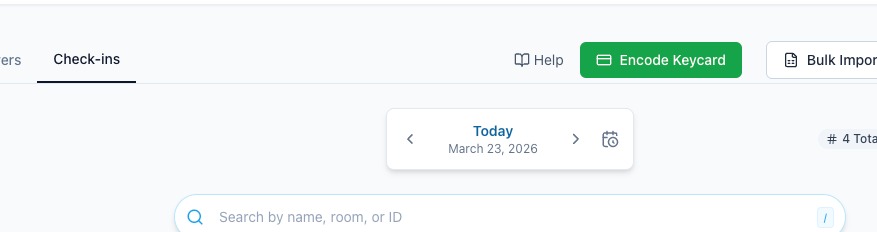
You only see Encode Keycard when Settings → Room Access is set to Keycard Encoding.
Staff who can encode keycards can use the active-card check. They do not need permission to browse Access Codes.
If you use Opera through a PMS-integrated encoder, AVA treats a bare 201 as acceptance.
AVA then waits five seconds for the encoder to settle before it returns control.
It does not use reservation roomKeys metadata to prove one physical encode finished.
Explicit terminal success or failure statuses still pass through unchanged.
If Opera sends no terminal result, retry the same request once.
AVA formats Valid From and Valid Until as hotel-local wall-clock values before sending them to Opera.
That depends on a valid hotel timezone.
If the hotel timezone is invalid or request timezone data conflicts, AVA stops before encoding.
If confirmation fails, support can review the sanitized room snapshot, expected values, settle delay, poll count, and match results. AVA does not log guest data or key PIN values in this path.
Header-Level vs Reservation-Level Encoding
AVA provides two ways to encode keycards. Understanding the difference helps you issue duplicate or additional keycards without changing your settings.
| Method | Where to Find It | Number of Keycards |
|---|---|---|
| Header-level (green button) | Top of the Operations View, next to Help | Always 1-10, regardless of settings |
| Reservation-level | Card icon button on a reservation card or row | Controlled by your Room Access setting |
- The header-level button starts a manual flow without opening a reservation.
- The reservation-level button starts encoding for the selected reservation or room.
- Both flows can find an active manual keycard set before encoding.
Use the extra-card flow when you need another card. AVA protects active cards automatically.
If a room is already checked in, an additional guest can reopen the duplicate keycard flow later. AVA encodes the extra guest's card without replacing the active set.
Resolve the reservation room before encoding
After you select an encoder, AVA confirms the assigned room through the authenticated PMS lookup. If the reservation card has no usable room value, AVA uses that lookup automatically. AVA accepts any non-empty PMS room identity, including long AVA PMS identifiers. It then uses the resolved room identity and room number for keycard lookup and encoding.
This applies to reservation room access, check-in, and key management. AVA rechecks the room before encoding and decides whether the physical card is new or duplicate.
Encode a linked reservation room
When a linked booking has several rooms, AVA first checks the parent PMS response. If that response does not identify the selected room, AVA reads the selected reservation.
-
Select the room you want to check in or encode.
-
Choose Manage Pin / Encode Keycard or continue check-in.
-
Wait while AVA verifies the selected reservation's confirmation and room.
✓ AVA encodes only after the confirmation and room match strictly.
You do not need to enter a sibling's room number or change billing details. If the selected reservation cannot be verified, AVA blocks encoding for safety. A checked-in parent booking does not override the selected room's current status.
Encode after a PMS room move
If the PMS moves a guest after you issue a keycard, refresh the reservation before encoding again. AVA reads the current PMS assignment before contacting the encoder.
-
Confirm the new room in your PMS.
-
Refresh the reservation or Operations View in AVA.
-
Open Manage Pin / Encode Keycard for the reservation.
-
Start the keycard flow for the new room.
-
Follow the encoder prompts for each card.
✓ AVA checks the room assignment again before encoding.
AVA keeps guest verification and keycard history after the move. The old room's completed keycard action does not complete the new room. If the PMS temporarily shows no room, wait for reassignment, refresh, and retry.
Encode for a guest departing today
A guest marked DUE_OUT or Due Out still occupies the room until checkout. You can encode a keycard while the guest remains in the room.
- Confirm the guest has not checked out in your PMS.
- Refresh the reservation or Operations View in AVA.
- Open Manage Pin / Encode Keycard.
- Start the keycard flow.
- Complete the encoder prompts.
✓ AVA performs a fresh PMS room and occupancy check before encoding.
AVA blocks encoding after checkout, cancellation, before arrival, or unknown room status.
You do not need to shorten or edit a valid PMS room identity. Room mapping remains necessary only when the encoder room name differs from the PMS room number.
How AVA chooses the card type
AVA decides the effective card type on the server during each encode request. For ACI staff, the keycard modal starts with the server's current recommendation. You can override that recommendation for the first card when the room allows it. AVA checks PMS occupancy again when you start encoding.
| Room state | Card type AVA uses | What happens |
|---|---|---|
| No card exists for this room assignment | NEW | AVA starts the room's card set. |
| Another party already holds a card in this room | DUPLICATE | Existing cards remain active. |
| This reservation already holds a card in this room | DUPLICATE | AVA adds or retries a card safely. |
| This reservation moved after holding cards elsewhere | NEW | The new room needs a fresh card set. |
Some lock systems deactivate earlier cards when AVA sends NEW. Give replacement cards to guests immediately.
AVA checks the PMS for another in-house party before a first card in a shared room. If the PMS cannot complete that check, AVA keeps the existing NEW fallback.
Choose the first ACI card type
The Key type section appears only for verified ACI staff. It applies to the first card in the current keycard request.
-
Review the recommended Duplicate key or New key choice.
-
Read the reason shown below the recommendation.
-
Keep the recommendation, or select the other card type.
-
Review the warning when your choice differs from the recommendation.
-
Start encoding the card.
✓ The choice locks after card 1 is sent, including after a failed attempt.
The server always checks the latest PMS occupancy before accepting an override. Cards 2 and later follow the existing card-set decision. Self Check-In, kiosks, Lost Keycard, and guest-facing screens do not show this choice.
Choose New key only when you want earlier cards for the room to stop working. Some lock systems revoke earlier cards when AVA encodes a new key.
The choice changes the lock command only for supported encoders. ACSHotel and LockSDK ignore the type at the lock, but AVA still applies NEW access-record handling.
Start a New Manual Keycard Set
For a room without an active manual set, AVA uses NEW for the first successful card. It then uses DUPLICATE for later cards in that room assignment.
You do not need to enter or create a reservation number for a new manual set. AVA assigns the set automatically after the first successful card.
Use the replacement workflow only when earlier cards should stop working.
Quick Reference
| Field | Required | Default or notes |
|---|---|---|
| Select Keycard Encoder | Yes | One online encoder is selected automatically. Select a specific online encoder when several are available. |
| Room Number | Yes | Select the PMS room number. The encoder room name appears as helper text. AVA sends this room number to Opera's external-room-key flow. |
| Guest Name | No | Optional. |
| Valid From | Yes | Defaults to current time. |
| Valid Until | Yes | Defaults to tomorrow at your configured keycard expiration time in your hotel's timezone. A valid hotel timezone is required. |
| Number of Keycards | No | Defaults to 2. Choose 1-10 whole cards. |
AVA rejects non-integer card counts.
The room list shows the PMS-facing room number first. If different, AVA shows the encoder room name in parentheses.
Dynamic encoder lists use the live agent connection as the source of truth. If the encoder’s agent is connected and the tunnel is reachable, AVA shows it as Online. Static or direct encoder lists keep their existing behavior.
When encoding starts from a kiosk, AVA first restores the saved kiosk target and staff verification. It also reloads kiosk settings before sending the card request. If the target or verification changed, AVA stops the request and asks you to verify the device.
Each GreatLocks row represents one physical encoder and its connected Windows PC. When several are online, select the encoder for the PC you need. The selected encoder handles this keycard request.
When multiple physical encoders share a Windows Agent, each choice shows its encoder name. AVA adds the shared agent name in smaller text when multiple shared-agent groups need context. If an encoder has no name, AVA shows its encoder ID instead. This applies to manual and reservation keycard encoding.
AVA uses Settings → Room Access → Keycard Expiration Time for the default Valid Until time. The hotel's saved Timezone must also be valid. If the timezone cannot be established, AVA stops before encoding. If a reservation has no checkout date, AVA still uses tomorrow at that configured time.
Start the Encoding Flow
-
Go to Operations View.
-
Select Encode Keycard.
✓ The Manual Keycard Encoding modal opens.
-
If one encoder is online, AVA selects it automatically.
-
If multiple encoders are online, select the target encoder with Online status. That status follows the live agent connection. If encoders share a Windows Agent, use the encoder name first. Use the smaller agent label to confirm the correct shared-agent group. For GreatLocks, choose the encoder linked to the Windows PC you need.
-
Select a Room Number from the dropdown list.
✓ You see the PMS room number as the main label. If mapped, you also see (Encoder: ...) as helper text.
-
Optional: enter Guest Name.
-
Set Valid From and Valid Until.
-
Choose the Number of Keycards.
-
Click Encode Keycard.
✓ AVA checks whether the room already has active manual keycards.
-
If AVA finds an active set, continue through the keycard prompt.
✓ AVA decides the safe card type after checking the room. 11. Place each blank card on the encoder and follow the on-screen prompts.
✓ AVA shows the encoding result for each card.
Read each card result
AVA reports each card separately when you encode multiple cards. A failed card does not stop AVA from trying the remaining cards.
| Result | What it means | What you should do |
|---|---|---|
| Success | The card encoded successfully. | Give the card to the guest. |
| Failed with a guidance message | This card was rejected or could not be encoded. | Follow the message for that card. |
| Failed with Retry guidance | The problem may clear without configuration changes. | Fix the immediate issue, then retry that card. |
The batch can show HTTP 200 even when one or more cards fail. Check Success count, Failure count, and each card's result. Do not assume every card worked because the batch opened successfully.
For example, an Adem card with existing data tells you to use a blank spare card. If you must reuse it, ask authorized staff to erase it in Adem first.
Support views may also show an error code, vendor, retry status, and safe diagnostic details. Use those values when contacting support, but follow the plain-language message first.
The guidance belongs to the card you attempted. AVA uses that card's normalized message and error code before batch-level details. This prevents a different card's status from replacing the correct instruction. Raw vendor codes can remain available to support, but AVA does not show them instead of the guidance. AVA does not retry a failed card automatically. Fix the issue, then select Retry for that card when the modal offers it.
Encode from a Reservation
-
Open Operations View → Check-ins or Operations View → Stay-overs.
-
Select Manage Pin / Encode Keycard for the reservation.
-
Continue through the keycard prompt.
-
Select an online encoder when AVA asks.
✓ Shared-agent encoders show their individual encoder names.
✓ AVA confirms the assigned PMS room before opening the encoding modal. Long or internal-looking PMS room identifiers remain valid.
-
Place each blank card on the encoder and complete the prompts.
✓ AVA uses the room state to protect existing cards when possible.
For ACI staff, review the Key type recommendation before starting card 1. The section appears only when the current room state supports a choice.
Troubleshooting
Duplicate option is not shown
What you see: You open a reservation, but AVA does not show the duplicate and new choices.
Why this happens: AVA shows these choices when it finds an active manual keycard set. New rooms can open the encoding flow directly.
Fix:
- Confirm the reservation has the correct room and guest.
- Click Refresh in the Operations View.
- Try Manage Pin / Encode Keycard again.
- Use the manual flow if you need to add a guest name for matching.
Your key type choice is rejected
What you see: AVA says the key type choice is no longer valid.
Why this happens: Another desk may have encoded a card, the room may have moved, or PMS occupancy changed.
Fix:
-
Read the refreshed recommendation in the Key type section.
-
Keep the refreshed recommendation, or choose the available alternative.
-
Start encoding again.
✓ AVA accepts a choice when it matches the server's latest decision.
Do not keep retrying an old choice after the recommendation refreshes.
Reservation room cannot be determined
What you see: After selecting an encoder, AVA says "We could not determine the room for this reservation."
Fix:
- Refresh the reservation or Operations View.
- Confirm the reservation has an assigned room in your PMS.
- Start the reservation-level encoding flow again.
- Select an online encoder when AVA asks.
- Contact support if the message returns after the PMS room is assigned.
AVA accepts valid PMS room identities, even when they look long or internal. Do not change the room identity manually.
Due-out guest cannot encode
What you see: A guest departing today cannot receive a keycard.
Why this happens: AVA needs a current PMS room and occupancy result. The PMS may still be refreshing the guest's DUE_OUT status.
Fix:
- Confirm the guest remains checked in and has not checked out.
- Confirm the reservation has the correct assigned room in your PMS.
- Refresh the reservation or Operations View in AVA.
- Open Manage Pin / Encode Keycard again.
- Contact support if the room status remains unknown after one refresh.
Existing cards cannot be checked
What you see: AVA says it cannot check whether the room already has active cards.
Fix:
- Click Try again.
- Retry the encoding flow after the room lookup succeeds.
- Warn guests before any replacement workflow that earlier cards may stop working.
More than one active set matches
What you see: AVA says more than one active manual keycard set matches the room.
Fix:
- Close the modal.
- Reopen the manual flow and enter the guest's name.
- If the match remains unclear, use Access Codes to choose the correct set.
Stay dates are missing
What you see: AVA says the stay dates are missing, so the active set cannot be reused.
Fix:
- Refresh the reservation or wait for PMS synchronization.
- Try the encoding flow again.
- Retry the encoding flow and allow AVA to recheck the room state.
Encode Keycard button missing
What you see: No Encode Keycard button in the Operations View.
Fix:
- Go to Settings → Room Access.
- Set Room Access Method to Keycard Encoding.
- Return to the Operations View.
Encode Keycard button is disabled
What you see: The button is gray or shows "Missing merchant ID. Configure your account in Settings."
Fix:
- Complete your account setup in Settings.
- Refresh the page.
"No encoders found"
What you see: The encoder list shows "No encoders found."
Why this happens: AVA only lists dynamic encoders with live online status. That status comes from the connected agent and reachable tunnel.
Fix:
- Go to Settings → Room Access.
- Add or activate an encoder.
- Return to Encode Keycard.
Encoder picker skipped
What you see: AVA opens the encoding screen without showing encoder choices.
Fix:
- Confirm only one encoder is online.
- Continue encoding. This behavior is expected.
- Bring another encoder online if you need manual choice.
Kiosk device or encoder cannot be verified
What you see: AVA stops before encoding and asks you to verify the kiosk or encoder.
Why this happens: AVA could not safely restore the kiosk target, staff verification, or encoder settings.
Fix:
-
Close the encoding modal.
-
Go to Settings → Kiosk.
-
Confirm the physical kiosk uses the intended device row.
-
Select Re-verify staff device if the row requests verification.
-
Go to Settings → Kiosk → Device Routing.
-
Confirm the kiosk points to the intended encoder.
-
Go to Settings → Room Access → Keycard Encoding.
-
Confirm the target encoder is Active and available.
-
Return to the kiosk and retry one card.
✓ AVA should restore the current kiosk context before sending the request.
Do not rely on the number of configured encoders to identify the target. Use an explicit kiosk route or encoder selection when more than one target is available.
GreatLocks requires an encoder selection
What you see: AVA cannot continue a GreatLocks keycard request because several encoders are available.
Why this happens: Each GreatLocks agent serves one encoder. AVA needs your selection when more than one configured encoder can handle the request.
Fix:
- Open the encoder list.
- Select the GreatLocks encoder connected to the intended Windows PC.
- Confirm its status shows Online.
- Continue the keycard request.
If the correct encoder is missing, check its Encoder ID and agent status in Settings → Room Access. If two GreatLocks rows use the same ID, edit the rows and save unique IDs.
Encoder looks offline in the modal
What you see: The reservation keycard modal shows an encoder as offline, even though Settings → Room Access shows it connected.
Why this happens: The modal now uses the same agent connection state as the settings page. If the agent is connected and the tunnel is reachable, both views should match.
Fix:
- Refresh Settings → Room Access and the reservation modal.
- Check Registered Agents for the encoder card.
- Fix the agent connection or tunnel if either view still shows offline.
- Try encoding again.
Encode Keycard returns a failure
What you see: The modal closes with a failed request, or you see KEYCARD_ENCODE_FAILED.
Why this happens: The encoder returned false, so AVA treats the write as a real failure.
It no longer shows a soft success response for that case.
Fix:
- Check the encoder power, session, and connection status.
- Retry the same encode request once.
- If it fails again, switch to another online encoder.
- Review the encoder logs or contact support with the exact error text.
Opera sharer arrives before the main guest
What you see: A sharer's keycard fails while the main guest remains due in Opera.
Why this happens: AVA must confirm the sharer's live arrival and room assignment. It refreshes Opera occupancy before refusing a sharer-first request.
Fix:
-
Confirm the sharer is marked arrived in AVA or Opera.
-
Confirm the sharer uses the same room as the main guest.
-
Refresh the reservation or Operations View.
-
Retry Manage Pin / Encode Keycard.
-
If the sharer checked out or moved rooms, send them to the front desk.
✓ AVA should encode the card after Opera confirms the arrived sharer in that room.
This fallback does not apply when the sharer is in another room. It also does not change the main guest's reservation status.
Opera timezone mismatch
What you see: The modal fails before PMS returns a room key. You may see a timezone mismatch or invalid timezone error.
Why this happens: AVA uses the hotel's configured timezone for Opera keycards. It rejects invalid hotel timezone settings and conflicting request timezone data before encoding.
Fix:
- Go to Settings → Essentials → Hotel Basic Details.
- Confirm Timezone is set to the hotel's real timezone.
- Save the setting if you changed it.
- Refresh the reservation or reopen the manual flow.
- Try Encode Keycard again.
Room number looks correct but encoding uses another room code
What you see: You pick room 101, but encoder logs show another room value.
Fix:
- Go to Settings → Room Access → Keycard Encoder Room Mapping.
- Find the selected PMS room.
- Confirm the mapped Encoder Room Name is correct.
- Save the mapping, then try encoding again.
Opera keycard request times out
What you see: The encoding flow stays open, then shows a failure or timeout.
Why this happens: AVA treats a bare Opera 201 as acceptance, then waits five seconds for the encoder to settle.
It does not treat reservation roomKeys metadata as proof that one physical encode finished.
Explicit terminal success or failure statuses still pass through unchanged.
The request times out only when no terminal result appears before the settle window ends.
Fix:
- Confirm the room number, key count, and validity window are still correct.
- Check with your PMS admin that the external room key workflow is enabled.
- If the room already encoded, do not create a duplicate by mistake.
- Retry the same request once from the same reservation or manual flow.
- Contact support with the room number, time, and error message if it still fails.
Still Stuck?
Contact success@vouch-technologies.com if:
- ❌ You cannot open the manual encoding modal
- ❌ Encoding fails on every attempt
- ❌ No encoders appear after setup
Helpful to include:
- Encoder type and location
- Room number and dates used
- Screenshot of the error