Command Center 활동 모니터링
예약 진행 상황과 이력에는 Status를 사용하고, 추세에는 Analytics를 사용하세요. 대부분의 조회는 1분 이내에 완료됩니다.
이 가이드에서는 Command Center에서 예약 진행 상황을 추적하고 세부 정보를 확인하며 체크인 또는 체크아웃 문제를 해결하는 방법을 안내합니다.
이동: Main Menu → Command Center
Command Center는 사용할 수 없는 설정과 완료되지 않은 PMS 설정을 구분합니다. 설정에 일시적으로 접근할 수 없으면 페이지를 새로 고침하세요. AVA에서 PMS 설정이 완료되지 않았거나 거부되었다고 확인한 경우에만 Open PMS settings를 사용하세요.
빠른 참고
| 탭 | 표시 내용 | 가장 적합한 용도 |
|---|---|---|
| Status | 파이프라인, PMS 첨부 상태, 결제 요약, 최신 활동, 게스트 행 및 작업 버튼이 포함된 예약 그룹 | 예약을 찾고 어느 단계에서 멈췄는지 확인 |
| Analytics | 완료 지표, 퍼널 이탈, 최근 실패 및 찾을 수 없는 예약 | 운영 추세 및 교육(유료 플랜 전용) |
데모 체크인도 Status에 표시됩니다. Analytics에는 포함되지 않습니다.
직원 활동으로 예약 필터링
Status에서 Handled by를 사용하면 직원의 기록된 ACI 활동이 있는 예약을 찾을 수 있습니다. Date를 함께 사용하면 직원 활동이 선택한 활동 기간 안에 있어야 합니다.
-
Command Center → Status를 엽니다.
-
필터 표시줄에서 Handled by를 엽니다.
-
All staff, Me를 선택하거나 직원을 검색합니다.
✓ AVA는 일치하는 각 예약의 모든 객실을 유지합니다. ✓ 이전에 처리된 예약은 이후 게스트 체크아웃 때문에 다시 표시되지 않습니다. ✓ 선택을 변경하면 첫 번째 결과 페이지로 돌아갑니다.
이 필터는 등록, 체크인, 키 인코딩 및 실패한 시도를 포함해 기록된 활동과 일치합니다. 선택한 날짜 범위는 해당 직원 작업에 적용됩니다. 예약 소유자를 지정하는 기능은 아닙니다. 선택지는 직원 계정 목록이 아니라 해당 호텔에 기록된 활동에서 가져옵니다. 이름이 같은 직원도 별도의 선택 항목으로 유지됩니다.
오래되었거나 담당자가 지정되지 않은 활동은 All staff에 표시됩니다. 여기에는 실제 키오스크의 활동과 직원 계정이 없는 기록이 포함됩니다.
Handled by는 Analytics에서 숨겨집니다. 이 필터는 Analytics 또는 보고서 결과를 변경하지 않습니다. Status로 돌아가면 선택한 직원이 복원됩니다.
새 요청으로 교체되는 로딩 이해하기
필터, 검색 또는 시설 컨텍스트를 변경하면 새로운 Status 요청이 시작됩니다. AVA는 새 결과로 교체되는 동안 기존 행을 지우고 로딩 상태를 표시합니다.
- 새 필터와 다시 방문한 필터는 1페이지에서 시작합니다.
- 검색어와 선택한 필터는 유지됩니다.
- 동일한 쿼리를 새로 고치면 행은 계속 표시되고 Updating이 표시됩니다.
- 데스크톱 및 모바일 필터 표시줄에 로딩 상태가 표시됩니다.
새로 고치는 동안 직원 이름을 사용할 수 없으면 AVA는 Selected staff를 표시합니다. 직원 선택 항목을 다시 로드하는 동안에도 선택은 활성 상태로 유지됩니다.
플랜 이용 범위 및 제한
- Free tier에는 생성 날짜를 기준으로 최신 로그 20개만 표시됩니다.
- 무료 플랜에서는 목록 위에 파란색 배너가 표시됩니다.
- 배너에는 "Showing the latest 20 logs by created date. Upgrade to unlock full history and analytics."가 표시됩니다.
- 무료 플랜에서는 목록 아래에 파란색 푸터 카드가 표시됩니다.
- 카드에는 "Free tier includes the latest 20 check-in/out logs."와 **Upgrade to access full history.**가 표시됩니다.
- 최신 로그에는 View Details를 사용할 수 있습니다. 이전 이력을 보려면 유료 플랜이 필요합니다.
- Analytics에는 유료 플랜이 필요합니다.
업그레이드하려면 Settings → Billing & Subscription으로 이동하세요.
Status 대시보드 확인
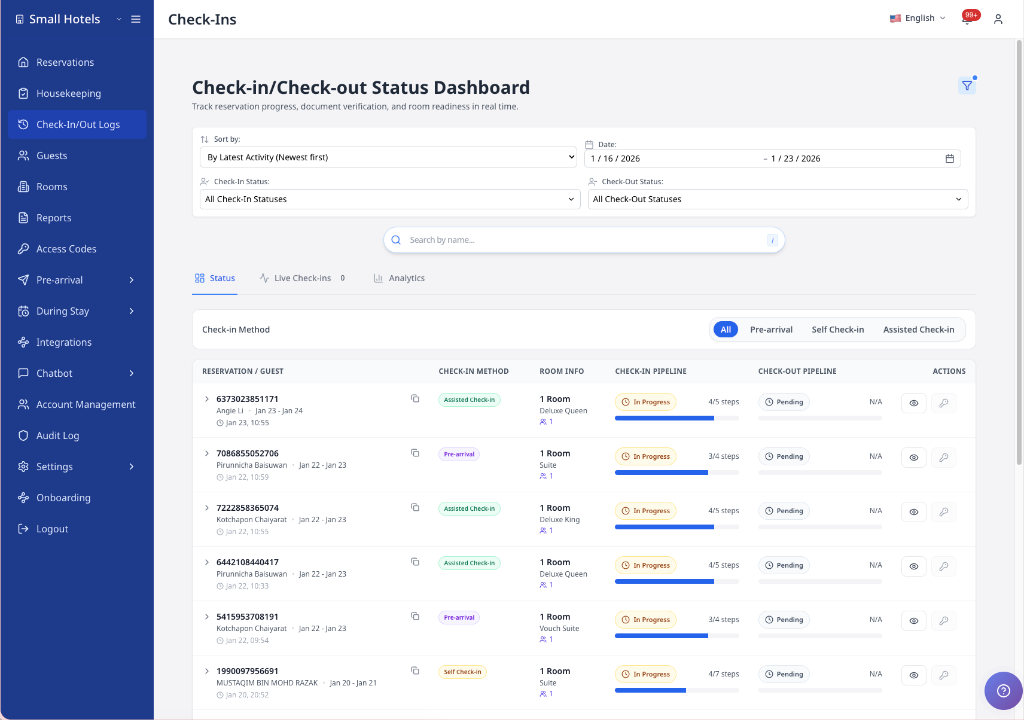
-
Command Center를 엽니다.
-
Status 탭을 유지합니다.
-
Check-in Method 또는 Check-out Method를 사용해 한 여정에 집중합니다.
-
예약 행(휴대폰에서는 카드)을 검토합니다.
✓ 각 예약에는 Check-in pipeline, Check-out pipeline, PMS attachment status, 여정 활동 시간 및 현재 상태가 표시됩니다.
✓ 휴대폰에서는 긴 상태 레이블이 필과 배지 안에서 줄바꿈됩니다.
Status 보기는 대시보드에서 사용 가능한 너비에 따라 레이아웃을 선택합니다. 작은 데스크톱 창에서는 사이드바와 페이지 여백으로 인해 이 너비가 줄어듭니다. 표를 읽을 수 있는 너비보다 좁아지면 AVA는 대신 예약 카드를 표시합니다. 이렇게 하면 사이드바가 열린 iPad에서도 열이 겹치지 않습니다. 더 넓은 화면에서는 표가 읽기 쉬운 최소 너비를 유지하며 대시보드 안에서 스크롤됩니다. 긴 객실 정보는 두 줄로 제한됩니다. 긴 게스트 이름은 줄임표와 함께 해당 열 안에 유지됩니다. 줄임표로 축약된 게스트 이름에 마우스를 올리면 전체 이름을 볼 수 있습니다. Check-in Method 필에는 Self 또는 Assisted가 표시됩니다. 체크아웃 활동이 있으면 Check-out Method 필에도 Self 또는 Assisted가 표시됩니다. 데스크톱에서는 각 방법이 별도의 파이프라인 열에 표시되고, 휴대폰에서는 해당 파이프라인 섹션 안에 표시됩니다. 필이나 객실 텍스트에 마우스를 올리면 전체 레이블을 볼 수 있습니다. 더 좁은 표 레이아웃에서는 별도의 Room Access 상태가 Check-in Pipeline 셀 안에서 줄바꿈됩니다. 인접한 Check-out Pipeline 상태 및 N/A와 겹치지 않도록 표시됩니다.
휴대폰에서는 Status 카드에 예약 코드 아래 숙박 날짜 범위가 표시됩니다. 이렇게 하면 도착일과 출발일을 한눈에 확인할 수 있습니다. Check-in Method 필터도 2열 레이아웃으로 전환되어 긴 레이블이 필터 영역 안에 유지됩니다. 모바일 카드에서 접힌 결제 요약에도 이제 데스크톱 행과 동일한 레이블이 표시됩니다. 예약을 펼치지 않고도 Pre-auth, Captured 및 Direct sale을 볼 수 있습니다.
-
예약 행을 선택해 게스트 목록을 펼칩니다.
-
휴대폰에서는 View guests로 펼치고 Hide guests로 접습니다.
✓ 게스트 행에는 체크인과 체크아웃 단계가 레일 형태로 표시됩니다.
프런트 데스크 체크인 메모 읽기
프런트 데스크에서 PMS로 공유 투숙객을 직접 체크인하면 Status에 녹색 Checked in at front desk 메모가 표시됩니다. 이 메모는 데스크톱과 모바일에서 해당 게스트의 체크인 단계 레일을 대신합니다. 메모에 마우스를 올리거나 포커스를 맞추면 설명을 읽을 수 있습니다. 툴팁에는 PMS 체크인이 완료되었으므로 해당 단계가 선택 사항이라고 표시됩니다. 이 게스트는 예약 체크인 진행 상황에 포함되지 않습니다. 따라서 AVA 체크인 단계 없이도 예약이 Completed 상태에 도달할 수 있습니다. 다른 게스트와 체크아웃 단계는 변경되지 않습니다.
하우스키핑 데이터를 사용할 수 있으면 Clean과 Vacant 같은 배지가 표시됩니다. 예약에 객실 번호가 없으면 AVA는 객실 상태 배지와 자리 표시자를 숨깁니다. 이렇게 하면 유효한 객실 번호가 있는 예약이 포함된 혼합 페이지도 계속 로드됩니다. 단일 객실 예약은 기본 행에 배지를 표시합니다. 다객실 숙박에서는 예약을 펼치면 게스트별 배지가 표시됩니다.
Command Center에서 운영 중지 객실 관리
Housekeeping을 열지 않고 Status에서 객실 운영 상태를 관리하세요.
하우스키핑 데이터를 사용할 수 있으면 PMS가 객실을 차단할 때 객실 배지에 Out of service가 포함됩니다. 권한이 있는 직원은 데스크톱 행과 휴대폰 카드에서 객실을 서비스 중지하거나 복구할 수 있습니다. 읽기 전용 직원은 배지를 볼 수 있지만 객실 상태를 변경할 수는 없습니다.
객실을 운영 중지로 설정하기
-
Command Center를 엽니다.
-
Status를 선택합니다.
-
객실이 있는 예약을 찾습니다.
-
데스크톱에서는 예약 행 또는 게스트 행에서 객실 배지를 찾습니다.
-
휴대폰에서는 예약 카드를 열고 객실 배지를 찾습니다.
-
Take out of service를 선택합니다.
-
Reason 및 Start date를 선택합니다.
-
필요한 경우 End date와 Notes를 추가합니다.
-
Take out of service를 선택합니다.
✓ 배지가 Out of service로 변경됩니다. ✓ 객실은 계속 표시되지만 차단된 날짜에는 직원이 배정할 수 없습니다.
객실을 운영 상태로 복구하기
-
Out of service 배지가 있는 객실을 찾습니다.
-
배지 옆의 Restore to service를 선택합니다.
-
확인 메시지를 검토합니다.
-
Restore to service를 선택합니다.
✓ PMS가 업데이트를 확인하면 배지가 In service로 변경됩니다. ✓ 겹치는 PMS 차단이 있으면 객실이 Out of service 상태로 유지될 수 있습니다.
이 작업은 PMS가 객실 운영 상태 업데이트를 지원하고 HOUSEKEEPING.WRITE 권한이 있는 경우에만 표시됩니다. 다른 직원도 Out of service 배지를 볼 수 있습니다.
일부 예약 그룹은 모든 객실에 대해 하나의 결제 요약을 표시합니다.
AVA는 고유한 객실 수준 결제 증거를 추가하고 합계가 누적되도록 유지합니다.
간결한 행에는 Pre-auth, Captured 및 Direct sale과 같은 결제 레이블이 표시됩니다.
저장된 AVA 결제 활동이 없으면 요약은 비어 있습니다.
통화가 충돌하면 AVA는 추측하지 않고 금액을 숨깁니다.
백엔드가 paymentSummary를 생략하면 AVA는 사용할 수 없음 표시를 보여 줍니다.
백엔드가 명시적인 결제 없음 증거만 보내면 AVA는 대신 해당 상태를 표시합니다.
거래 ID는 간결한 행에 표시되지 않습니다.
PMS가 신뢰할 수 있는 체크인/체크아웃 상태 동기화를 보고하면 AVA는 페이지의 예약 로그를 자동으로 동기화합니다. 페이지, 페이지당 행 수, 필터 또는 검색을 변경하면 다시 실행됩니다. 동기화 버튼을 클릭할 필요가 없습니다. AVA는 호텔 계정에 하나의 짧은 동기화 쿨다운을 적용합니다. 해당 쿨다운 중에 보기를 변경하면 AVA는 가장 최근에 선택한 항목만 유지하고 허용되는 시점에 동기화합니다. Status로 돌아가도 쿨다운이 유지되므로 탭을 전환해도 중복 요청이 생성되지 않습니다. PMS가 더 긴 대기 시간을 보내면 AVA는 해당 기한을 따릅니다. PMS 기능 응답이 없거나 오래된 경우 기능을 다시 사용할 수 있을 때까지 AVA는 이 백그라운드 동기화를 일시 중지합니다.
각 예약 행에는 해당 예약의 가장 최근 유효 활동이 표시됩니다. 게스트 셀에는 마지막 활동 시간이 하나로 합쳐져 표시됩니다. Check-in pipeline에는 가장 최근 체크인 활동 시간이 표시됩니다. Check-out pipeline에는 가장 최근 체크아웃 활동 시간이 표시됩니다. 각 파이프라인 시간은 해당 방법 배지 아래에 표시됩니다.
| 예약 활동 | 표시 내용 |
|---|---|
| 여정 활동 없음 | 해당 여정의 파이프라인에 시간 없음 |
| 체크인 활동 있음 | 체크인 방법 배지 아래에 가장 최근 체크인 시간 |
| 체크아웃 활동 있음 | 체크아웃 방법 배지 아래에 가장 최근 체크아웃 시간 |
| AVA 외부에서 체크인 후 AVA에서 체크아웃 | 체크아웃 시간만 표시 |
체크아웃 활동이 시작되기 전에는 체크인 시간이 게스트 셀의 마지막 활동 시간과 일치합니다. 시간 위에 마우스를 올리거나 키보드로 포커스를 맞추면 Last check-in activity 또는 Last check-out activity를 읽을 수 있습니다. 툴팁은 시간 옆에 열리므로 방법 배지를 가리지 않습니다. 스크린 리더에서도 동일한 문구를 사용할 수 있습니다. 데스크톱 행과 모바일 카드는 동일한 여정별 표시를 사용합니다. 각 게스트의 이름 아래에는 계속해서 하나로 합쳐진 마지막 활동 시간이 표시될 수 있습니다. 이 시간은 가장 최근의 유효한 여정 또는 단계 활동에서 가져옵니다. PMS가 예약 메타데이터를 새로 고쳤다는 이유만으로 변경되지는 않습니다. 단계가 실패하면 빨간색 오류 카드에 단계 이름과 메시지가 표시됩니다. 차단된 체크아웃 조회는 실패한 FETCH_CHECKOUT 활동으로 표시됩니다. PMS가 거부한 체크아웃은 실패한 Checkout 단계로 표시됩니다. 이 단계에는 미결제 folio 기간과 같은 PMS 사유가 포함됩니다. 잔액과 청구 사유를 검토하려면 View Details를 엽니다. 재시도에 성공하면 최신 체크아웃 조회에 성공 결과가 표시됩니다.
여행 서류, 게스트 사진 및 등록 카드는 로컬 저장 후에도 PMS 전달을 완료할 수 있습니다. 각 첨부 파일의 상태와 사용할 수 있는 Retry 작업을 검토하려면 View Details를 여세요. 자세한 내용은 PMS 첨부 파일 전달 검토를 참조하세요.
Check-in Method 레이블은 지원 예약에서 Assisted로 표시됩니다. 인식된 ACI 키오스크 조회의 경우 AVA는 예약 조회 시 구성된 플로를 저장합니다. 해당 레이블 옆에 ACI · 1 device 또는 ACI · 2 devices를 추가합니다. 이전 데이터에 기록된 기기 플로가 없으면 ACI · device flow not recorded를 추가합니다. 다객실 조회에서는 모든 객실이 동일하게 저장된 플로 스냅샷을 사용합니다. 데스크톱 표 행과 모바일 예약 카드에서 배지를 볼 수 있습니다. 이 배지로 어떤 지원 플로가 예약 활동을 생성했는지 확인하세요. 중립 배지는 과거 데이터가 누락되었음을 나타냅니다. 이는 1기기 또는 2기기 플로를 의미하지 않습니다. Self Check-In 예약에는 ACI 기기 배지가 표시되지 않습니다.
체크인 및 체크아웃 방법 배지 읽기
AVA는 각 여정의 방법을 별도로 기록합니다. 지원 체크아웃은 체크인 방법, 단계 또는 결제 배지를 변경하지 않습니다.
- Self는 해당 여정에서 게스트가 CCI를 사용했음을 의미합니다.
- Assisted는 해당 여정에서 직원이 ACI를 사용했음을 의미합니다.
- ACI · 1 device 또는 ACI · 2 devices는 지원 체크인에만 해당합니다.
- Kiosk: name은 해당 여정에 기록된 키오스크 또는 확인된 직원 기기를 식별합니다.
지원 체크아웃에는 Assisted와 확인된 키오스크 이름이 표시될 수 있습니다. ACI 기기 플로 배지는 체크인을 설명하는 배지이므로 지원 체크아웃에는 표시되지 않습니다. 방법이 기록되지 않은 이전 예약에는 체크아웃 방법이 표시되지 않을 수 있습니다.
유료 조기 체크인 식별하기
AVA는 Self 또는 Assisted 체크인 방법 옆에 주황색 Early check-in 태그를 표시합니다. 이 태그는 호텔에서 허용한 체크인 시간보다 일찍 객실 체크인이 완료되었음을 의미합니다. CCI가 조기 체크인 결과를 기록한 경우에만 표시됩니다. 유료 조기 체크인이 활성화되지 않은 호텔에는 이 태그가 표시되지 않습니다.
-
Command Center → Status를 엽니다.
-
예약 행을 찾거나 게스트 목록을 펼칩니다.
-
체크인 방법 옆에서 Early check-in을 찾습니다.
✓ 이 태그는 게스트가 승인된 조기 체크인 플로를 사용했음을 확인합니다.
게스트가 ACI로 체크인하고 CCI로 체크아웃할 수 있습니다. Check-in 및 Check-out 열을 각각 확인하세요. 이 정확한 조합이 필요하면 두 방법 필터를 모두 사용하세요.
가능한 경우 예약에는 캡처된 키오스크 또는 직원 별칭도 표시됩니다. 이 정보는 여정을 시작한 키오스크 또는 확인된 Check-in Connect 직원 기기를 식별합니다. 별칭은 감사 스냅샷이므로 나중에 기기 이름을 변경해도 바뀌지 않습니다. 기존 여정과 키오스크가 아닌 출처에는 별칭이 없을 수 있습니다. Opera 작업을 추적할 때는 예약 번호 및 타임스탬프와 함께 별칭을 사용하세요.
ID Scan이 비활성화되면 파이프라인에서 Document Upload와 Identity Verification이 사라집니다. AVA는 남은 필수 단계만 계산하므로 완료된 체크인에는 계속 Completed가 표시될 수 있습니다.
관련 얼굴 설정이 비활성화되어도 ID Scan이 켜져 있으면 Document Upload는 계속 표시됩니다. 해당 체크인 모드에서는 Identity Verification만 사라집니다. 완료된 체크인이 진행 중인 상태로 멈춘 것처럼 보이지 않습니다.
Enable Facial Verification for Assisted Check-In이 켜져 있으면 ACI 예약에 Facial Verification이 표시될 수 있습니다. 꺼져 있으면 해당 단계가 ACI에 필요하지 않은 것으로 표시됩니다.
예약에 객실 배정 증거가 있으면 ROOM_ASSIGNMENT가 CHECKIN 전에 표시될 수 있습니다. 이 배지는 AVA가 객실을 배정했다는 뜻이지 게스트가 체크인을 완료했다는 뜻은 아닙니다. Room Access는 게스트가 나머지 플로를 완료한 후에 계속 표시됩니다.
일부 완료된 체크인에는 결제 단계 없이 Completed가 표시됩니다. 실제 결제 증거가 없으면 AVA는 체크인 결제 배지를 생략합니다. 이는 완료된 도착 전, 셀프 체크인, 지원 체크인 및 기존 여정에 적용됩니다. AVA가 결제 시도를 기록했다면 결제 단계가 계속 표시됩니다.
일부 체크아웃은 View Bill 또는 결제 단계 없이 완료됩니다. 청구가 필요하지 않았거나 청구서 조회/결제 증거가 없을 때 발생합니다. 이 경우에도 AVA는 체크아웃을 Completed로 표시할 수 있습니다. AVA가 실제 View Bill 또는 체크아웃 결제 시도를 기록했다면 해당 단계가 계속 표시됩니다. PMS가 최종 체크아웃을 거부하면 Checkout 단계가 사유와 함께 Failed 상태로 계속 표시됩니다. 시도가 반복되면 가장 최근의 성공 또는 실패 증거가 적용됩니다. 체크아웃 결제 증거는 객실 결제 증거와 별개입니다. Room Payment 배지는 체크인 객실 결제 또는 pre-auth 증거만 반영합니다. Room Payment 배지를 판단할 때 체크아웃 결제 기록을 사용하지 마세요.
-
PMS가 청구 검토를 지원하면 View Guest Bill을 선택해 요금을 검토합니다.
✓ Guest Bill 패널이 합계 및 청구 항목과 함께 열립니다.
PMS 통합에서 청구 지원을 보고하면 View Guest Bill이 표시됩니다. 현재 Opera가 이 기능을 보고합니다.
휴대폰에서는 작업 행이 각 카드 아래에 표시됩니다. 작은 화면에서는 버튼이 두 번째 줄로 넘어갈 수 있습니다. 그곳에서 View Details 또는 View Guest Bill을 사용하세요.
사용 가능한 작업

각 예약 행에서는 일반적인 작업에 빠르게 액세스할 수 있습니다.
- View Details(눈 아이콘) - 전체 예약 세부 정보 열기
- View reservation(침대 아이콘) - 정확한 객실의 예약 열기
- Edit(연필 아이콘) - PMS가 편집을 지원하는 경우 예약 정보 수정
- View Guest Bill(달러 아이콘) - PMS가 청구를 지원하는 경우 요금 검토
- 실패한 단계 배지 - 지원 통화가 연결된 동안 Travel Document, Guest Registration, Facial Verification, Deposit 및 Room Payment의 재정의 모달 열기
- Search/Filter(돋보기 아이콘) - 추가 옵션
PMS에서 이러한 기능을 보고하면 여기에 Edit 및 View Guest Bill이 표시됩니다. 표시되지 않으면 페이지를 새로 고치고 PMS가 연결되어 있는지 확인하세요.
정확한 객실 예약 열기
View reservation을 사용하여 Command Center 로그에 연결된 예약을 엽니다. 단일 객실 예약은 PMS가 아직 객실을 배정하지 않은 경우에도 열립니다. 다객실 예약에서는 필요한 특정 객실을 선택합니다.
-
Command Center를 열고 Status를 유지합니다.
-
예약 그룹 또는 객실 행을 찾습니다.
-
View reservation을 선택합니다.
- 단일 객실 행에서는 AVA가 해당 객실의 예약을 엽니다.
- 배정되지 않은 단일 객실 예약도 예약을 열 수 있습니다.
- 객실 행에서는 버튼에 **View reservation for room [room number]**가 표시됩니다.
- 접힌 다객실 데스크톱 그룹에서는 먼저 버튼을 선택해 그룹을 펼칩니다.
-
휴대폰에서는 View guests를 선택해 다객실 카드를 펼칩니다.
-
필요한 객실 옆의 View reservation을 선택합니다.
✓ 선택한 객실에 대해 기존 Reservation Details 모달이 열립니다.
AVA는 객실 배정으로 모호성이 발생하지 않는 경우 단일 객실 예약을 직접 확인합니다. 다객실 예약에서는 AVA가 연결된 체크인 기록과 선택한 객실을 사용합니다. 모호한 그룹에서 추측하여 첫 번째 예약을 열지 않습니다. 이 작업을 사용하려면 RESERVATION.READ 권한이 필요합니다.
빠른 요청에서는 모달이 즉시 열립니다. 느린 요청에서는 대화상자가 표시되기 전에 버튼에 로딩 상태가 표시됩니다. 같은 버튼을 다시 선택해도 요청이 다시 시작되지 않습니다. 다른 객실을 선택하면 이전 요청이 취소되고 새 대상이 로드됩니다.
실패한 단계 재정의
약 2분 정도 걸립니다. 게스트가 실패한 단계를 직원이 차단 해제해야 할 때 사용하세요.
Status 탭은 실패했거나 대기 중인 단계의 재정의 모달을 엽니다. AVA는 각 재정의를 사유와 함께 기록합니다. 호출자 위젯에 Connected가 표시되는 동안에만 이 배지를 클릭할 수 있습니다.
| 배지 | 모달 제목 | 최종 버튼 |
|---|---|---|
| Travel Document | Travel Document Override | Apply Override |
| Guest Registration | Guest Registration Override | Apply Override |
| Facial Verification | Facial Verification Override | Apply Override |
| Deposit | Deposit Payment Override | Mark deposit as paid |
| Room Payment | Room Payment Override | Mark room payment as paid |
Guest Registration에는 완료된 문서 업로드가 필요합니다. Facial Verification에는 완료된 등록 카드가 필요합니다.
ACI에서 얼굴 확인이 실패하면 활성 직원 체크인 기기를 사용하세요. ACI 기기 재정의는 Command Center 재정의 작업과 별개입니다.
실패했거나 대기 중인 배지만 재정의 모달을 열 수 있습니다. 배지에는 활성 상태로 연결된 지원 통화도 필요합니다. Deposit 및 Room Payment 재정의는 기본 게스트에게만 적용됩니다.
-
Command Center를 열고 Status에 그대로 둡니다.
-
실패한 배지가 있는 예약 또는 게스트 행을 찾습니다.
-
데스크톱에서는 배지를 클릭하고 모바일에서는 탭합니다.
-
재정의 모달을 검토합니다.
-
Override reason을 입력합니다.
-
최종 작업 버튼을 선택합니다.
✓ 재정의가 저장되면 배지가 완료 상태로 변경됩니다. ✓ 관련 이벤트가 Detailed Event Log에 표시됩니다.
재정의 배지를 클릭할 수 없음
표시되는 내용: 배지를 선택해도 모달이 열리지 않습니다.
해결 방법:
- 단계가 FAILED 또는 PENDING인지 확인합니다.
- 호출자 위젯에 Connected가 표시되는지 확인합니다.
- 결제 재정의인 경우 게스트가 기본 게스트인지 확인합니다.
- Status를 새로 고치고 다시 시도합니다.
완료된 단계가 대기 중으로 표시됨
표시되는 내용: 이전에 완료로 표시된 게스트 단계가 Pending으로 표시됩니다.
해결 방법:
- Command Center → Status를 새로 고칩니다.
- 예약을 열고 게스트 행을 검토합니다.
- 게스트에게 현재 실패했거나 진행 중인 시도가 있는지 확인합니다.
- 현재 시도가 없으면 예약 세부 정보를 다시 새로 고칩니다.
- 저장된 완료 상태인데도 단계가 계속 대기 중이면 지원팀에 문의합니다.
✓ 저장된 완료 상태는 이전 활동이 대시보드 이력에서 사라진 후에도 완료 상태로 유지되어야 합니다.
예약 세부 정보 편집(지원되는 경우)
-
Status 탭에 그대로 두고 예약 행을 펼칩니다.
-
Edit를 선택합니다.
-
First Name, Last Name을 업데이트하거나 객실을 교체합니다.
-
Room Type을 사용해 객실 목록을 필터링합니다.
-
모든 객실 유형을 표시하려면 All을 선택합니다.
-
Save Changes를 클릭합니다.
✓ 업데이트는 예약의 main confirmation number에 적용됩니다.
기본적으로 객실 선택기에는 상태가 Clean 또는 Inspected인 Vacant 객실이 표시됩니다. Room type 필터는 예약의 객실 유형으로 시작합니다. 기본값으로 돌아가려면 Clear를 클릭합니다.
예약에 확인 번호가 둘 이상 있으면 요약에 표시된 기본 번호에 편집 내용이 저장됩니다.
다른 예약의 Check-out 날짜가 더 늦으면 객실 교체가 차단됩니다. Do Not Move 잠금이 설정되어 있어도 이를 해제할 때까지 교체가 차단됩니다. 객실에는 "This reservation can’t be swapped because the departure date doesn’t match the other reservation."이라는 ❌ 아이콘과 메시지가 표시됩니다. 다른 객실을 선택하거나 PMS에서 숙박 날짜를 업데이트하세요.
상태 표시기 이해하기
- Completed는 현재 설정에 필요한 모든 체크인 단계가 완료되었음을 의미합니다.
- In Progress는 게스트가 진행 중임을 의미합니다.
- Pending는 필요한 단계가 아직 하나도 완료되지 않았음을 의미합니다.
- Partial은 한 게스트가 단계를 완료했지만 다른 게스트는 아직 대기 중임을 의미합니다.
- Stalled는 하나 이상의 단계가 실패했음을 의미합니다.
게스트가 Check In Another Guest를 선택한 후 객실에서 이미 사용된 문서를 스캔하면 AVA는 해당 실패를 별도로 유지합니다. 주 게스트의 성공한 문서 단계는 성공 상태로 유지되므로 이 스캔으로 인해 잘못된 Stalled 상태가 생성되지 않습니다.
부분 예약 진행 상황 이해하기
Command Center는 예약에 포함된 게스트 전체에서 각 체크인 단계를 평가합니다.
| 표시되는 내용 | 의미 |
|---|---|
| 단계에 Partial 표시 | 한 게스트는 단계를 완료했지만 다른 게스트에게는 아직 필요합니다. |
| 단계 배지가 황색으로 표시 | 단계가 부분적으로 완료되었으므로 아직 대기 중인 게스트를 계속 진행합니다. |
배지 툴팁에 1 of 2 guests completed 표시 | 두 게스트 중 한 명이 해당 단계를 완료했습니다. |
| 전체 파이프라인에 In Progress 표시 | 모든 게스트가 완료한 단계는 없지만 진행이 시작되었습니다. |
| 단계에 Stalled 표시 | 실패가 대기 중 또는 부분 진행보다 우선합니다. |
단계 배지에 마우스를 올리거나 포커스를 두면 상태와 완료한 게스트 수를 확인할 수 있습니다. 게스트에게 적용되지 않는 단계는 수에서 제외됩니다.
결제 및 보증금 상태는 기본 게스트의 결과를 계속 사용합니다. 이러한 공유 단계에는 게스트 수가 표시되지 않습니다. 체크아웃 상태는 현재 체크아웃 여정을 사용합니다. 완료된 체크인 상태나 사유를 상속하지 않습니다. 새 체크아웃 시도는 In Progress로 시작한 다음 자체 완료 또는 실패를 반영합니다.
최근 이벤트 이력에 성공 이벤트가 더 이상 포함되지 않아도 AVA는 저장된 완료 상태를 유지합니다. 이는 문서 업로드, 게스트 등록, 등록 카드 및 얼굴 확인 단계에 적용됩니다. 현재 시도가 실패 중이거나 아직 진행 중이면 현재 상태가 우선합니다.
게스트별 도착 배지 읽기
예약을 펼쳐 각 게스트의 도착 진행 상황을 검토합니다. AVA는 일치하는 도착 증거가 있는 게스트에게 체크인 및 객실 액세스 배지를 연결합니다.
| 표시되는 내용 | 의미 |
|---|---|
| 도착 기록이 없는 게스트에 Pending 표시 | 해당 게스트의 도착 완료 기록이 없습니다. |
| 부분 체크인 후 한 게스트에 Completed 표시 | 성공한 게스트는 완료 상태를 유지합니다. |
| 나중에 도착한 게스트에게 별도의 키 배지 표시 | 키 이벤트는 나중에 도착한 게스트에 속합니다. |
| 같은 객실을 공유하는 게스트가 Completed로 변경됨 | AVA가 동일한 객실 공유에 대해 확인된 도착을 조정했습니다. |
| 관련 없는 동반 게스트가 계속 대기 중 | 해당 게스트는 같은 객실 공유에 속하지 않거나 확인된 도착이 없습니다. |
개별 도착 증거가 없는 기존 기록은 기존 배지 연결을 유지합니다. 새 활동은 AVA에서 사용할 수 있는 게스트 ID, 도착 결정 또는 도착 타임스탬프를 사용합니다. Opera 객실 공유의 경우 AVA는 확인된 개별 도착만 전파합니다. 객실 전체에 적용되는 기존 체크인 플래그만으로는 전파하지 않습니다.
도착 배지가 잘못 표시됨
표시되는 내용: 게스트 배지가 실제 도착한 게스트와 일치하지 않습니다.
해결 방법:
- Command Center → Status를 새로 고칩니다.
- 예약을 펼치고 각 게스트 행을 검토합니다.
- View Details를 열고 Detailed Event Log의 타임스탬프를 확인합니다.
- 도착 결정 또는 체크인 이벤트가 예상한 게스트에 속하는지 확인합니다.
- 새 이벤트가 계속 잘못된 게스트에 연결되어 있으면 지원팀에 문의합니다.
성공적으로 키가 전달된 후에도 Room Access가 대기 중임
표시되는 내용: 키 인코딩 또는 검색에는 성공했지만 Room Access가 계속 Pending으로 표시됩니다.
해결 방법:
-
Command Center → Status를 새로 고칩니다.
-
예약에서 View Details를 엽니다.
-
키 이벤트 전에 성공한 CHECKIN 이벤트가 표시되는지 확인합니다.
-
예약 세부 정보를 다시 새로 고칩니다.
✓ AVA가 확인된 체크인 완료 시간을 사용하고 Room Access를 성공으로 표시해야 합니다.
이 상태를 수정하기 위해 저장된 등록 카드 시간을 변경하지 마세요. 성공한 이벤트가 표시된 후에도 상태가 계속 대기 중이면 지원팀에 문의합니다.
Room Access를 별도로 읽기
AVA 관리형 전달이 구성되어 있으면 Room Access는 필수 체크인 단계입니다. 여기에는 스마트 잠금장치, 보관함 및 구성된 비수동 키카드 전달이 포함됩니다. 아무도 인코딩을 시도하기 전에는 AVA에 Pending이 표시될 수 있습니다.
| Room Access 상태 | 의미 | 수행할 작업 |
|---|---|---|
| Pending | 아직 성공한 전달이 기록되지 않음 | 체크인을 완료하기 전에 객실 액세스 완료 |
| Failed | 최신 액세스 시도 실패 | View Details를 열고 체크인 완료 전에 재시도 |
| Success | AVA가 성공한 객실 액세스를 기록함 | 게스트에게 액세스 정보 또는 키 제공 |
필수 Room Access가 Pending 또는 Failed이면 체크인 행에 미완료 진행 상황이 표시됩니다. 전달이 수동이거나 사용할 수 없으면 별도의 Room Access 증거와 함께 체크인에 Completed가 표시될 수 있습니다. 구성을 가져올 수 없으면 기록된 Room Access 증거는 표시 전용입니다.
조기 체크인이 승인되면 AVA는 성공한 체크인 완료 시간을 사용합니다. 이 시간 정보는 이후 키 인코딩 또는 검색 이벤트를 완료된 도착에 연결합니다. AVA는 저장된 등록 카드 시간을 다시 쓰지 않습니다.
AVA가 객실 액세스 구성을 가져올 수 없어도 기존 Room Access 증거는 계속 표시됩니다. 구성을 다시 사용할 수 있을 때까지 표시 전용으로 취급하세요.
Room Assignment는 AVA가 배정 결과를 기록한 경우에만 성공합니다. PMS에서 이미 제공한 객실 번호만으로는 AVA가 객실을 배정했다는 증거가 되지 않습니다. 따라서 CCI 및 ACI 행에 PMS 객실 번호와 함께 Room Assignment: Pending이 표시될 수 있습니다.
일부 체크아웃에는 이제 결제 단계 없이 Completed가 표시됩니다. 이는 체크아웃 결제가 적용되지 않았거나 결제가 기록되지 않았다는 뜻입니다. 잔액이 0이거나 결제가 없는 체크아웃에서는 정상적인 동작입니다.
직접 판매 수금이 비활성화되어 있어도 완료된 객실 또는 통합 사전 승인은 SUCCESS로 표시될 수 있습니다. AVA는 현재 가맹점 설정이 아니라 저장된 완료 상태를 사용하므로 배지는 완료된 결제 결과를 반영합니다.
필요하지 않은 단계는 숨겨집니다. 예를 들어 비활성화된 ACI 얼굴 확인이나 도착 전 Room Access가 있습니다.
예약 세부 정보 열기
-
Command Center를 열고 Status에 그대로 둡니다.
-
검토할 예약에서 View Details를 선택합니다.
- 무료 플랜에서는 최신 로그 20개 중에서 예약을 선택합니다.
-
예약에 객실이 여러 개 있으면 객실 탭을 선택합니다.
✓ Reservation Details 패널에 Reservation Summary, Guest Information 및 Detailed Event Log가 열립니다.
무료 플랜 계정은 최신 로그 20개에 대해서만 세부 정보를 열 수 있습니다. 최근 예약을 열거나 Settings → Billing & Subscription에서 카드를 추가하세요.
문서 경고, 등록 카드 생성 및 이벤트 로그 팁은 Reservation Details를 참조하세요.
일부 예약의 Reservation Details 안에는 Reset Check-in Flow가 표시됩니다. 경고 및 재설정 단계는 Reset a Check-In Flow를 참조하세요.
객실이 배정되지 않으면 View Details가 비활성화됩니다. 예약을 펼치고 PMS에서 객실을 확인하세요.
객실 액세스 관리(활성화된 경우)
시설에서 키카드, 스마트 잠금장치 또는 보관함을 사용하는 경우:
-
View guests로 예약을 펼칩니다(또는 행을 선택합니다).
-
작업 행에서 해당 게스트 또는 객실의 Manage PIN, Encode Key 또는 Manage Locker Code를 선택합니다.
✓ 해당 게스트 또는 객실의 객실 액세스 모달이 열립니다.
게스트 행에서 Encode Key를 클릭하면 AVA는 먼저 해당 행의 확인 번호를 사용합니다. 이렇게 하면 키 인코딩이 올바른 객실에 적용됩니다.
분석 검토
-
Analytics 탭을 선택합니다(유료 플랜 전용).
-
Pre-Arrival, Check-In 또는 Check-Out을 선택합니다.
-
Check-In에 있는 경우 All Check-Ins, Early Check-In, Pre-Registration 또는 Full Check-In 하위 탭을 사용합니다.
-
요약 카드, 퍼널 이탈 및 최근 문제를 검토합니다.
✓ 지표는 페이지 상단의 날짜 범위에 따라 업데이트됩니다. ✓ 일부 체크인 보기에는 Completion Rate 다음에 Eligible Check-In Units 및 AVA Check-In Share도 표시됩니다.
각 지표의 계산 방법은 Command Center Analytics 이해하기를 참조하세요.
문제 해결
로그가 표시되지 않음
표시되는 내용: 목록이 비어 있거나 "No Check-In/Out Logs Found"가 표시됩니다.
해결 방법:
- Clear Dates를 클릭해 날짜 범위를 초기화합니다.
- Check-In Status 또는 Check-Out Status 필터를 제거합니다.
- 더 넓은 검색어(게스트 성 또는 확인 번호)를 사용합니다.
Status가 너무 오래 걸리거나 시간 초과됨
표시되는 내용: Status가 계속 로드되거나 시간 초과가 표시되거나, 넓은 날짜 범위에서 행이 반환되지 않습니다.
해결 방법:
-
필터를 변경하기 전에 현재 요청이 완료될 때까지 기다립니다.
-
사용하지 않는 Status 필터, 특히 Handled by 및 상태 필터를 지웁니다.
-
Date 범위를 필요한 날짜로 좁힙니다.
-
Command Center를 새로 고친 후 같은 검색을 다시 시도합니다.
✓ 선택한 날짜 및 활동 필터는 반환되는 행, 그룹, 요약, 내보내기 및 필터 선택 항목을 제어합니다. ✓ 범위를 좁힌 후에도 요청 시간이 초과되면 지원팀에 문의합니다.
이전 Live 링크가 Status를 엶
표시되는 내용: 저장된 링크 또는 이전 알림에 tab=live가 포함되어 있습니다.
해결 방법:
-
링크를 엽니다.
-
Status에서 계속합니다.
-
Search, Date 및 상태 필터를 사용해 예약을 찾습니다.
✓ AVA는 사용 중단된 Live 목적지를 Status로 대체합니다. ✓ 새 체크인 및 객실 액세스 준비 알림도 Status를 엽니다.
필터를 변경한 후에도 이전 결과가 남아 있음
표시되는 내용: 필터를 변경한 후에도 이전 예약이 계속 표시됩니다.
해결 방법:
-
교체 요청이 완료될 때까지 기다립니다.
-
새 필터 값이 계속 선택되어 있는지 확인합니다.
-
로딩이 끝난 후에도 이전 행이 남아 있으면 Command Center를 새로 고칩니다.
✓ AVA는 1페이지부터 새 결과를 표시합니다.
Status가 자동 동기화되지 않음
표시되는 내용: Status가 체크인 또는 체크아웃 상태를 자동으로 새로 고치지 않습니다.
발생 이유: AVA가 PMS에서 신뢰할 수 있는 상태 업데이트를 제공하는지 확인할 수 없습니다. 기능 데이터가 없거나 오래되면 백그라운드 조정을 일시 중지합니다.
해결 방법:
-
Settings → Essentials → PMS Integration에서 PMS 연결이 Connected로 표시되는지 확인합니다.
-
Command Center를 새로 고칩니다.
-
Status 페이지 또는 페이지당 행 수를 변경한 후 몇 초 기다립니다.
-
PMS가 연결되어 있는데도 자동 동기화가 계속 일시 중지되면 지원팀에 문의합니다.
✓ PMS 이름, 호텔 및 문제가 발생한 시간을 포함하세요.
Status 열이 겹침
표시되는 내용: Status 표에서 텍스트 또는 상태 배지가 겹칩니다.
해결 방법:
- Command Center를 새로 고칩니다.
- 좁은 데스크톱 창에서 표를 사용해야 하면 사이드바를 닫습니다.
- 대시보드가 좁으면 AVA가 표시하는 예약 카드를 사용합니다.
- 표 레이아웃이 필요하면 브라우저 창을 넓힙니다.
- 새로 고친 후에도 열이 계속 겹치면 지원팀에 문의합니다.
View Details가 비활성화됨
표시되는 내용: View Details 버튼이 회색으로 표시됩니다.
해결 방법:
- 무료 플랜이면 최신 로그 20개에서 예약을 엽니다. 이전 이력을 보려면 업그레이드하세요.
- 유료 플랜이면 View guests로 예약을 펼칩니다.
- 객실 번호가 배정되었는지 확인합니다.
- 객실이 없으면 PMS에서 예약을 확인합니다.
View reservation을 사용할 수 없음
표시되는 내용: 작업에 사용할 수 없음, 권한 없음 또는 로드 실패 메시지가 표시됩니다.
해결 방법:
- 의도한 객실 행을 선택했는지 확인합니다.
- 다객실 그룹의 경우 그룹을 펼치고 객실별 작업을 선택합니다.
- 계정에 RESERVATION.READ 권한이 있는지 확인합니다.
- 객실과 권한을 확인한 후 Try again을 선택합니다.
- 객실 또는 게스트 데이터가 최근에 변경되었다면 Command Center를 새로 고칩니다.
배정되지 않은 단일 객실 예약은 계속 예약을 열 수 있어야 합니다. 계속 사용할 수 없으면 권한을 확인하고 로그를 새로 고칩니다. 다객실 예약에서 정확한 객실 하나를 식별할 수 없으면 AVA는 작업을 안전하게 닫습니다. 다른 객실의 예약을 열지 않습니다.
체크아웃 후에도 View Bill이 대기 중임
표시되는 내용: 완료 후에도 체크아웃 파이프라인에 View Bill이 표시됩니다.
해결 방법:
- Status를 새로 고칩니다.
- 예약에서 View Details를 엽니다.
- 이벤트 로그에서 최신 타임스탬프를 비교합니다.
- 최신 성공 또는 실패 증거를 기준으로 판단합니다.
- 대시보드가 이벤트 로그와 계속 다르면 지원팀에 문의합니다.
게스트 청구서가 로드되지 않음
표시되는 내용: 청구서 패널이 비어 있거나 항목이 표시되지 않습니다.
해결 방법:
- 페이지를 새로 고치고 View Guest Bill을 다시 엽니다.
- PMS에 요금이 게시되었는지 확인합니다.
- 다른 예약에서 청구서가 로드되는지 확인합니다.
저장 후 편집 내용이 표시되지 않음
표시되는 내용: Save Changes 후 게스트 이름 또는 객실이 업데이트되지 않습니다.
해결 방법:
- 페이지를 새로 고치고 Edit를 다시 엽니다.
- 예약에 올바른 main confirmation number가 표시되는지 확인합니다.
- PMS 동기화에 1~2분 기다린 후 다시 새로 고칩니다.
객실 목록에 객실이 누락됨
표시되는 내용: 객실 목록이 너무 짧거나 한 객실 유형만 표시됩니다.
해결 방법:
- 편집 모달에서 Room Type을 엽니다.
- 필터를 제거하려면 All을 선택합니다.
- 목록이 새로 고쳐질 때까지 기다립니다.
다객실 숙박에서 Encode Key가 다른 객실을 엶
표시되는 내용: 한 객실의 Encode Key를 클릭했지만 다른 객실이 열립니다.
해결 방법:
- 예약을 펼치고 정확한 게스트 행에서 Encode Key를 클릭합니다.
- 행에 예상한 Room Number와 확인 번호가 표시되는지 확인합니다.
- Command Center를 새로 고치고 다시 시도합니다.
- 계속 잘못된 객실이 열리면 지원팀에 문의합니다.
Edit 또는 View Guest Bill이 누락됨
표시되는 내용: 예약 행에 Edit 또는 View Guest Bill이 표시되지 않습니다.
해결 방법:
- Settings → Essentials → PMS Integration으로 이동합니다.
- PMS가 Connected로 표시되는지 확인합니다.
- Command Center를 새로 고치고 다시 확인합니다.
- 관리자에게 PMS가 예약 편집 및 청구 지원을 보고하는지 확인해 달라고 요청합니다.
- PMS가 연결되어 있는데도 작업이 없으면 지원팀에 문의합니다.
Command Center에 PMS 복구 카드가 표시됨
표시되는 내용: Open PMS settings, 설정 메시지 또는 저장된 PMS 자격 증명이 거부되었다는 메모가 표시됩니다.
해결 방법:
- 복구 카드에서 PMS settings를 엽니다.
- 활성 PMS가 올바른지 확인합니다.
- 누락된 자격 증명을 추가하거나 거부된 자격 증명을 업데이트합니다.
- 변경 사항을 저장합니다.
- Command Center로 돌아가 페이지를 새로 고칩니다.
Command Center가 구성을 확인할 수 없음
표시되는 내용: Configuration is temporarily unavailable가 표시됩니다.
발생 이유: AVA가 호텔의 전체 구성을 가져오지 못했습니다. 액세스 권한 누락 또는 일시적인 구성 서비스 중단을 의미할 수 있습니다. PMS 설정이 완료되지 않았다는 뜻은 아닙니다.
해결 방법:
-
Command Center를 한 번 새로 고칩니다.
-
메시지가 표시되면 다시 로그인합니다.
-
관리자에게 호텔 구성에 대한 액세스 권한을 확인해 달라고 요청합니다.
-
구성 서비스를 사용할 수 없다는 메시지가 표시되면 나중에 다시 시도합니다.
-
알림이 계속 표시되면 지원팀에 문의합니다.
✓ AVA가 전체 구성을 가져오면 Command Center가 로드됩니다.
서비스 중지 배지가 누락됨
표시되는 내용: 객실에 Out of service 또는 객실 상태 배지가 없습니다.
해결 방법:
- 예약에 객실 번호가 있는지 확인합니다.
- Command Center를 새로 고칩니다.
- 하우스키핑 데이터 로드가 완료될 때까지 기다립니다.
- Housekeeping을 열고 해당 객실을 확인합니다.
- 관리자에게 Settings → Essentials → PMS Integration을 확인해 달라고 요청합니다.
하나의 하우스키핑 조회가 실패해도 AVA는 유효한 객실 데이터를 계속 표시합니다.
영향을 받은 객실에는 다음에 성공적으로 새로 고칠 때까지 —가 표시될 수 있습니다.
서비스 중지 작업이 누락됨
표시되는 내용: 객실 배지는 표시되지만 Take out of service 또는 Restore to service가 표시되지 않습니다.
해결 방법:
- 관리자에게 PMS가 객실 서비스 상태 업데이트를 지원하는지 확인해 달라고 요청합니다.
- 필요한 경우 관리자에게 HOUSEKEEPING.WRITE 권한을 부여해 달라고 요청합니다.
- 권한이 변경된 후 Command Center를 새로 고칩니다.
읽기 전용 직원은 변경 작업 없이 객실 상태를 볼 수 있습니다.
서비스 중지 업데이트 실패
표시되는 내용: Take out of service 또는 Restore to service를 선택한 후 AVA에 오류가 표시됩니다.
해결 방법:
- Command Center를 새로 고칩니다.
- Housekeeping에서 객실의 현재 상태를 확인합니다.
- PMS 연결이 활성 상태인지 확인합니다.
- 작업을 다시 시도합니다.
- PMS 상태가 변경되지 않으면 지원팀에 문의합니다.
여전히 해결되지 않나요?
다음과 같은 경우 success@vouch-technologies.com으로 문의하세요.
- ❌ 새로 고친 후에도 로그가 로드되지 않음
- ❌ 예약 세부 정보가 열리지 않음
- ❌ 새 알림이 잘못된 호텔 또는 예약을 엶
포함하면 좋은 정보:
- 확인 번호 또는 객실 번호
- 문제가 발생한 시간
- Logs 페이지의 스크린샷